Help Center • Tenants • Leasing & Screening
Compare rental listings
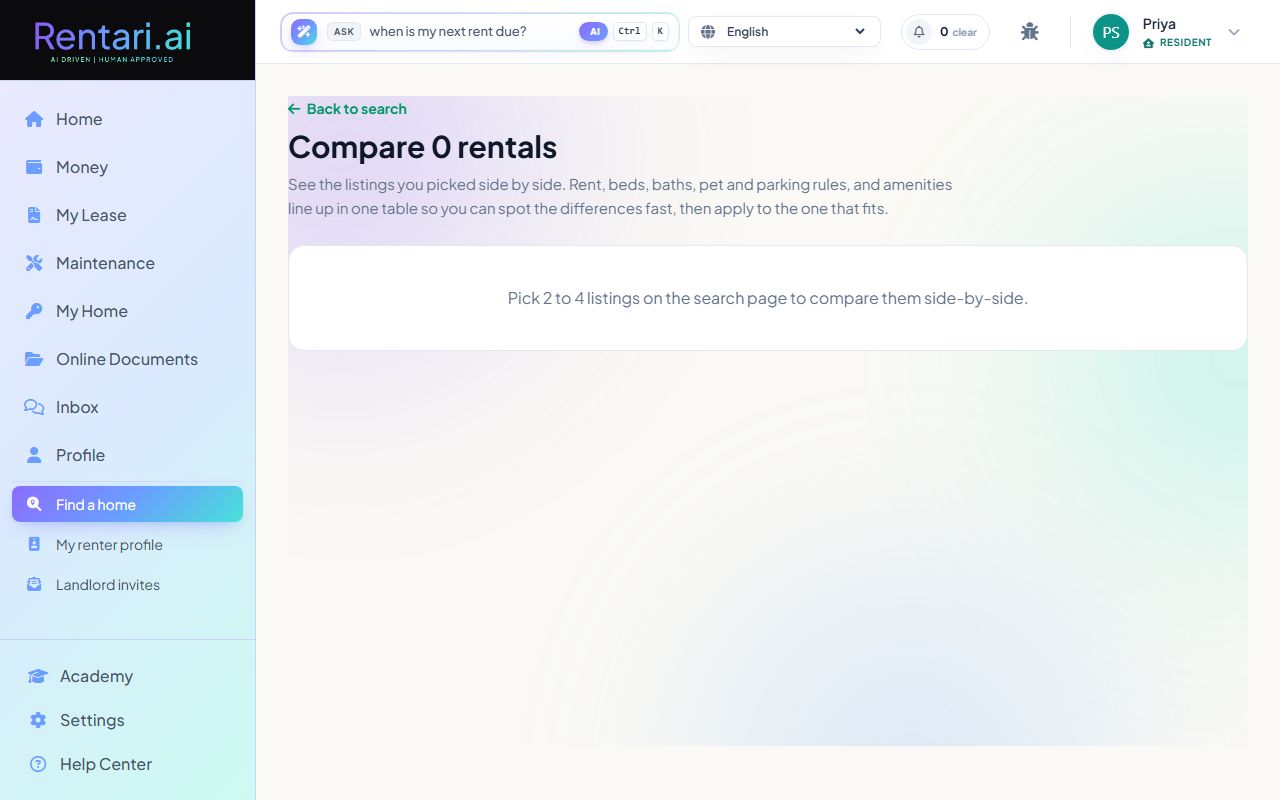
Place 2 to 4 saved listings side by side to compare rent, bedrooms, amenities, parking, and pet rules at a glance.
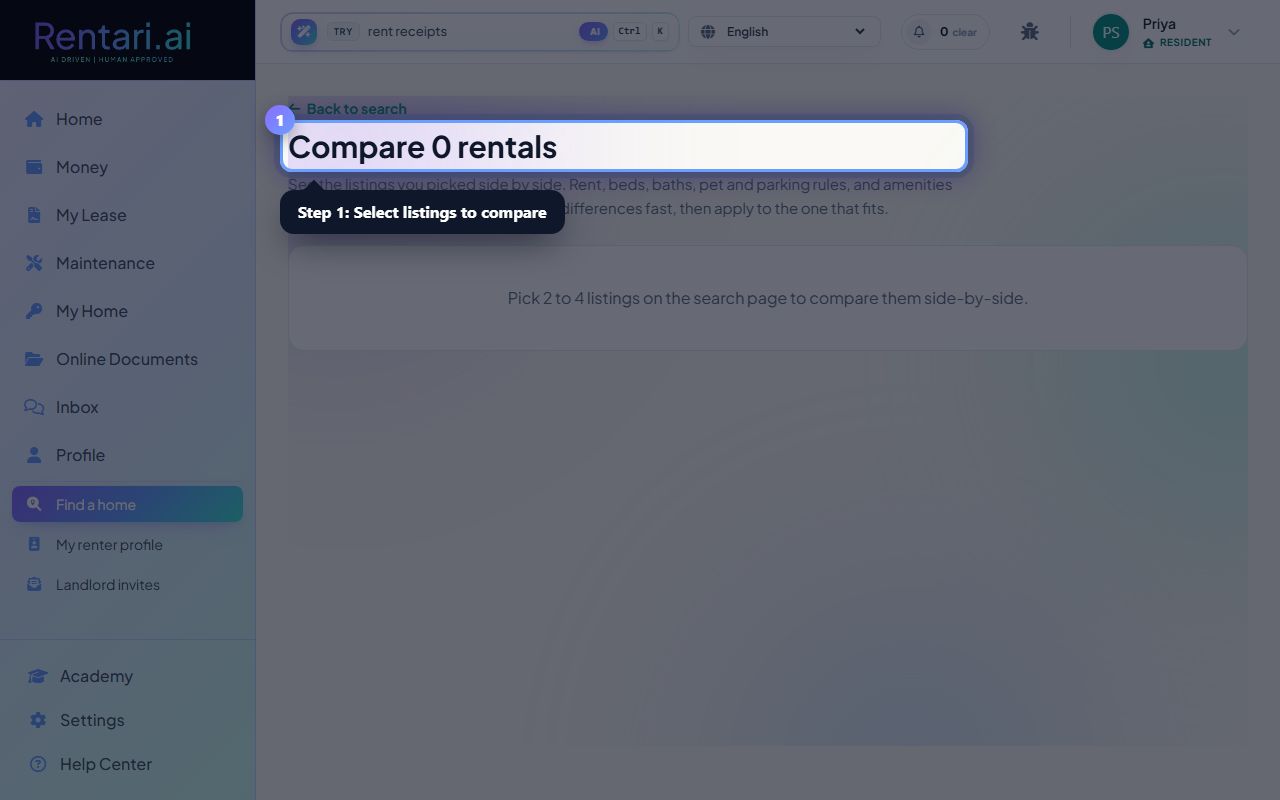
Select listings to compare from the search page
Action: On the search results page, check the 'Compare' checkbox on 2 to 4 listings you want to evaluate. A link to the comparison table will appear at the bottom. Click it or navigate directly to compare.
You can compare up to 4 listings at once. If a listing is no longer available, it shows a grayed-out state in the comparison table.
Review the comparison table
Action: The table shows each listing in a column with rows for verified status, beds, baths, sqft, year built, pets, parking, laundry, and amenities. Unavailable listings show '--' in their column.
Checkmarks mean yes, X marks mean no, and '--' means the information is not available. Amenities appear as small tags so you can spot which homes have extras like a gym or pool.
Apply to your top choice
Action: Click the 'Apply' button at the bottom of any listing column to open that unit's detail page and start the application. If a listing is unavailable, the button shows 'Unavailable' instead.
You can apply to multiple listings from the same page to keep your options open during the screening process.