Help Center • Landlords • Account & Settings
Invite team members and set roles
Add leasing agents, maintenance coordinators, and co-owners with role-based access levels.
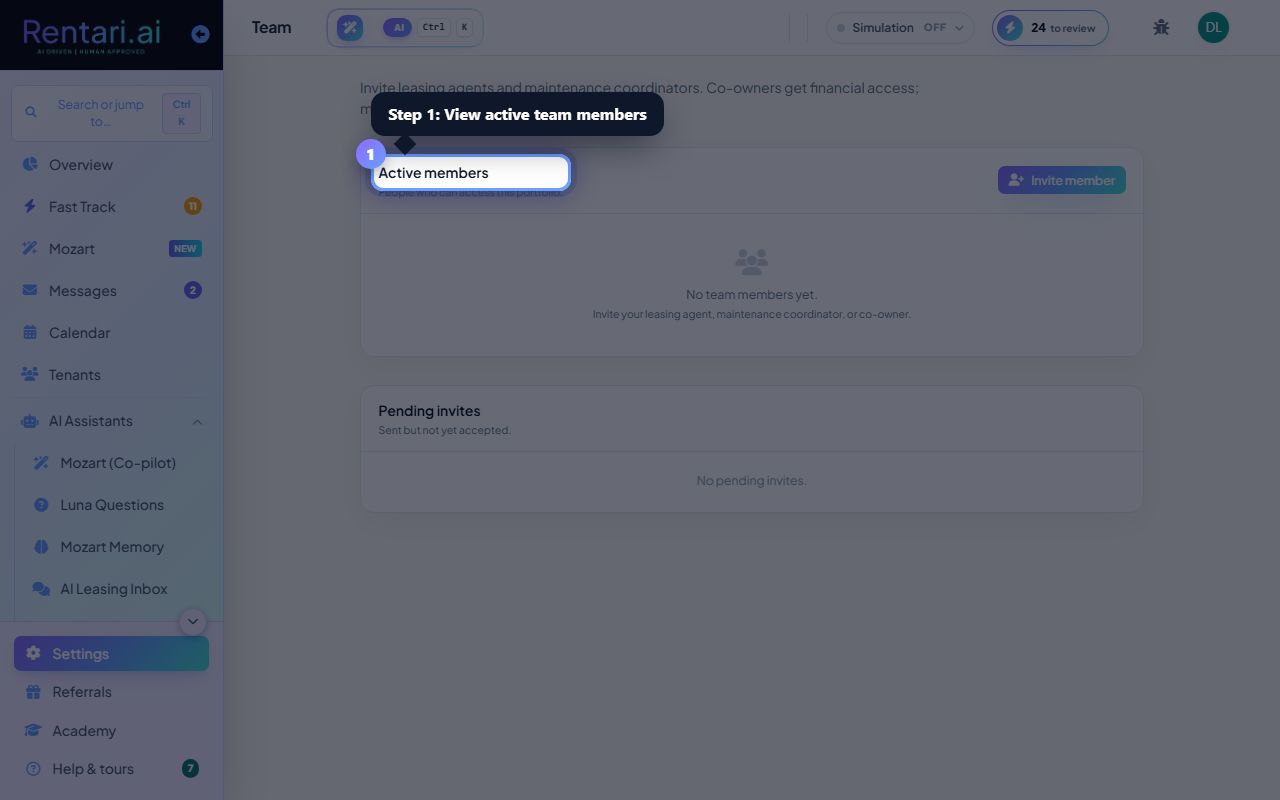
View active team members
Action: Open the Team settings page. The 'Active members' section shows everyone with access to your portfolio. You'll see their name, role (Landlord, Manager, or Co-owner), and email. Each row has a menu to remove or edit the member.
Only you (the portfolio owner) can invite or remove team members. If a manager leaves, remove them right away so they lose access. Changing a role updates permissions immediately.
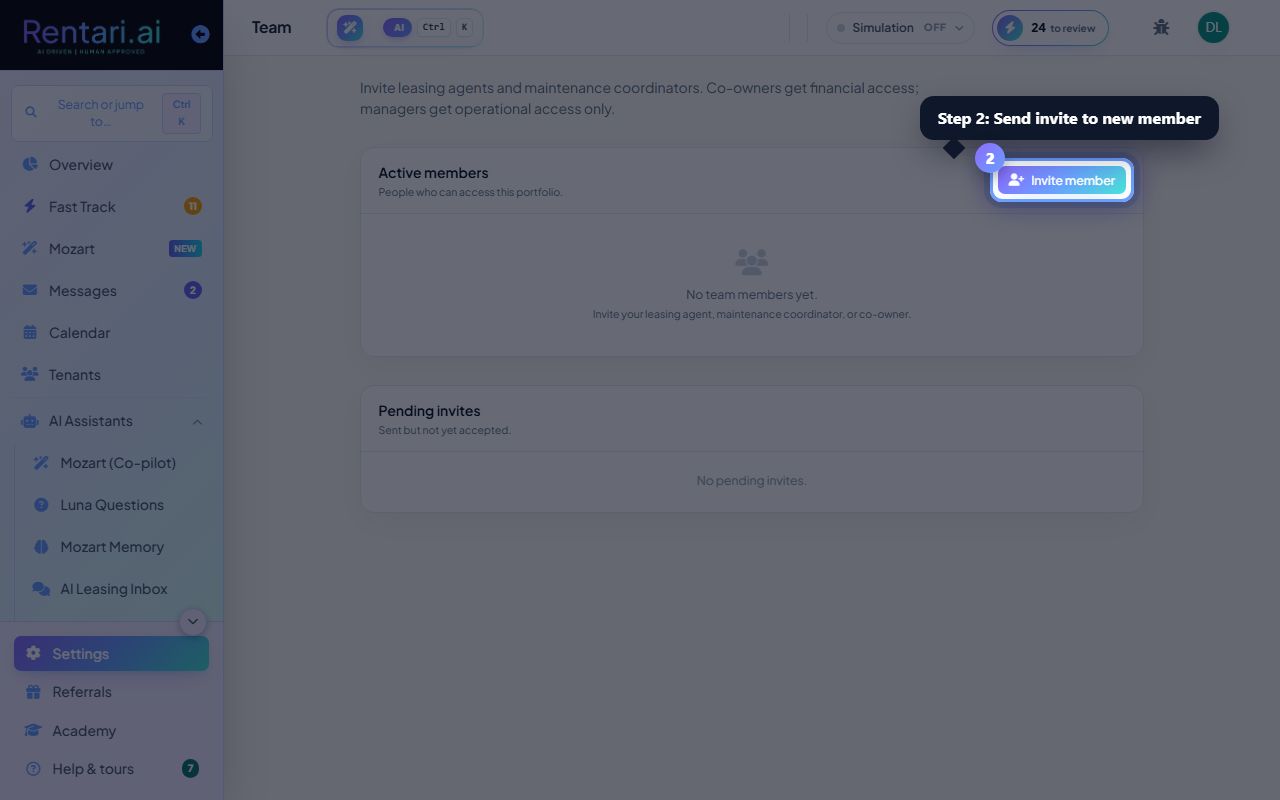
Send an invite to a new member
Action: Click 'Invite member' in the Active members header. A modal opens with an Email field and a Role dropdown. Type the email address, pick 'Manager' (operational access) or 'Co-owner' (also financial access), and click 'Send invite'. They'll get an email with a join link.
Managers can edit properties, leases, and maintenance jobs but cannot see Stripe payouts or refund decisions. Co-owners have full access including billing. Choose based on the person's job.
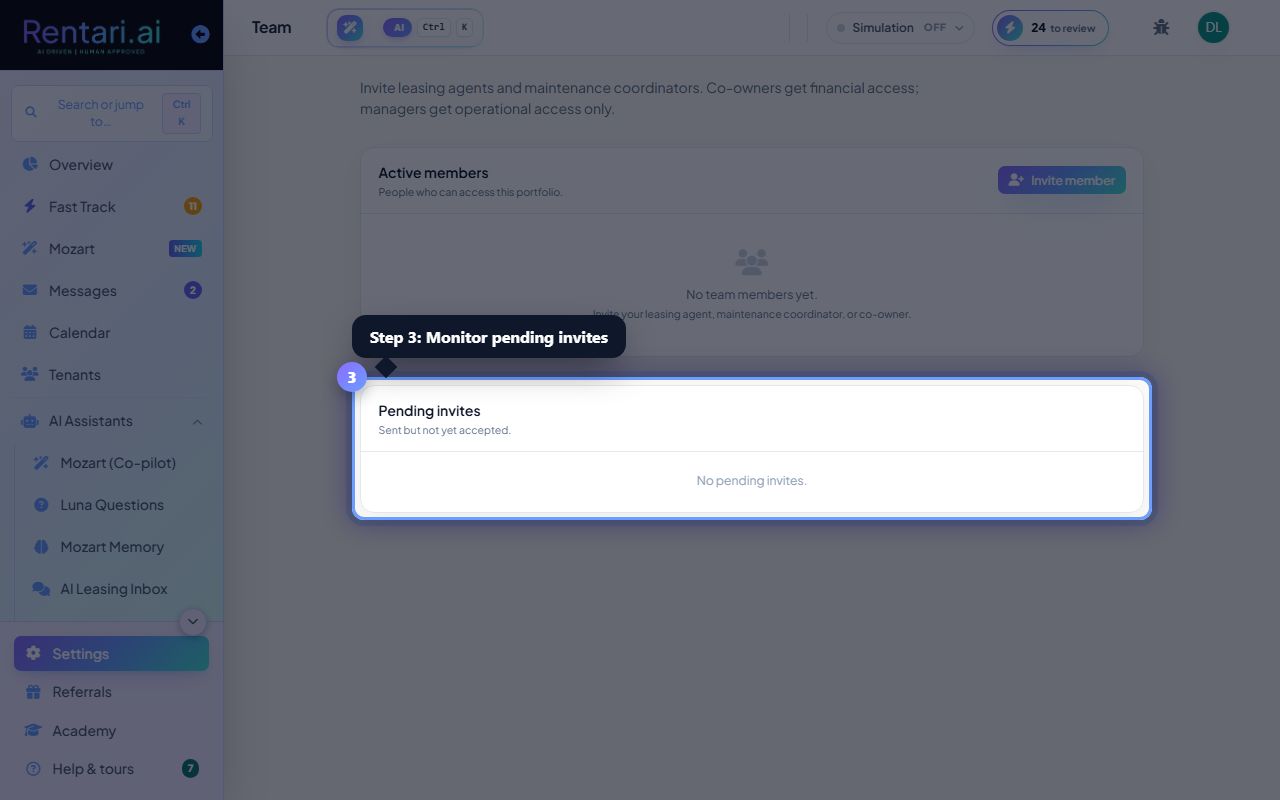
Monitor and cancel pending invites
Action: Below Active members, the 'Pending invites' section shows emails you've sent that haven't been accepted yet. Click 'Resend' to send the invite link again, or 'Revoke' to cancel the invite and prevent them from joining.
Invites expire after 30 days. If someone doesn't accept, resend it or check that you have the right email. Once they accept, they move to the Active members list.