Help Center • Landlords • Account & Settings
White-label your portal with custom branding
Replace Rentari.ai branding with your company name, logo, colors, and custom domain.
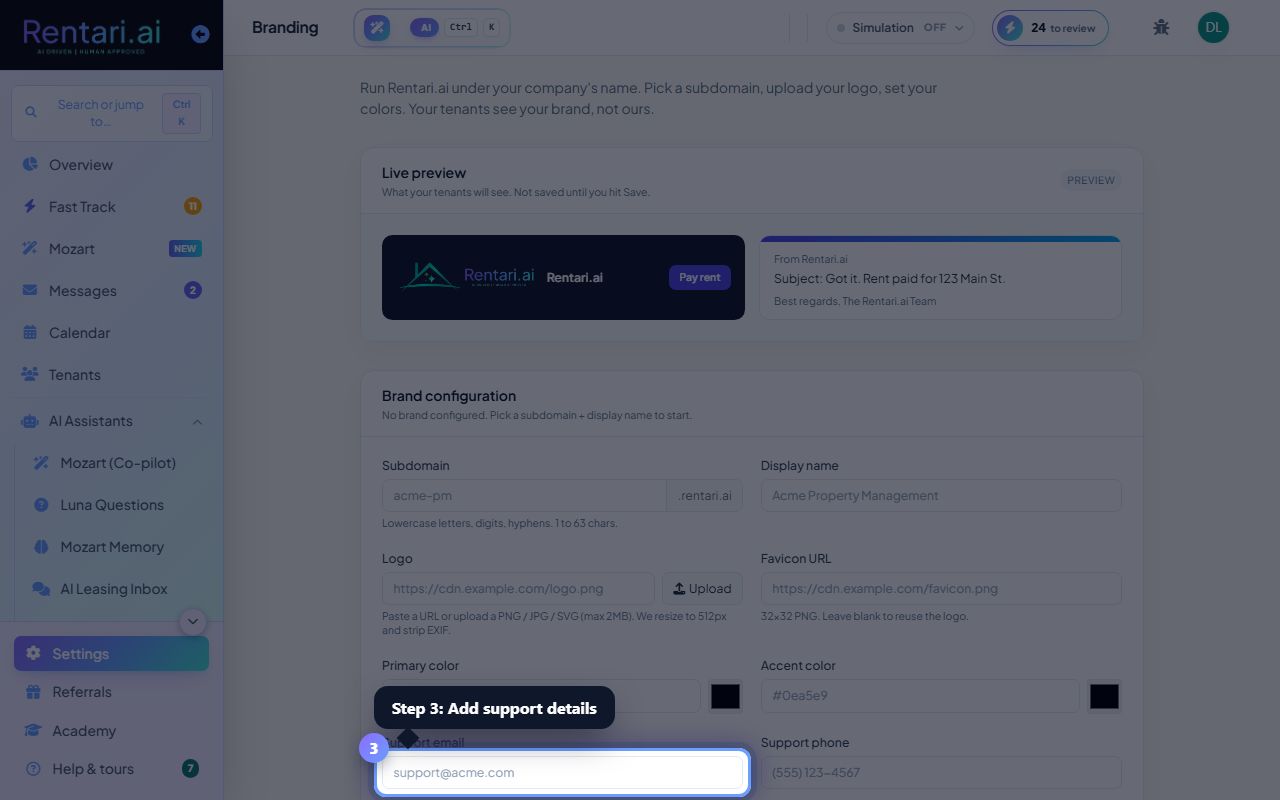
Set your subdomain and display name
Action: In the 'Brand configuration' section, enter a subdomain (e.g., 'acme-pm') using lowercase letters, digits, and hyphens. This creates a link like acme-pm.rentari.ai. Also enter your Display name (e.g., 'Acme Property Management'). Both show in the live preview on the left. Save the form when ready.
Subdomains must be 1 to 63 characters and are first-come, first-served. Once claimed, you own it. Tenants see this name and URL, not Rentari.ai, so pick something professional.
Upload logo and set brand colors
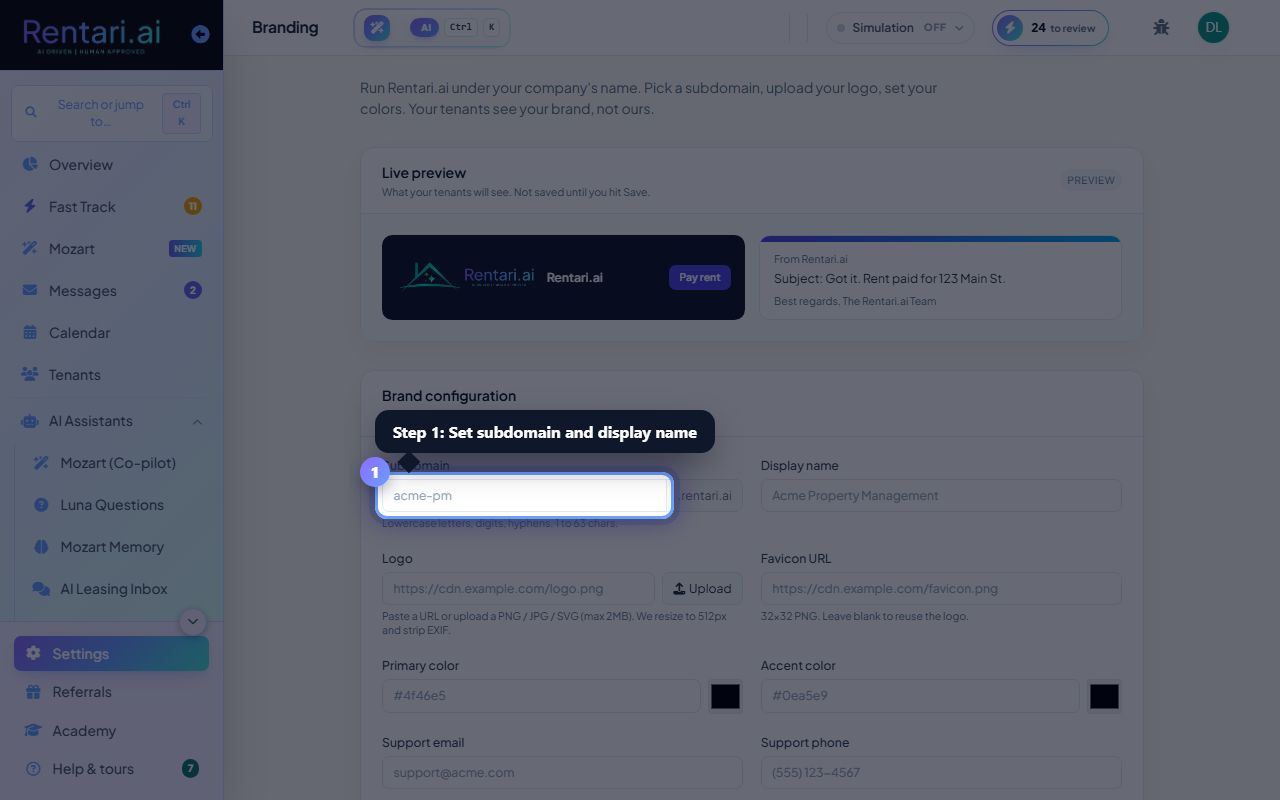
Action: Click 'Upload' next to Logo to choose a PNG, JPG, SVG, or WEBP file (max 2MB). The logo appears in the dashboard header and emails your tenants receive. Below that, set a Primary color and Accent color using the color picker or hex codes. The live preview updates in real-time.
Logo should be 512px wide or less (we resize automatically). Keep it simple so it displays well at 40px on mobile. Colors must be valid hex codes (e.g., #4f46e5). Test them in the preview before saving.
Add support details and optional custom domain
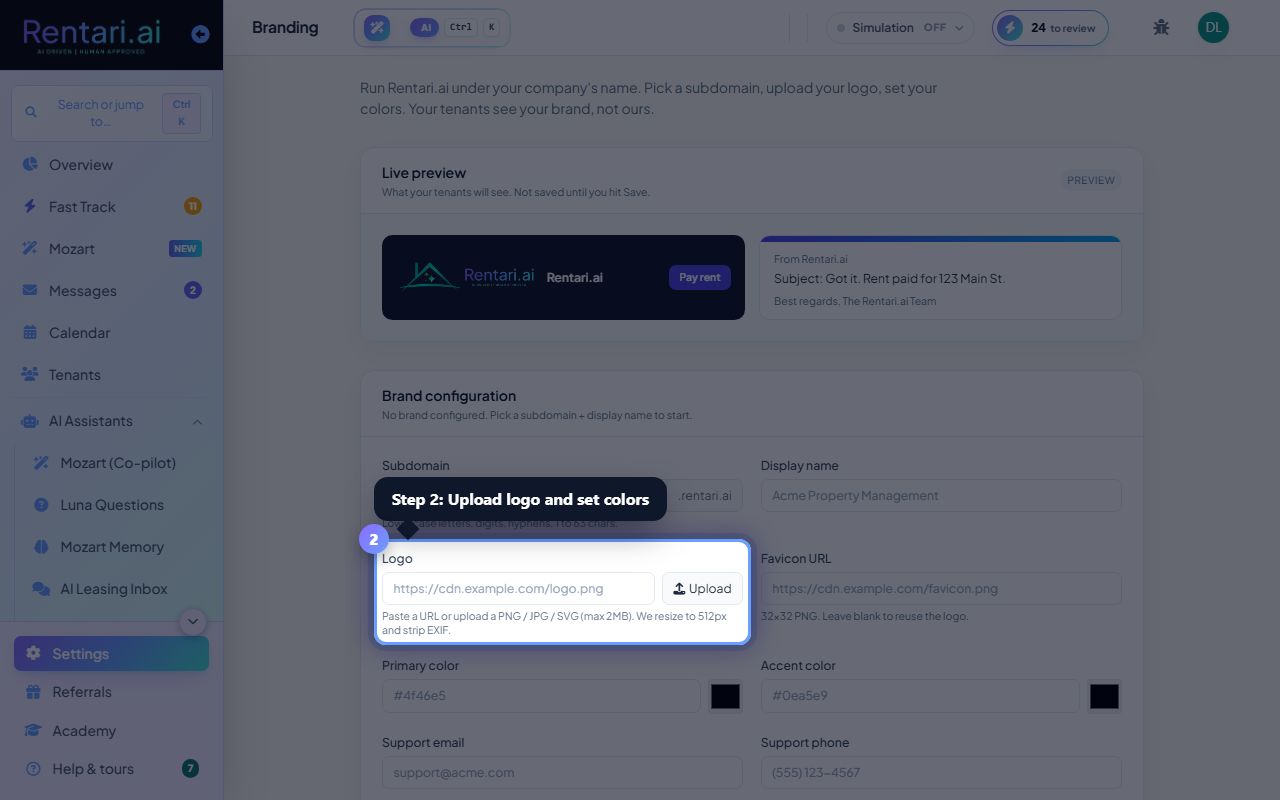
Action: Fill in Support email, Support phone, Contact address, and Tagline so tenants know how to reach your team. To use a custom domain (portal.acme-pm.com instead of acme-pm.rentari.ai), scroll to 'Custom domain' and enter your hostname. We'll show you the CNAME record to add at your DNS provider. Click 'Verify' once DNS is live.
Support email and phone are required for GDPR compliance. Custom domain setup takes a few minutes at your DNS host but creates a fully branded experience. Leave it blank if you're happy with the Rentari.ai subdomain.