Help Center • Landlords • Portfolio
Explore your property portfolio
View all your properties at once with unit counts, occupancy rates, rent figures, and quick actions to add, market, or verify each property.
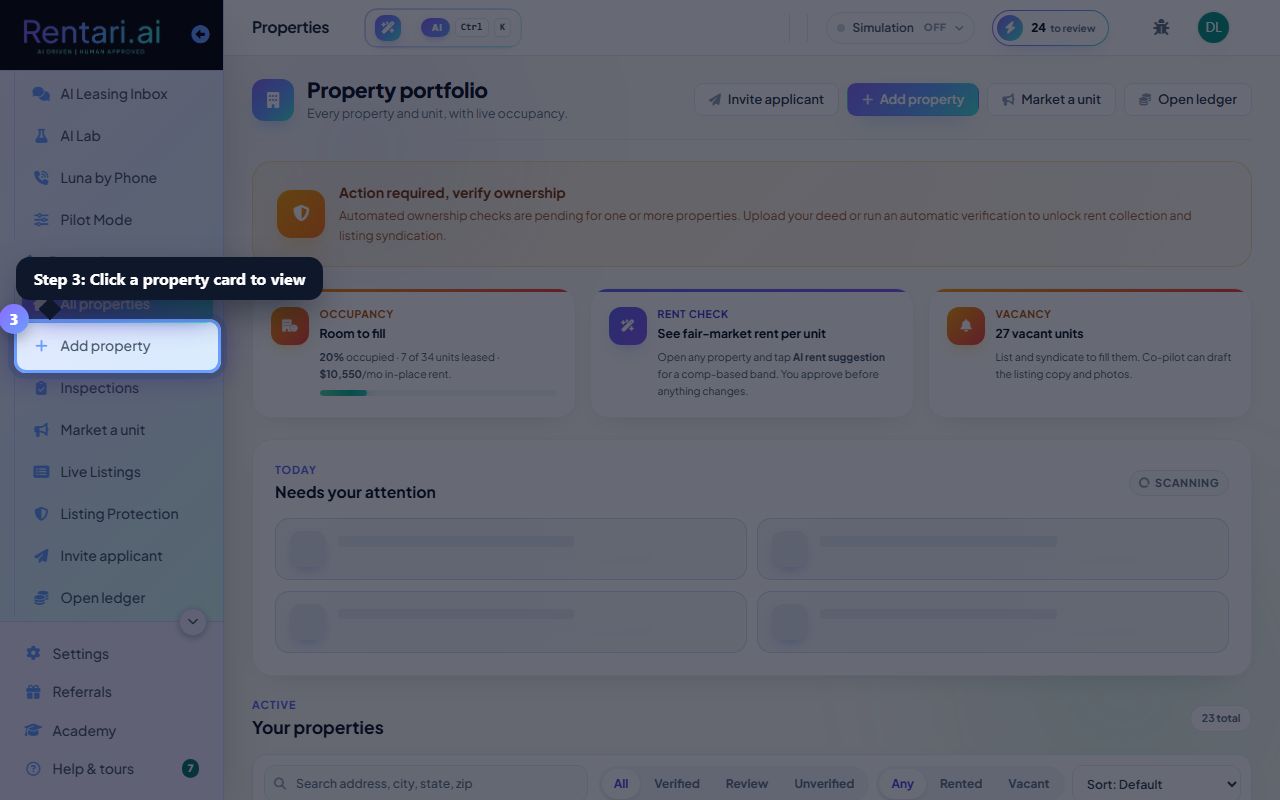
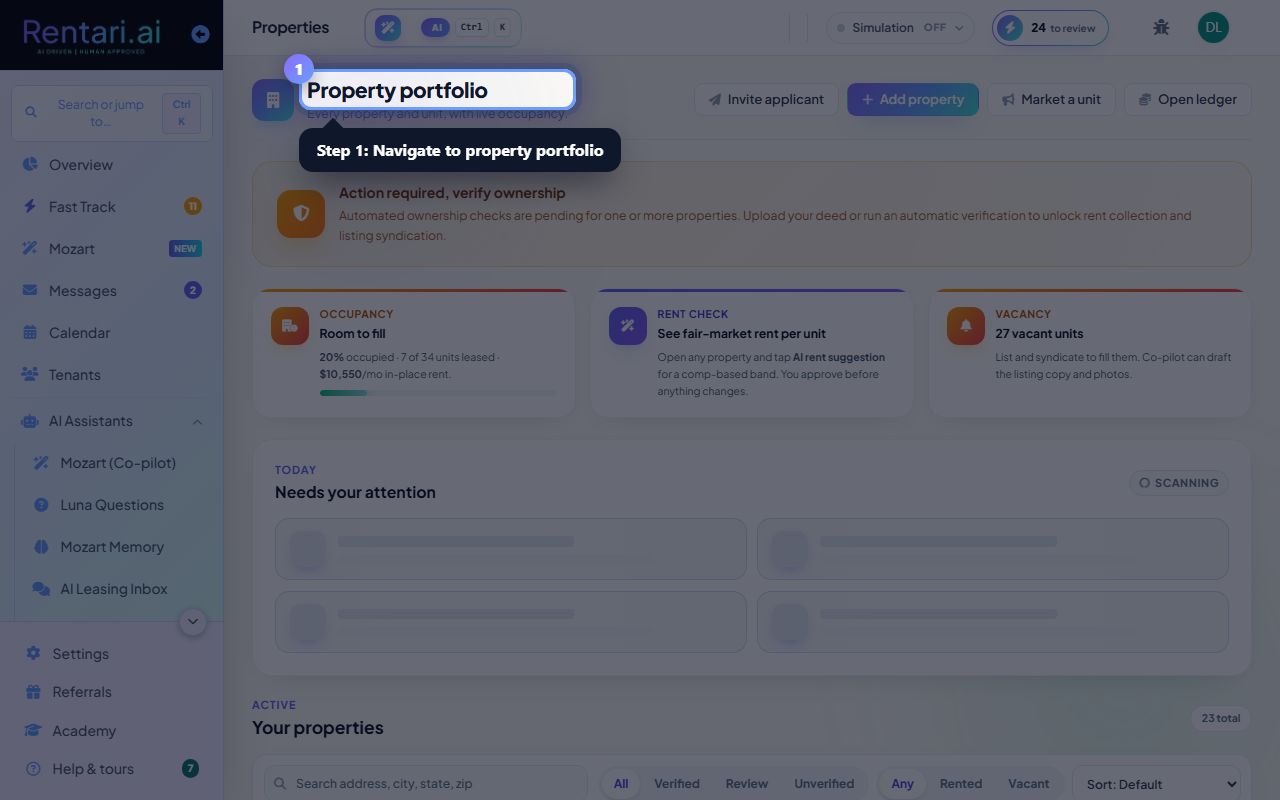
Navigate to your property list
Action: From the main dashboard, click Properties in the sidebar or tap the Properties icon. The page opens to show all your properties in a card grid, with each property's address, photo, unit counts, and occupancy bar.
Simulation mode shows sample properties for exploration. Your live properties appear once you add them.
Use filters and sort options
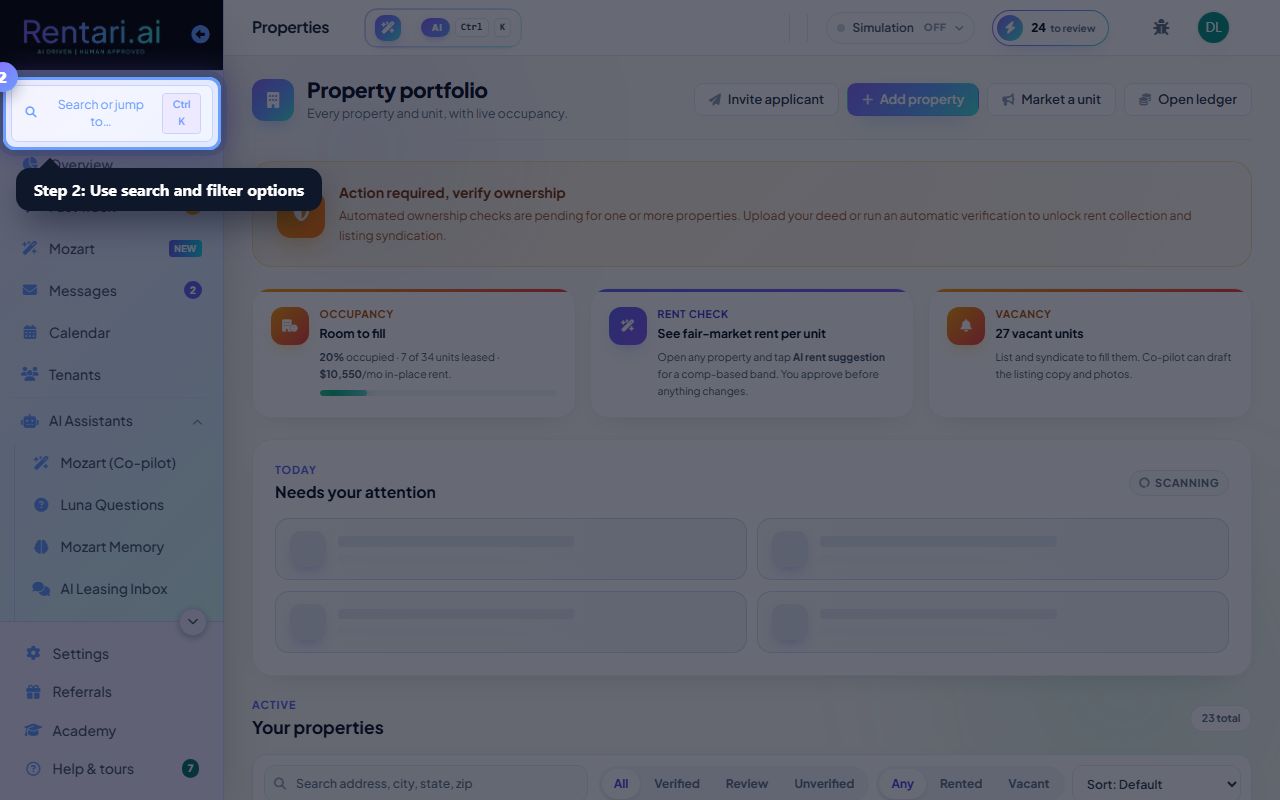
Action: At the top of the property grid, use the Search field to find by address or city. Use the verification filter (All, Verified, Review, Unverified) and the occupancy filter (Any, Rented, Vacant) to narrow your list. Pick a sort option (Address A-Z, Occupancy high-low, Rent high-low, Units high-low) from the sort dropdown.
Filtering is instant. Click Reset filters to start over.
View property cards and take action
Action: Each property card shows the photo, unit count, occupancy percentage (with a visual bar), and in-place monthly rent. Click any card to open the property detail page. Click the Verify selected button (in the bulk bar) to prove ownership, or use the three-dot menu on each card to delete or manage that property alone.
Select multiple properties with the checkboxes and use the bulk action bar to verify or delete several at once. The occupancy card at the top shows your full portfolio: total occupancy %, occupied and vacant units, and total monthly rent.