
Help Center • Landlords • Leasing & Screening
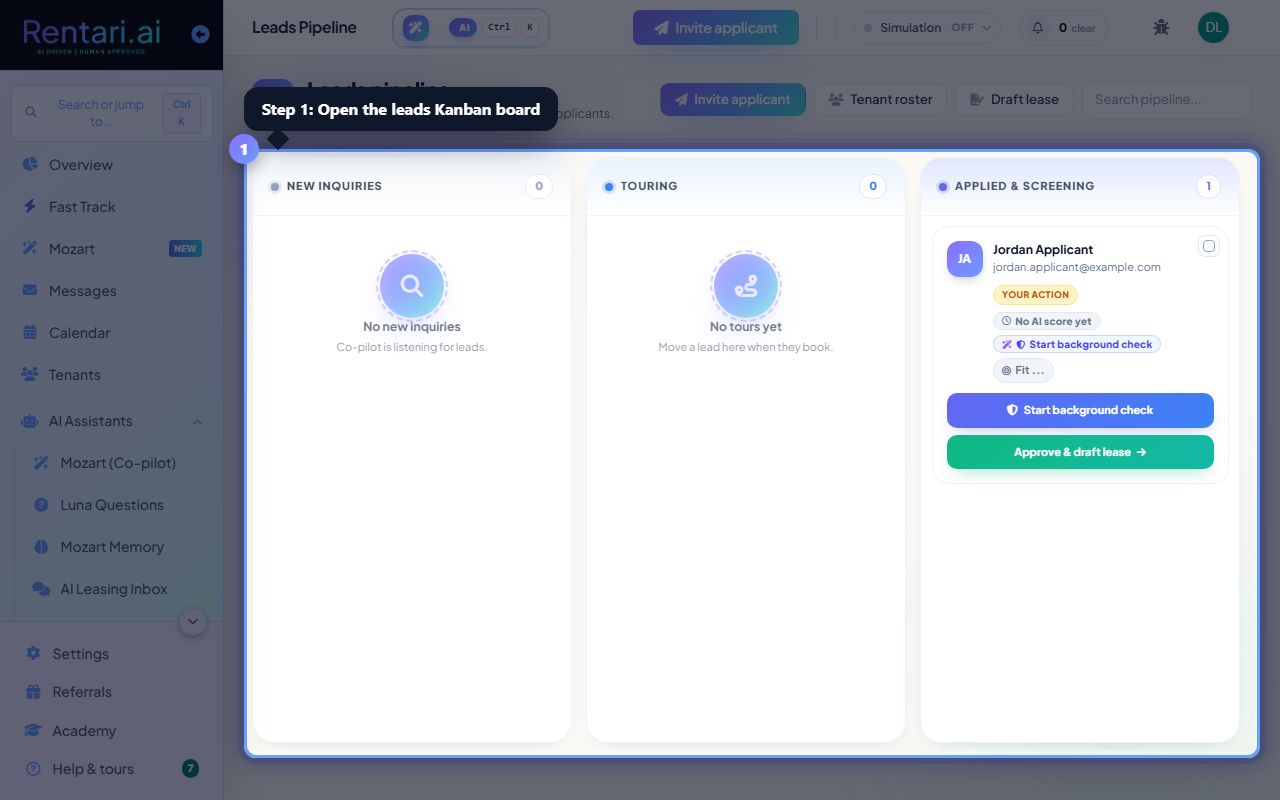
Work your leads list
Every active lead on one list, with the stage, the property, the AI score and the next step on each row. Filter by stage, sort, and move a lead forward from its own menu.
Open your leads list
Action: From the main sidebar, click Leads. Every active lead is one row, in pipeline order: new inquiries first, then touring, then applied, then lease sent. Each row shows the applicant, the full property address and unit, where the lead came from, the stage it is at, and the next step you can take.
Leads that are declined, withdrawn or expired are not on the list. It shows only the people you can still act on.
Filter by stage, search, and sort
Action: The chips above the list filter it by stage, and each one shows its count, so a stage with nobody in it reads zero instead of taking up space. Waiting on you picks out the enquiries nobody has replied to yet. The search box narrows by name, email, phone or property, and works together with the chip rather than replacing it. The sort menu reorders by stage, newest, oldest, name or highest score.
Filters never hide a lead from the search box. If nothing matches, the list says so and offers to clear the filters, rather than looking empty.
Move a lead forward
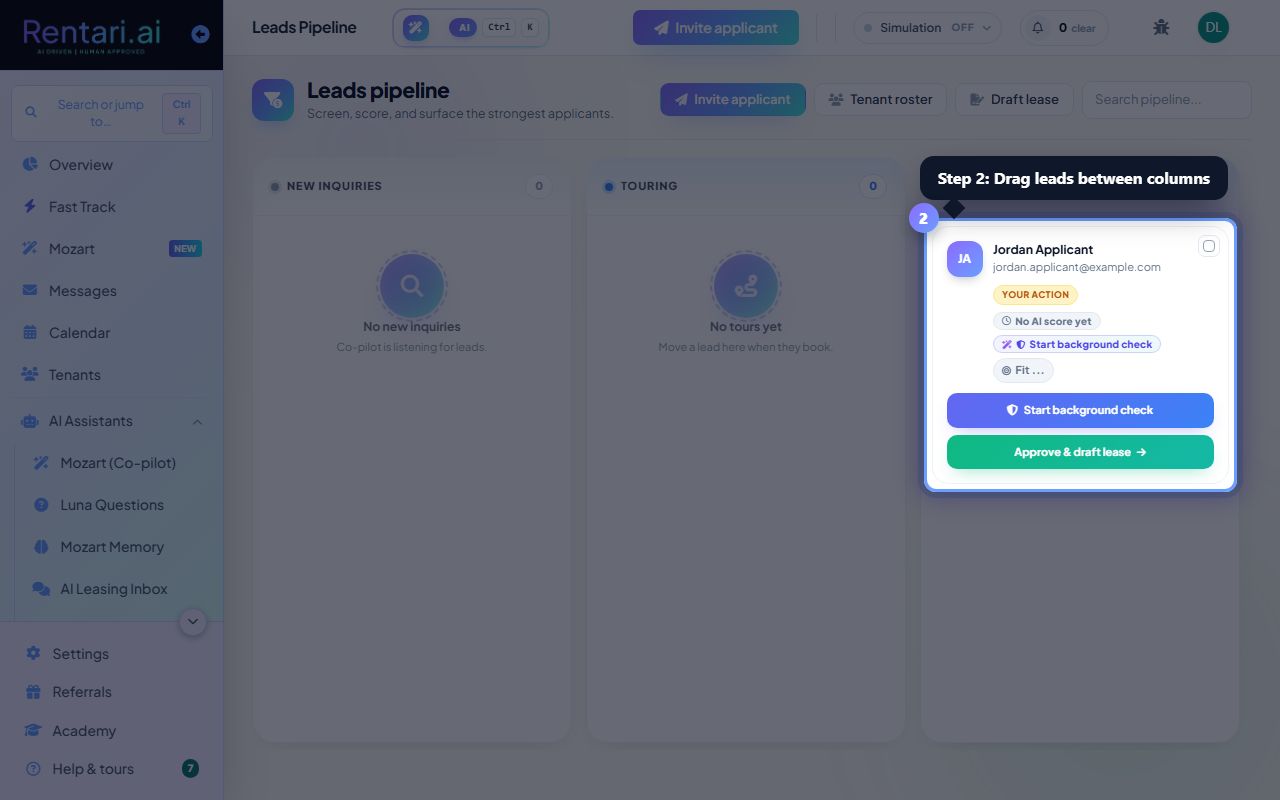
Action: Each row has one next-step button for the stage it is in: Mark touring, Move to applied, Start check, Resend ID link, Resend payment, or View report once the screening is back. To move a lead to any other stage, open the three-dot menu on the row and pick it under Move to.
Clicking the row itself opens the lead rather than moving it, so reading about somebody can never change their stage by accident. Tick several rows to move or delete them together from the bar at the bottom.
Screen an applicant and approve them
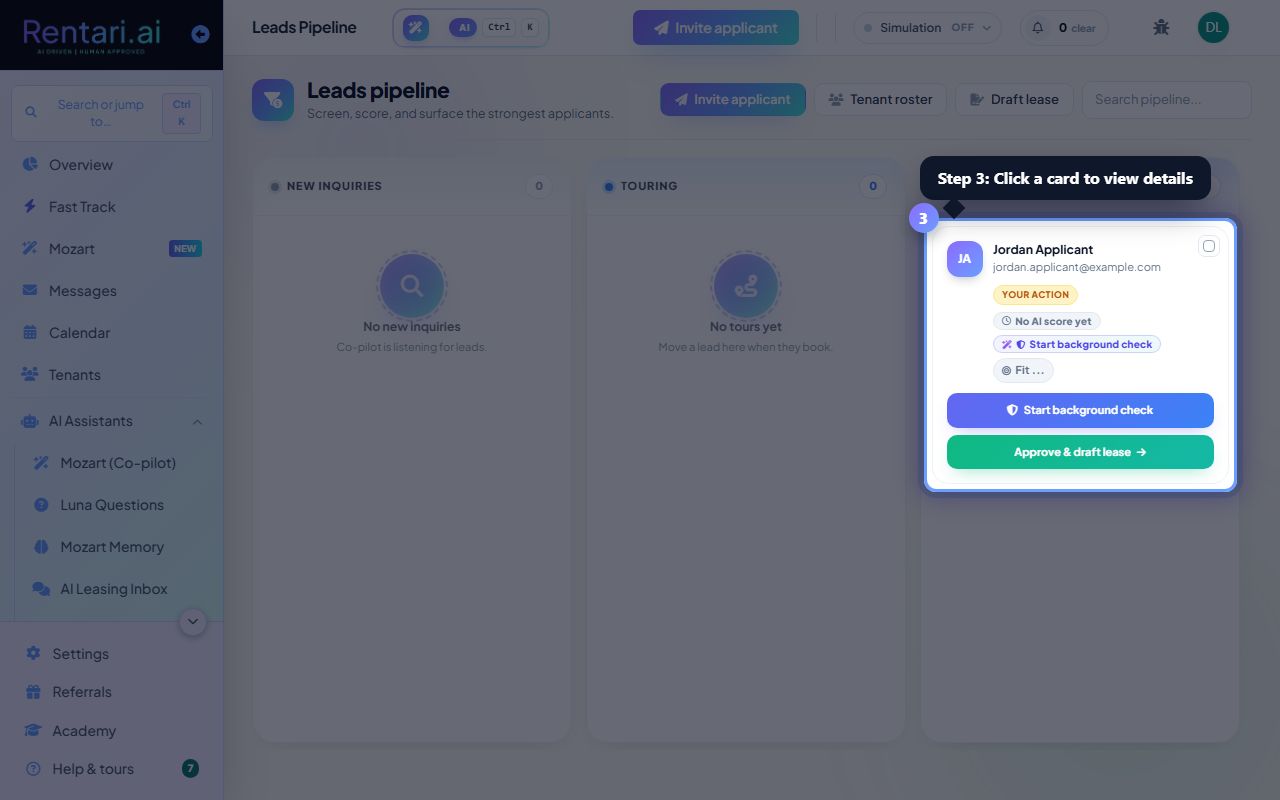
Action: An applied row's three-dot menu holds everything for that applicant: copy the verification link, verify their rental history, open the screening breakdown, and Approve and draft lease once you are ready. Open the lead itself for their contact details, documents and the full AI analysis.
If their ID does not match what they typed on the application, the row says so and opens a field-by-field comparison. A co-applicant or co-signer signs the primary applicant's one lease, so approving from their row drafts that same household lease.
