Help Center • Tenants • Getting Started
Set your lifestyle preferences
Configure your home preferences, register vehicles and guests, view neighborhood info, and access the building marketplace.
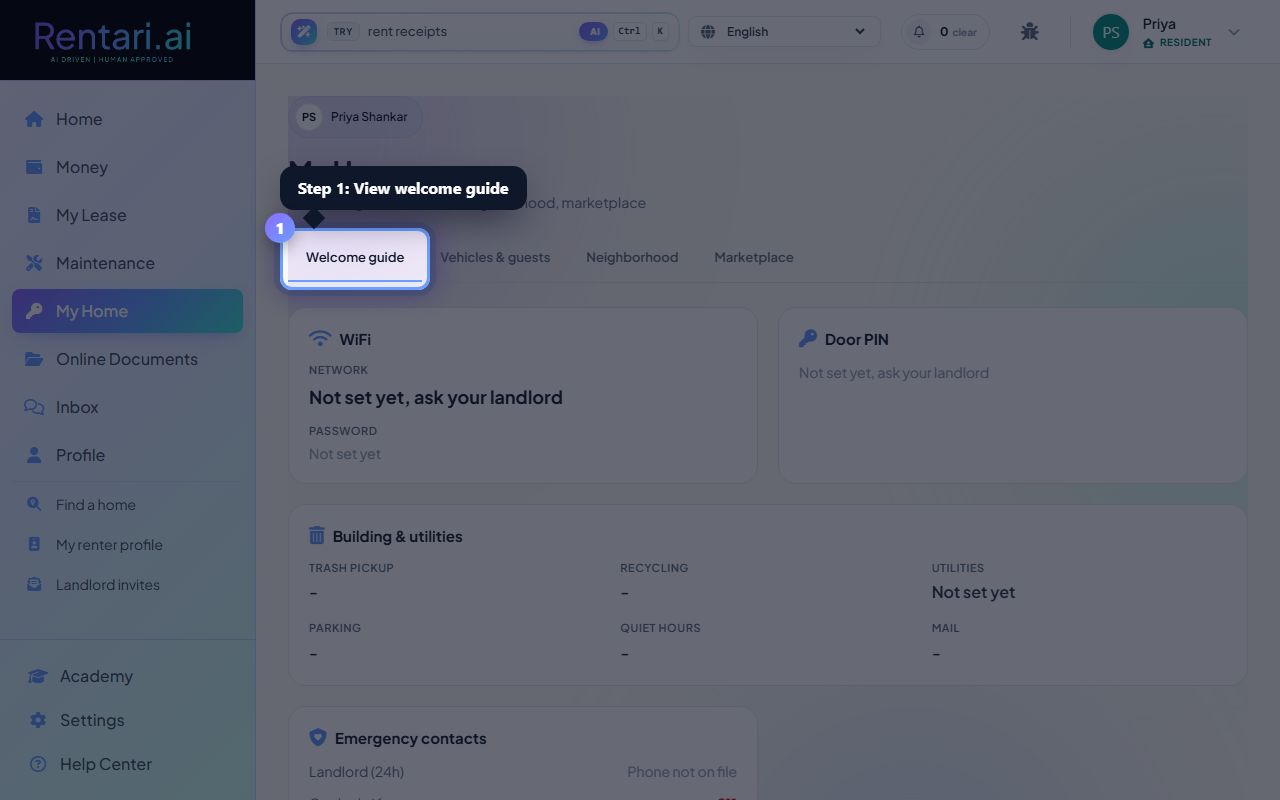
View your welcome guide in the first tab
Action: Click the 'Welcome guide' tab to see WiFi network and password (show or copy buttons available), door PIN (masked until you click Show), trash day, recycling day, utilities, parking info, quiet hours, mail setup, and emergency contacts including your landlord's phone.
All welcome guide information is provided by your landlord. If something is missing, contact them directly. Passwords are masked for security and shown temporarily when you click Show.
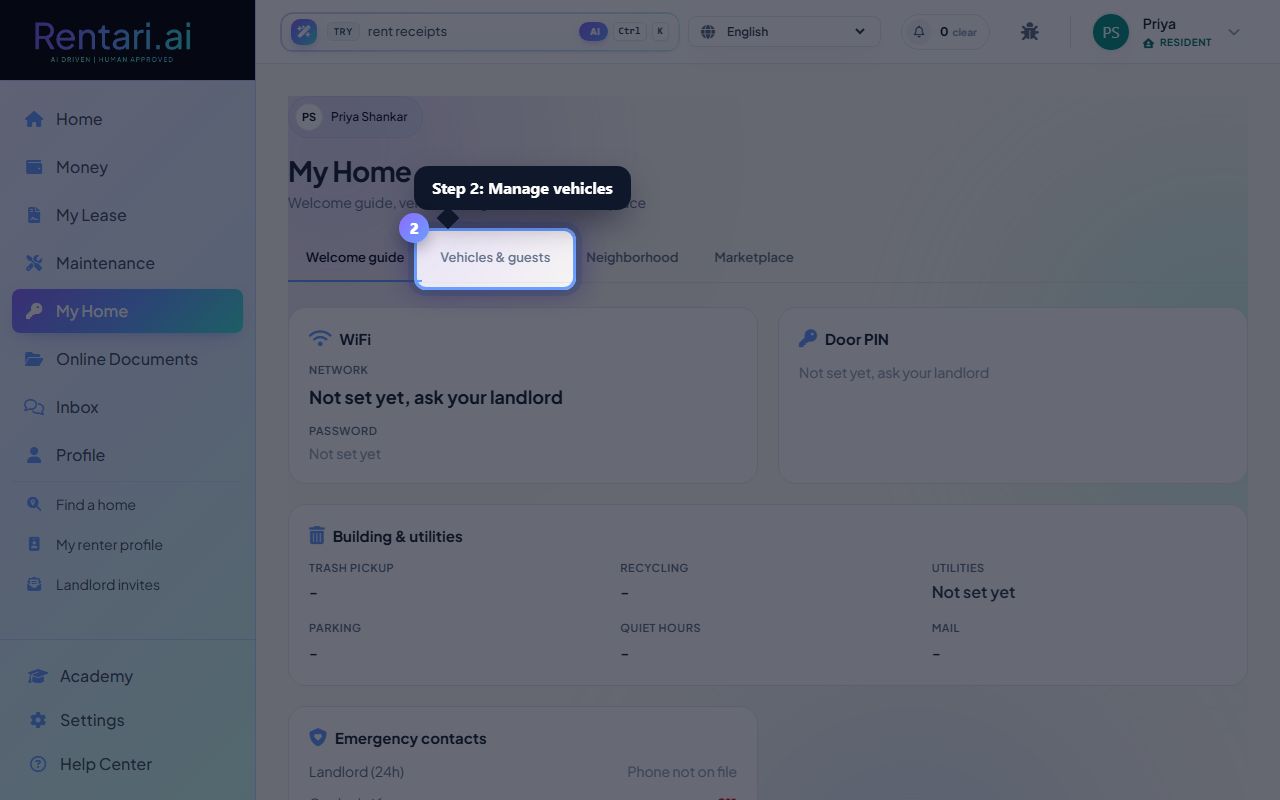
Manage your vehicles and guests
Action: Click the 'Vehicles & guests' tab to view registered vehicles with year, make, model, license plate, and color. Click 'Add' to register a new vehicle or manage guest information as set up with your landlord.
Vehicle registration helps your landlord track parking and enforce building rules. Only register vehicles you actually use at the address.
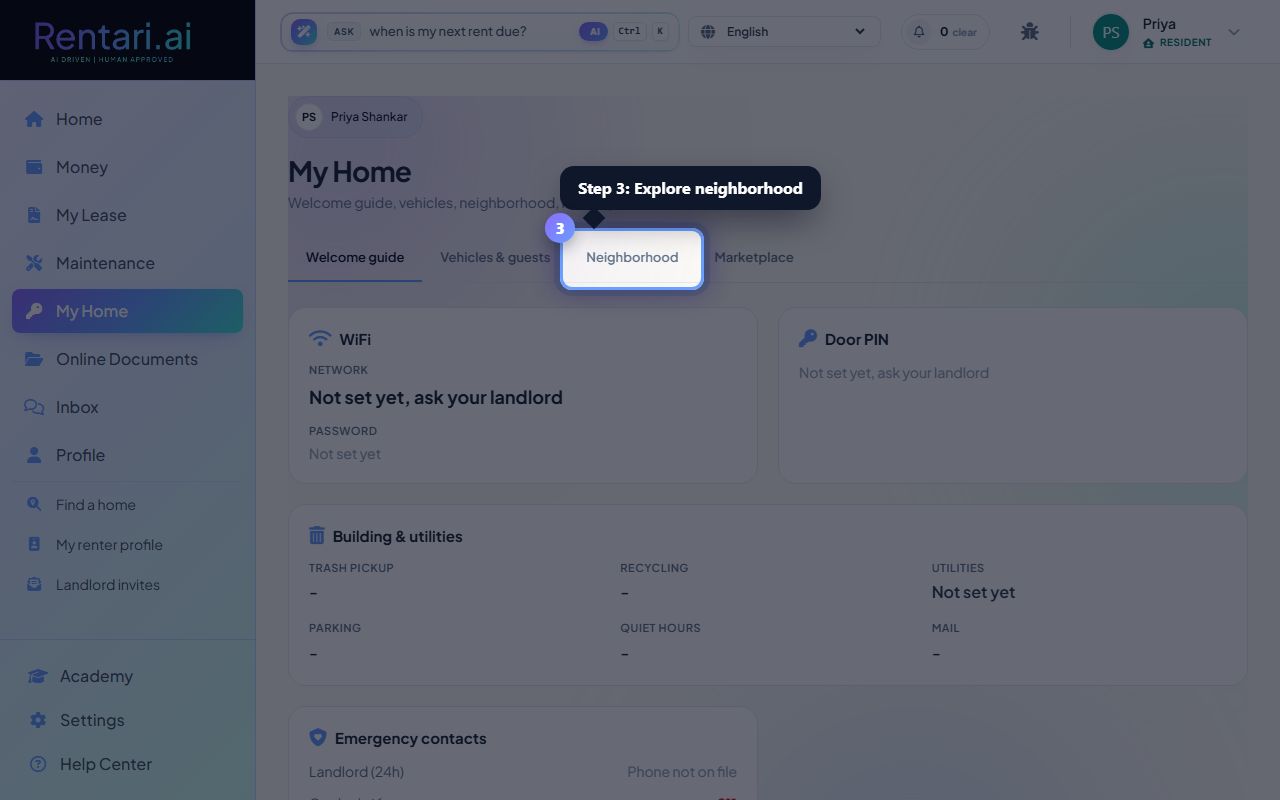
Explore neighborhood and marketplace
Action: Click the 'Neighborhood' tab to view area information if provided by your landlord. Click the 'Marketplace' tab to browse services and products available to tenants, like furniture rentals or moving services.
Neighborhood details are optional and maintained by your landlord. The marketplace is a curated list of vetted vendors connected to your building.