Help Center • Landlords • Leasing & Screening
Publish and syndicate property listings
Create and publish rental listings to Zillow, Apartments.com, and other syndication partners, with photos, descriptions, and syndication controls.
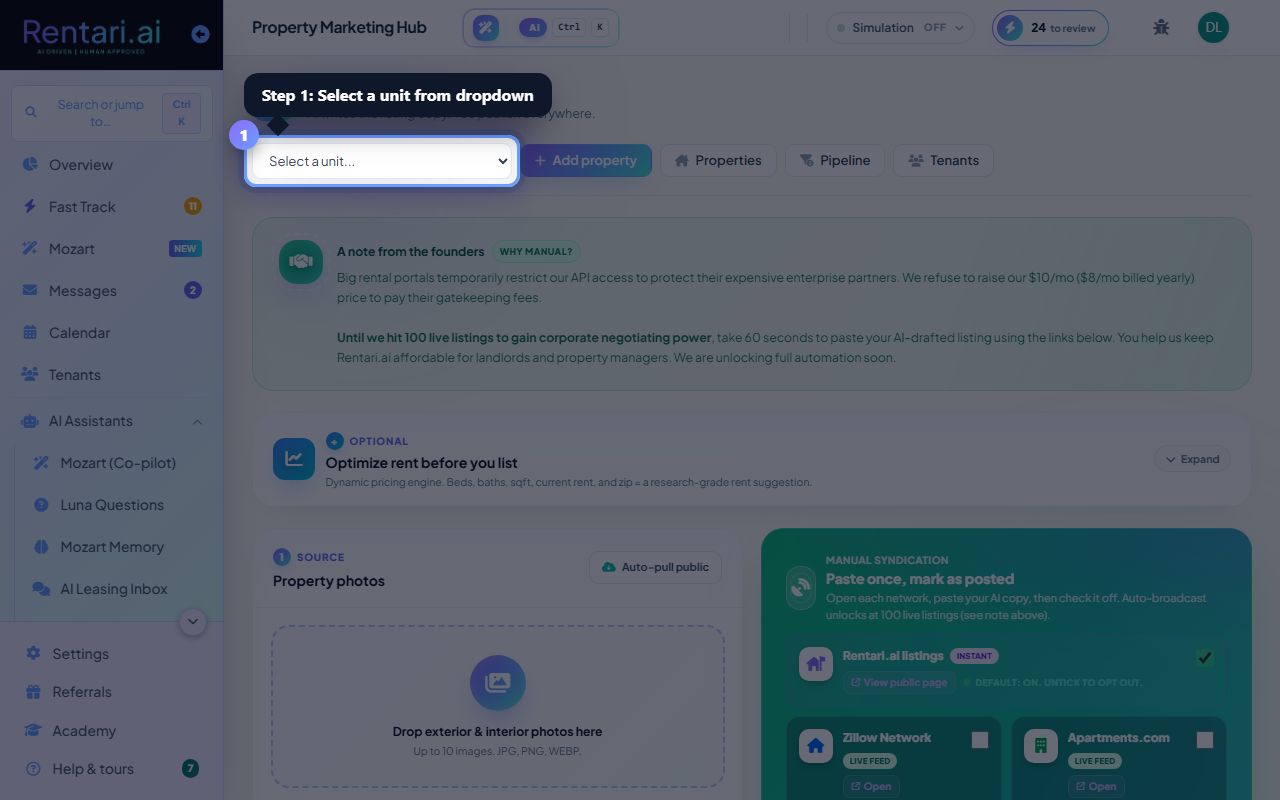
Select a unit to list
Action: From Properties, choose Put a unit on the market. Pick an existing unit from the dropdown and the flow opens its marketing steps. The page displays its current rent, bed/bath, square footage, and neighborhood.
If a listing already exists (published or draft), the page shows its status and publish date. You can update or republish it.
Upload photos and set listing details
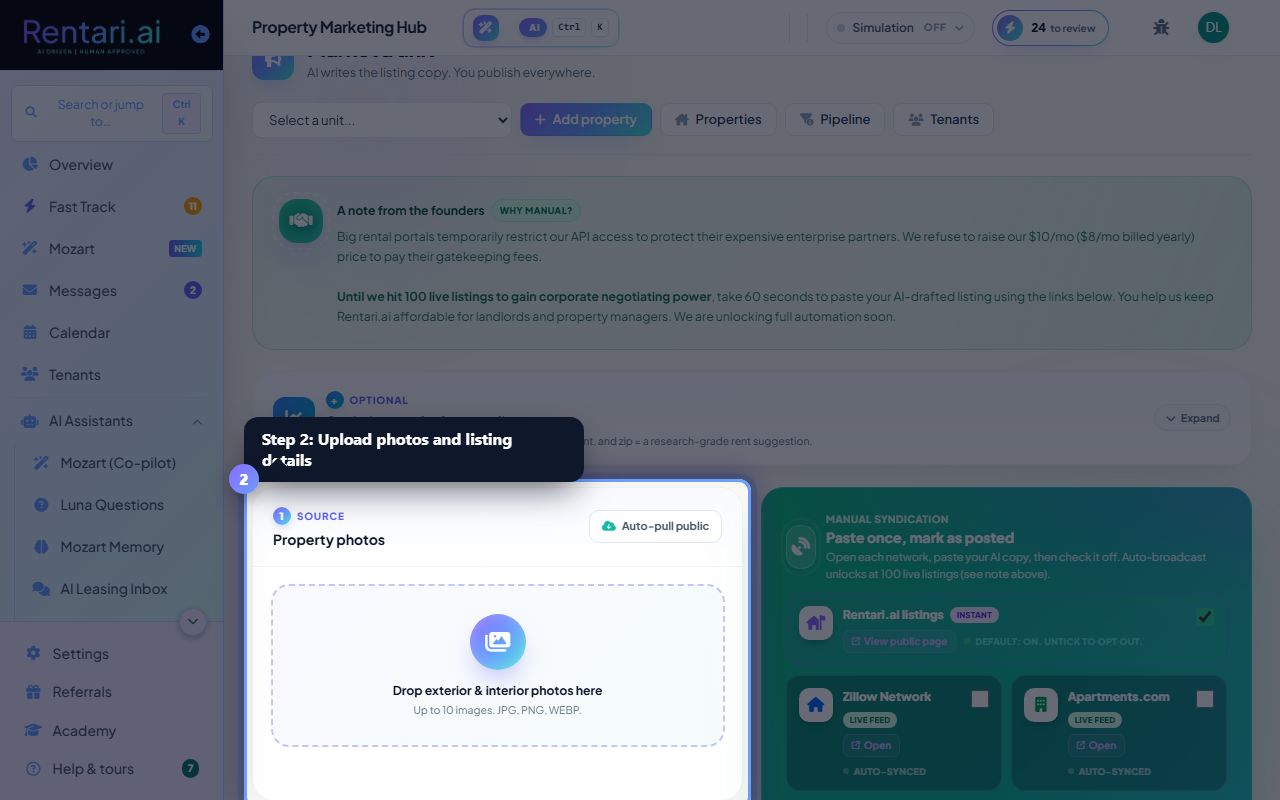
Action: Photos already on the property are used as they are, so there is usually nothing to upload. To add more, open Add more photos and drop up to 20 images (JPG, PNG, PDF). Then use Write the listing from these photos to draft the headline and description, and edit whatever you like.
Click AI description gen to let the co-pilot draft listing copy and suggest photos based on the address. You review and approve before publishing.
Enable syndication and publish
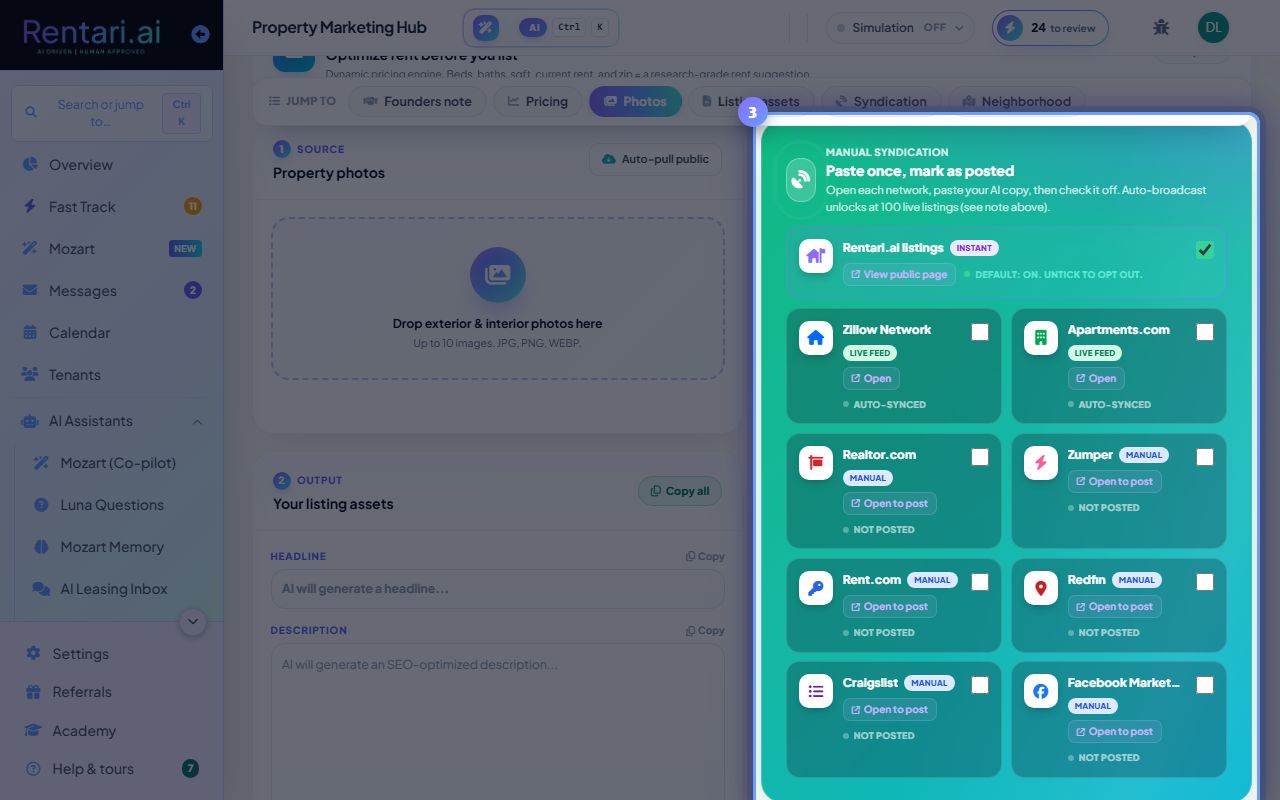
Action: Choose how applicants are screened and who pays for it, then under Publish here, paste everywhere else tick the sites you have posted to yourself: Zillow, Apartments.com, Realtor.com, Rent.com, Redfin, Zumper. Click Publish this listing. It goes live on your Rentari listings page, and each tick records where you posted it.
Rentari goes live immediately. The other sites are manual: you open them, paste the copy, and tick them off here. To take it down, use the status card at the top of the flow.