Help Center • Landlords • Get Paid
Review billing and manage your subscription
View your current plan, renew date, invoice history, and update your payment method.
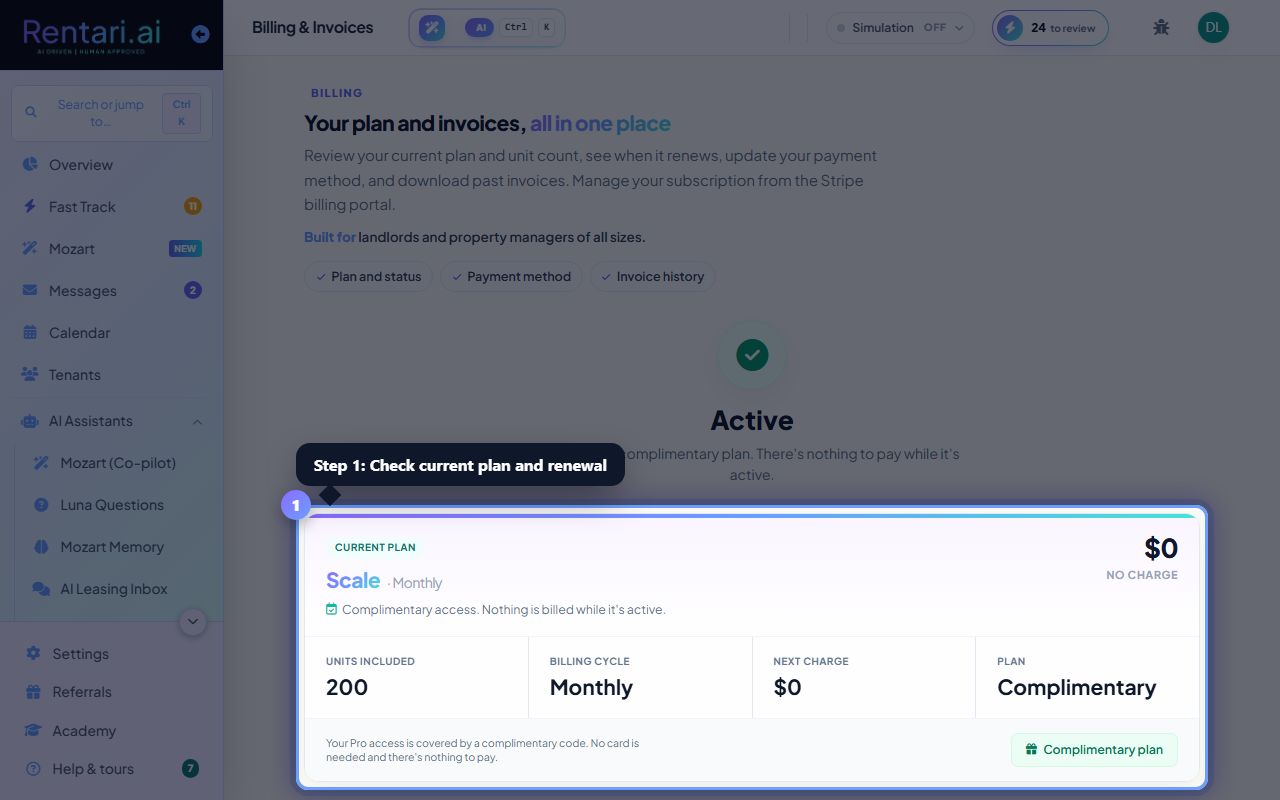
Check your current plan and renewal date
Action: At the top, the 'Current plan' card shows your plan tier (Free, Prime, Max Mode, or Scale), billing cycle (monthly or annual), next charge amount, and when it renews. The card also displays how many units your plan includes. A status banner at the top (green, amber, or red) tells you if your subscription is active, past due, or cancelled.
If your card fails, you'll see a 'Past due' banner. Click 'Update payment method' immediately to restore Pro features. Plans auto-renew on the date shown, and you can cancel anytime.
Download your invoices
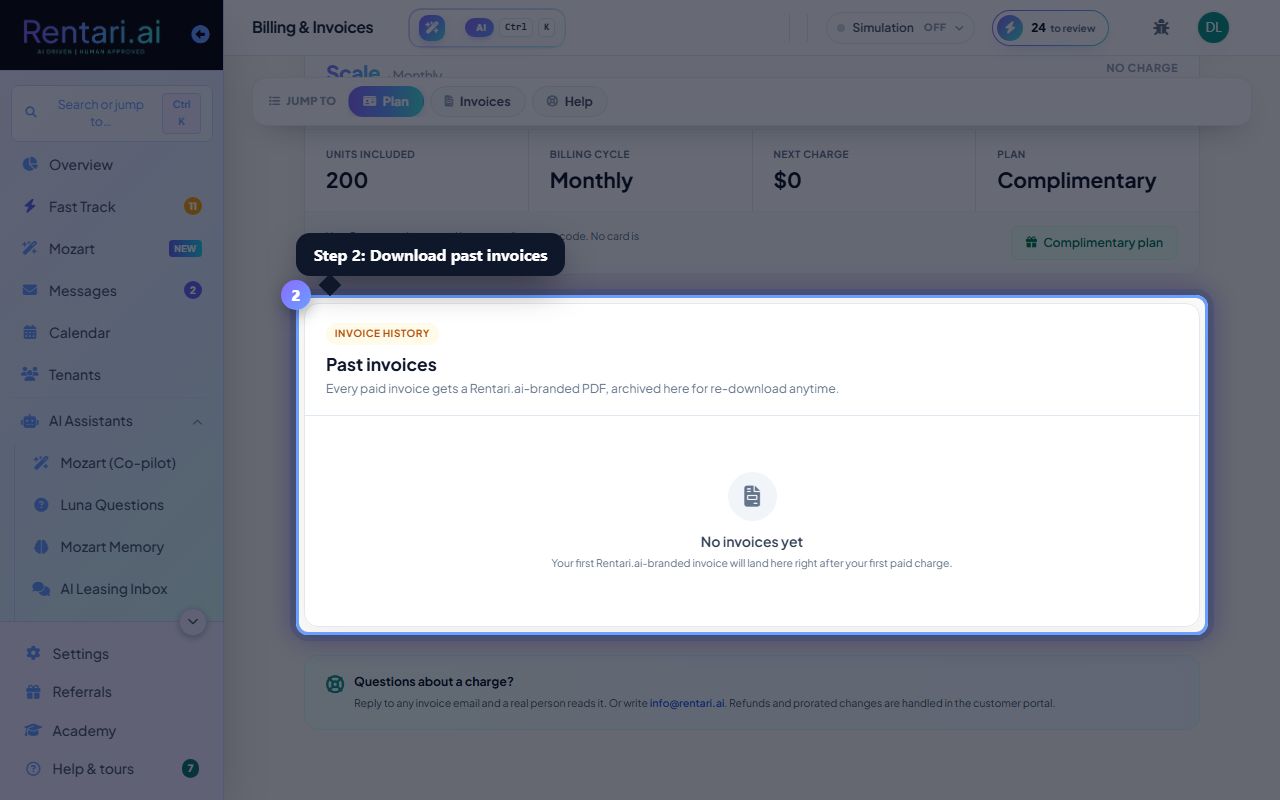
Action: Scroll down to the 'Invoice history' section. It lists all past invoices by date, showing the amount, status (paid, pending, refunded), and a download link for each PDF. Click the PDF icon or 'Download' next to any invoice to save it for your records.
Invoices are generated on your renewal date. Keep them for tax purposes. If you need a receipt for a one-time purchase or adjustment, it will appear here within 24 hours.
Upgrade or change your plan
Action: At the bottom of the 'Current plan' card, click 'Manage in Stripe billing portal' to open your account in Stripe. There you can upgrade to a higher tier, change your billing cycle, update your card, or manage add-ons. Click 'Resume' or 'Re-subscribe' if you cancelled.
Upgrades are prorated: if you upgrade mid-cycle, your next invoice reflects the difference. Downgrades take effect at the end of your current period so you don't lose access.