Help Center • Vendors • Maintenance
Your schedule
View your scheduled jobs by day, week, or map, block off your own availability, and subscribe to updates in your calendar app.
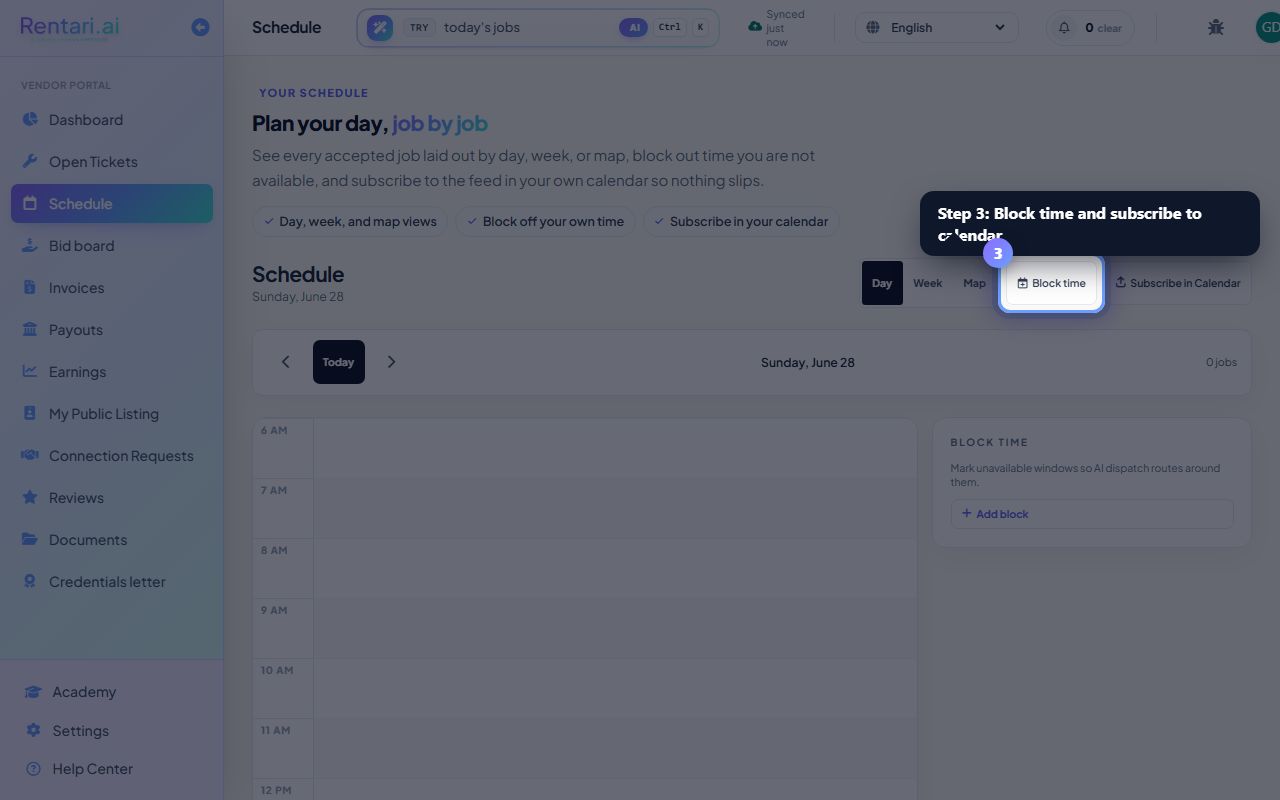
View your jobs in day, week, or map
Action: Use the view toggle buttons (Day, Week, Map) in the toolbar to switch between layouts. In day view, jobs are stacked on a timeline from 6 AM to 10 PM with arrival windows, priority badges, and property addresses.
The day view shows a current-time indicator if you are viewing today. Jobs before 6 AM and after 10 PM appear in separate sections above and below the main grid. Open tickets without a scheduled window do not appear here.
Navigate between days
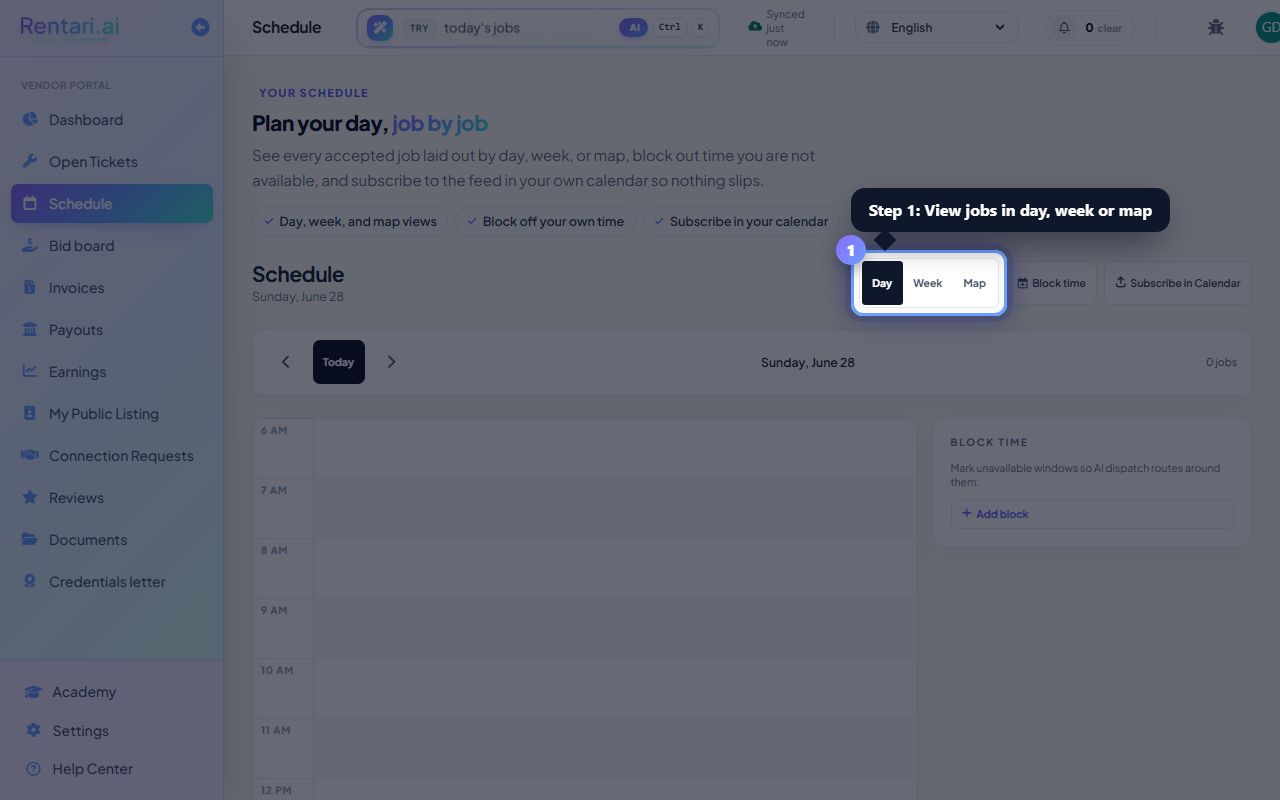
Action: Click the left and right arrow buttons to move to the previous or next day, or click Today to jump back to today. The URL parameter ?d=YYYY-MM-DD lets you link directly to a specific date.
The header shows the day's job count and total scheduled hours. Use the date input or arrows to plan multiple days ahead.
Block your availability and subscribe
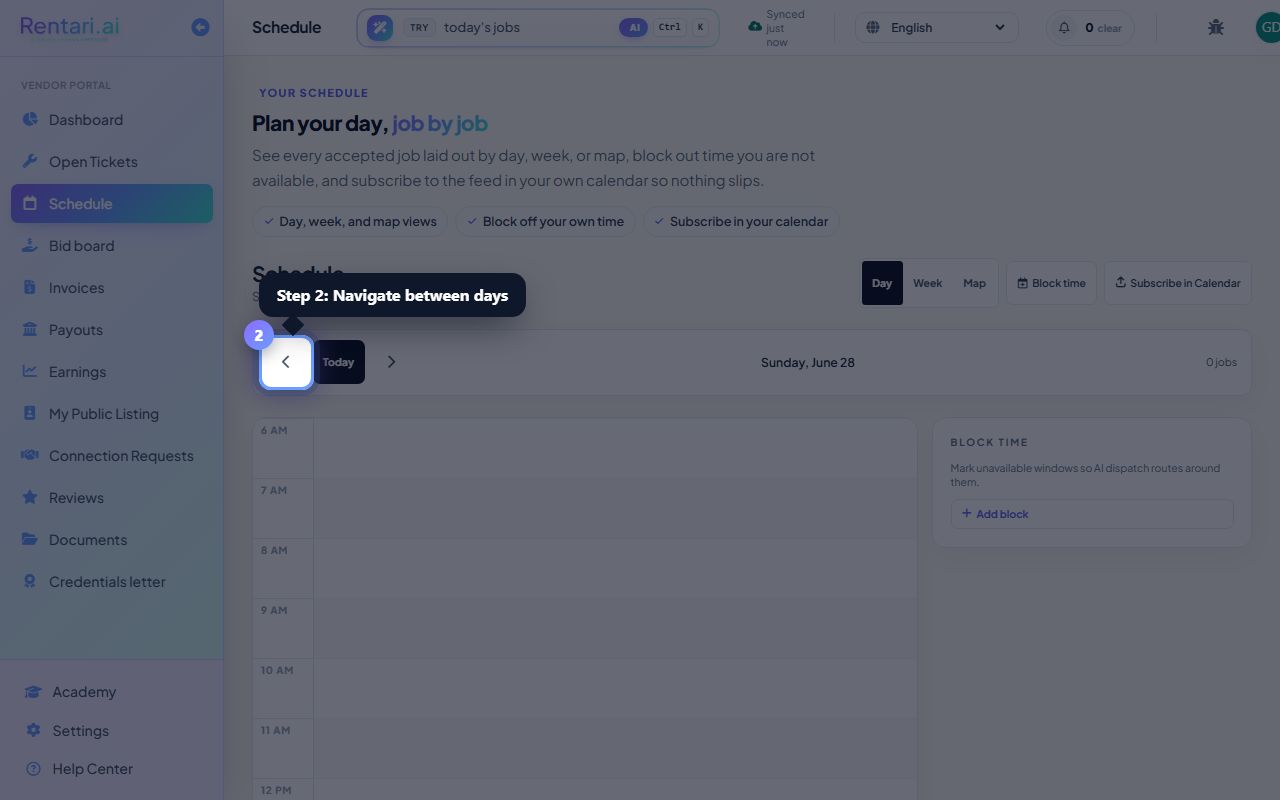
Action: Click Block time to mark hours you are not available, then click Subscribe in Calendar to copy your ICS feed URL and paste it into your calendar app (Google Calendar, Outlook, Apple Calendar) so all job updates sync automatically.
Blocking time reserves those slots so new jobs are not assigned during that period. Calendar subscription is a one-time setup: after you paste the feed URL, your calendar pulls the latest jobs automatically.