Help Center • Landlords • Maintenance
Track appliances and meters
Record appliances, serial numbers, warranties, and utility meters per property and unit to feed into inventory and meter-readings reports.
Add appliances or switch to meters
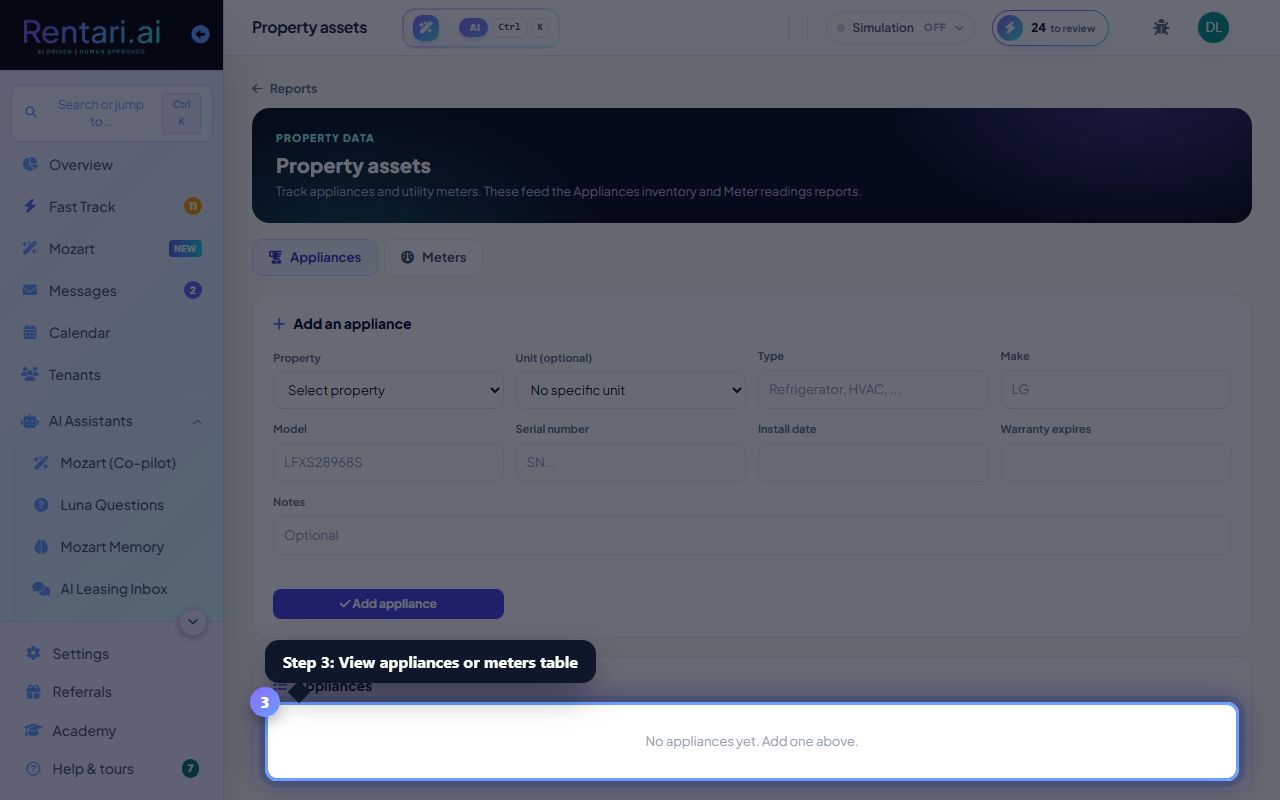
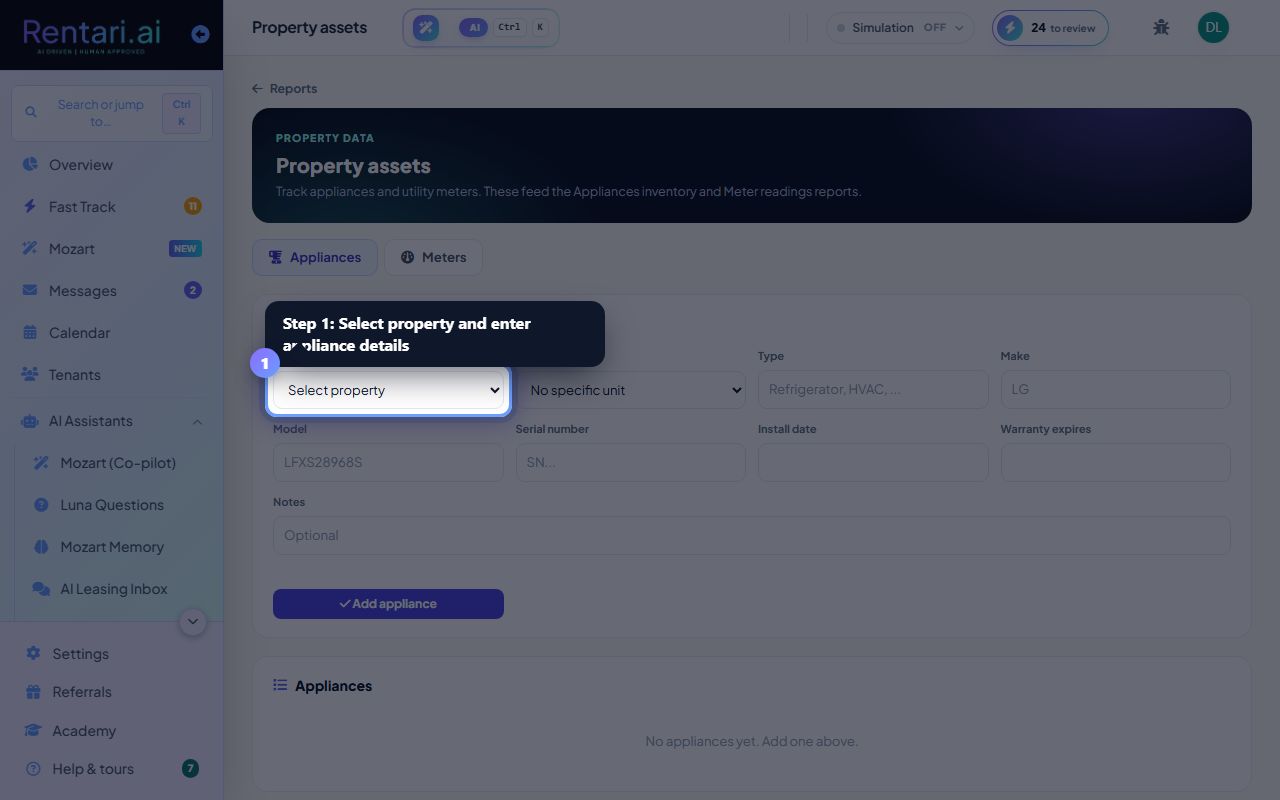
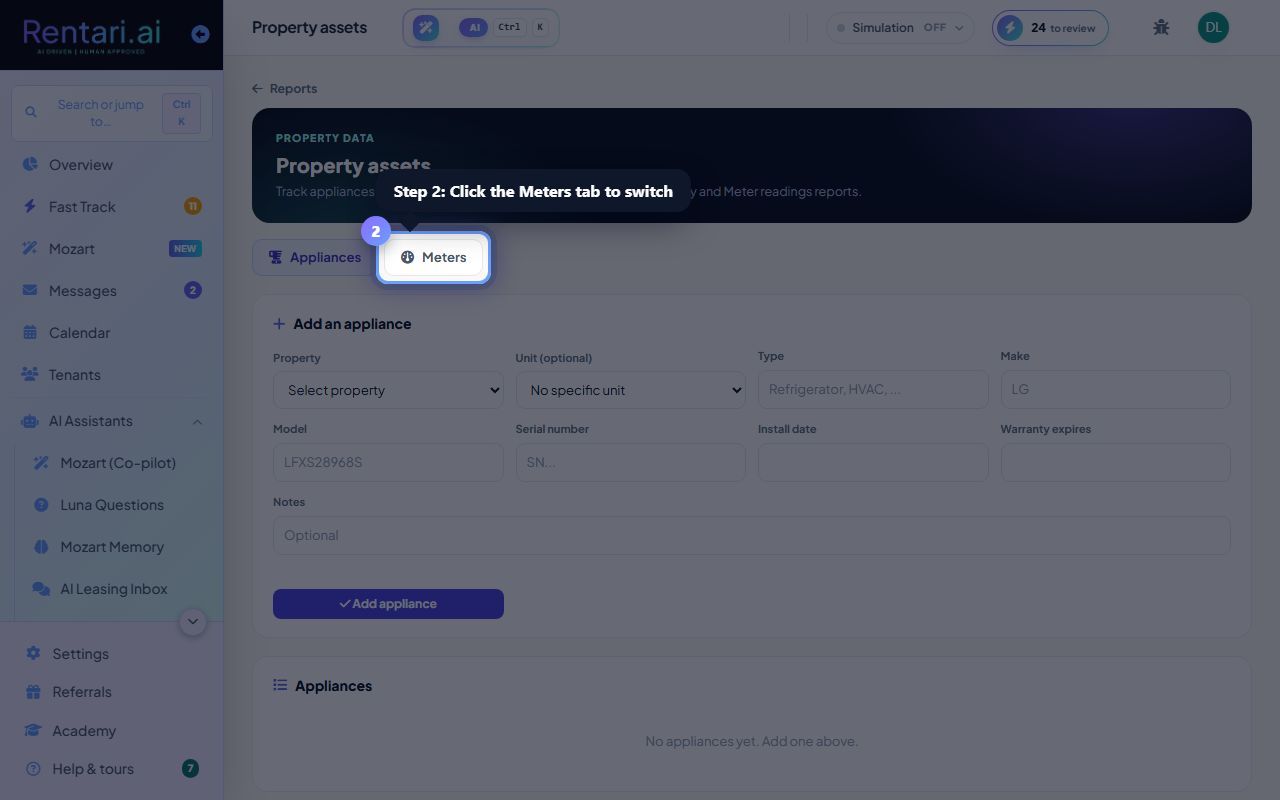
Action: The page opens on the Appliances tab. Fill in Property, Unit (optional), Type (e.g. Refrigerator, HVAC), Make, Model, Serial number, Install date, and Warranty expiration, plus optional notes. Click Add appliance to save. To track utility meters instead, click the Meters tab.
Add meters and record readings
Action: On the Meters tab, select Property, Unit (blank = building-wide), Utility type (Electric, Gas, Water, Trash, Other), and Unit of measure. Click Add meter. Once saved, a row appears with a date picker and reading field so you can add readings (e.g. kWh on a specific date).
View and manage your inventory
Action: Appliances appear in a table with columns for Property, Unit, Type, Make, Model, Serial, Install date, and Warranty. Meters show Utility, Serial, latest reading, and reading count. Both tabs show a count badge. Delete any item by clicking its trash button.