Help Center • Landlords • Account & Settings
Teach Mozart
Save standing instructions and preferences so Mozart, your co-pilot, remembers your rules and applies them on every task without asking again.
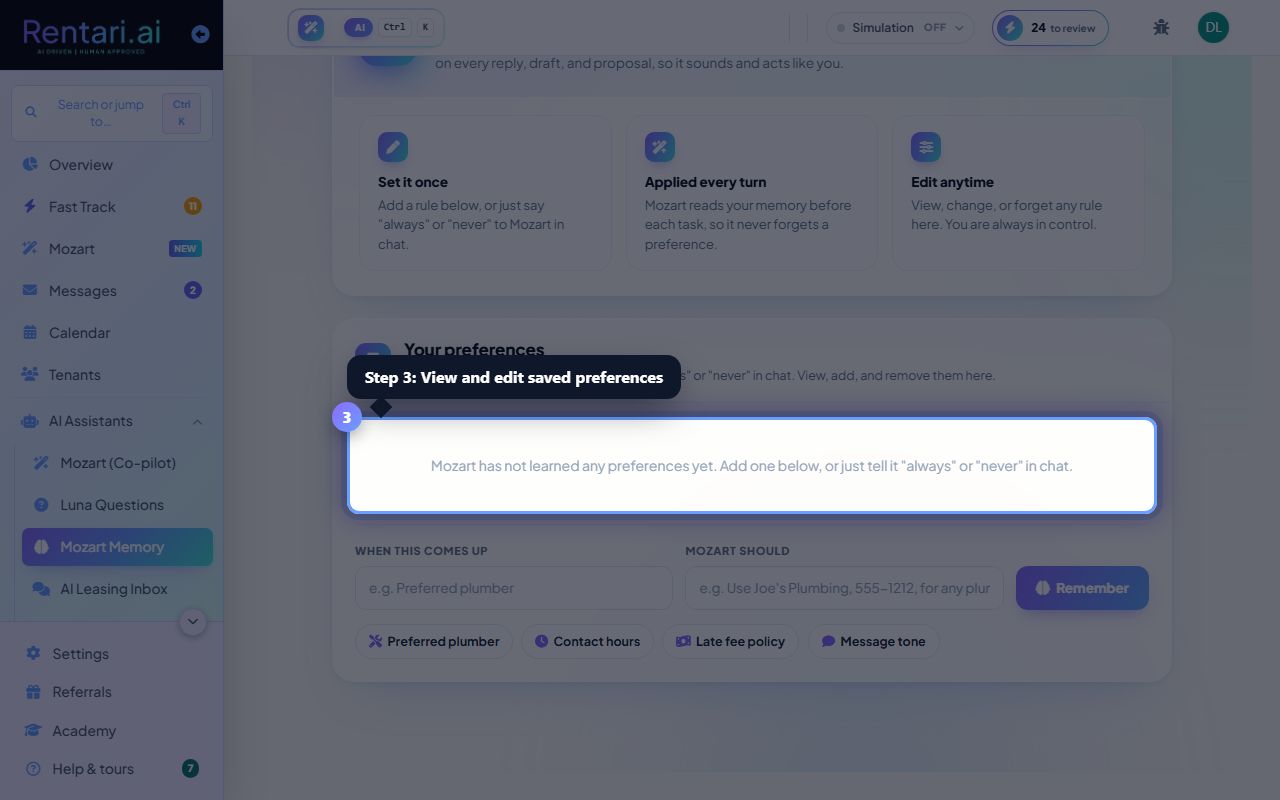
Add a preference
Action: Scroll to 'Your preferences' section. In the 'When this comes up' field, type a topic (e.g. 'Preferred plumber'). In the 'Mozart should' field, type what Mozart should do (e.g. 'Use Joe's Plumbing, 555-1212, for any plumbing job'). Click 'Remember' to save.
Mozart reads every preference at the start of each task, so you only set it once. Changes take effect immediately on the next Mozart prompt or draft.
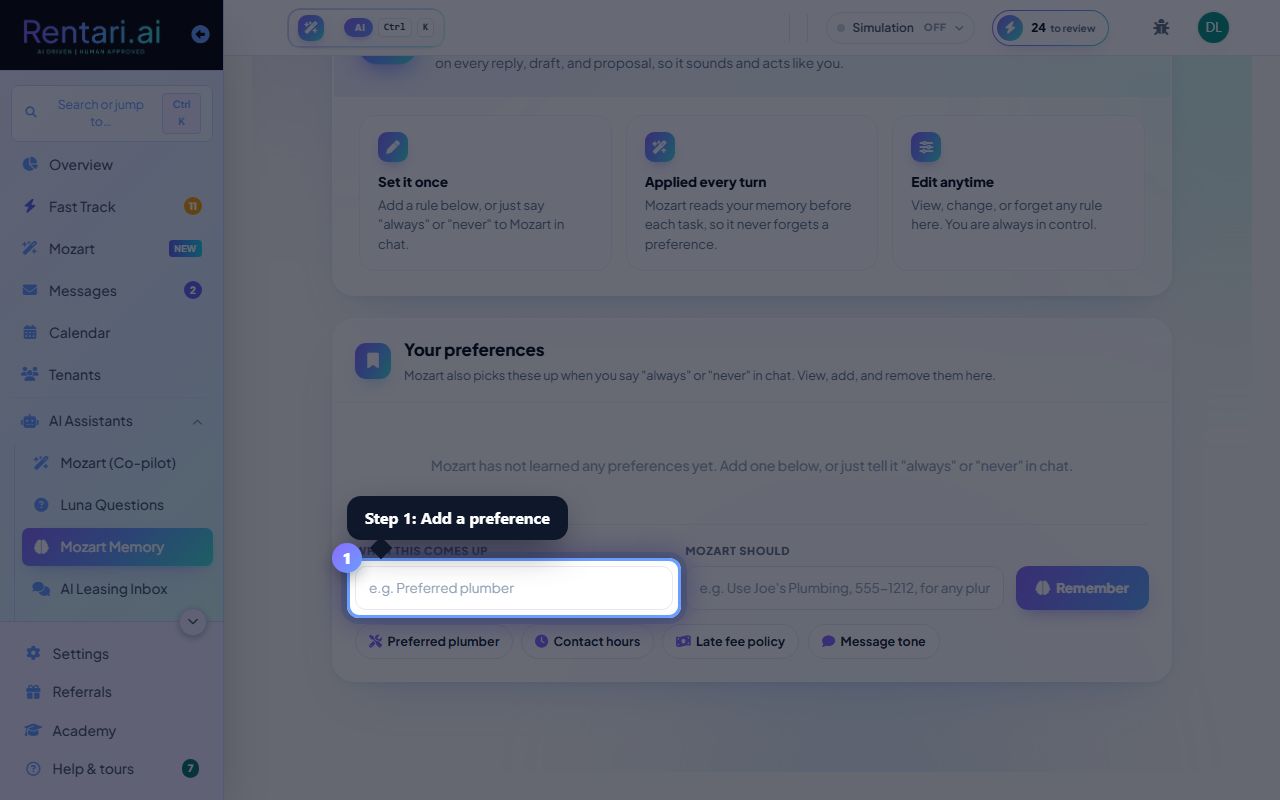
Use example templates
Action: Click any of the example preference chips ('Preferred plumber', 'Contact hours', 'Late fee policy', 'Message tone') to auto-fill the form with a template, then edit it for your property.
Examples are just starting points. Feel free to customize them with your own rules. You can also tell Mozart 'always' or 'never' in chat and it will learn and offer to save the preference here.
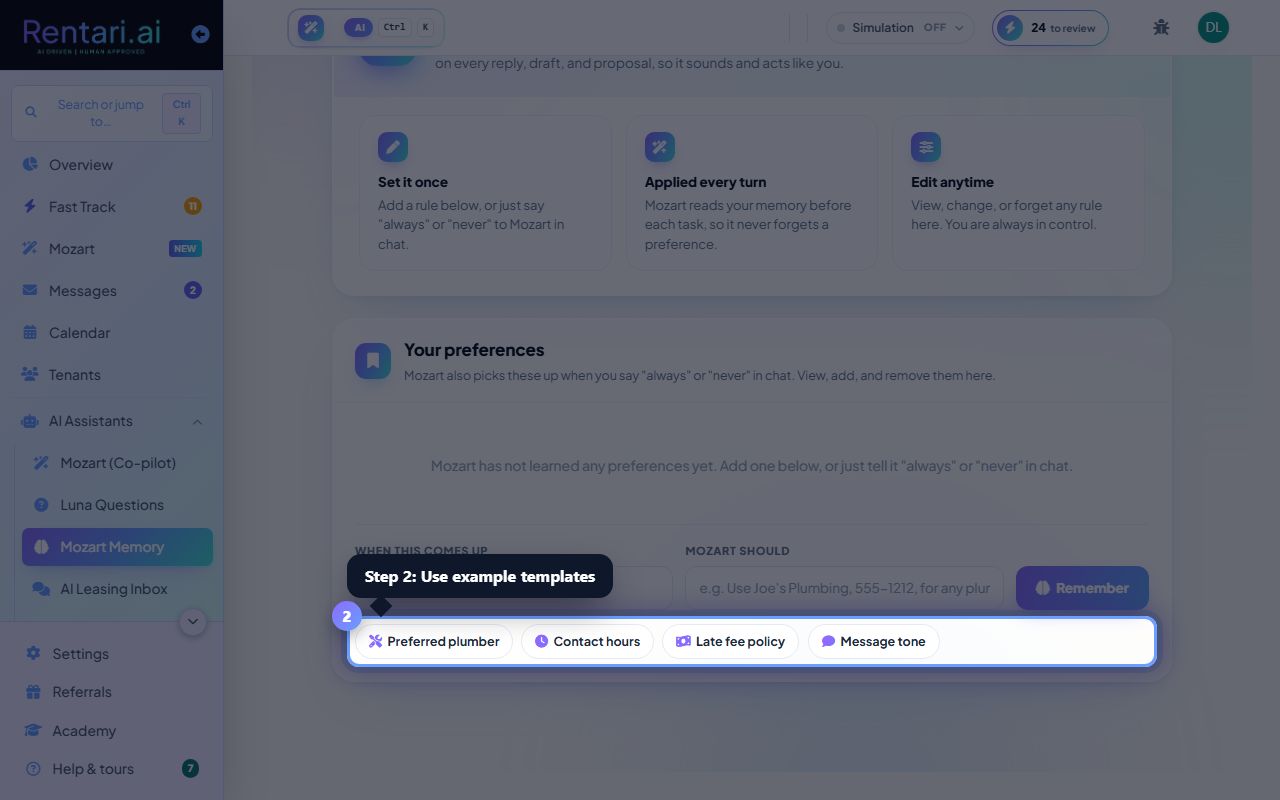
View and edit saved preferences
Action: Scroll through 'Your preferences' list above the add form. Click the delete button (trash icon) on any item to remove it, or edit the text directly if your rule changes.
You are always in control: delete any preference anytime, or add new ones as your business evolves. Mozart respects your choices and never overrides what you teach it.