Help Center • Landlords • Portfolio
Manage social-housing waitlists
Track applicant queues by priority band, apply date, household size, and status, plus calculate rent-geared-to-income (RGI) rents.
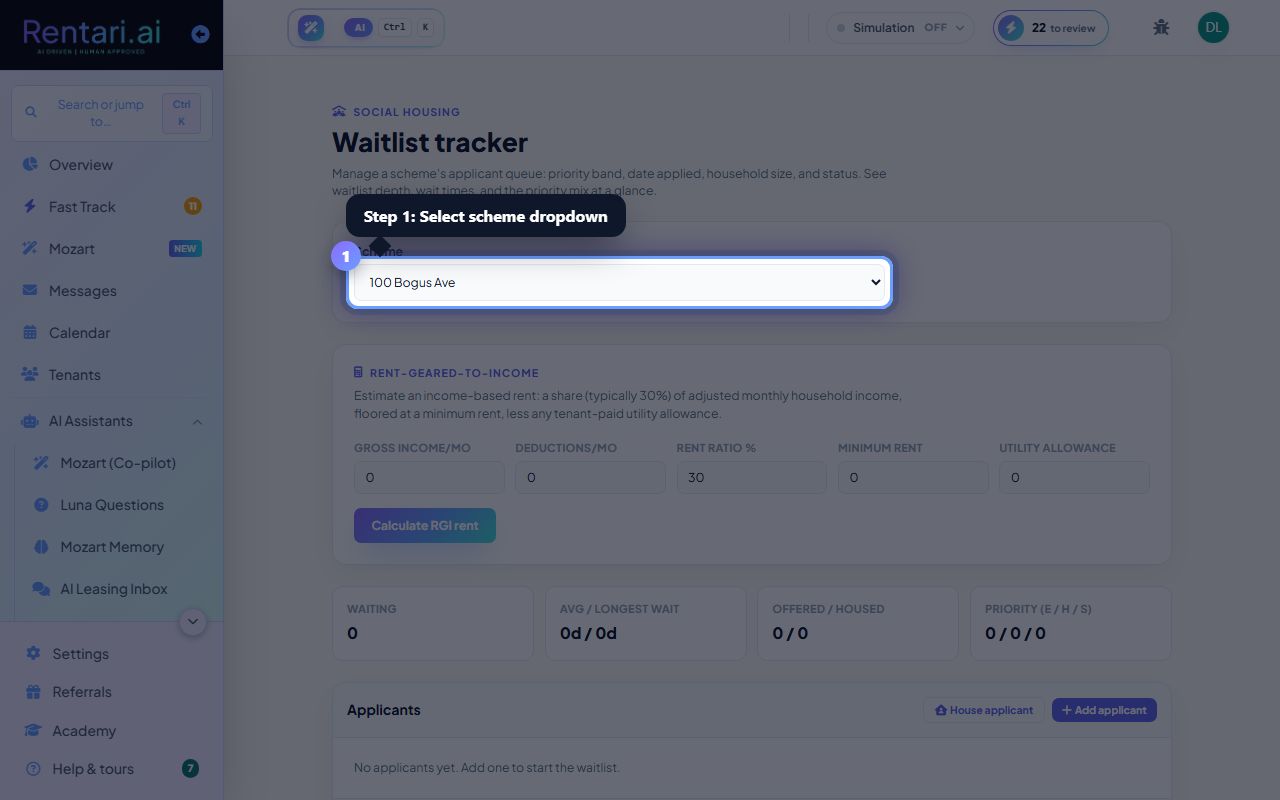
Select a scheme and review the waitlist
Action: Use the Scheme dropdown to choose a social-housing property. Summary cards show waiting applicants, average and longest wait times in days, offered and housed counts, and priority band breakdown (Emergency, High, Standard).
Wait time is counted from the Date Applied field, so keep that date accurate for reliable wait-time reporting.
Calculate rent-geared-to-income (RGI)
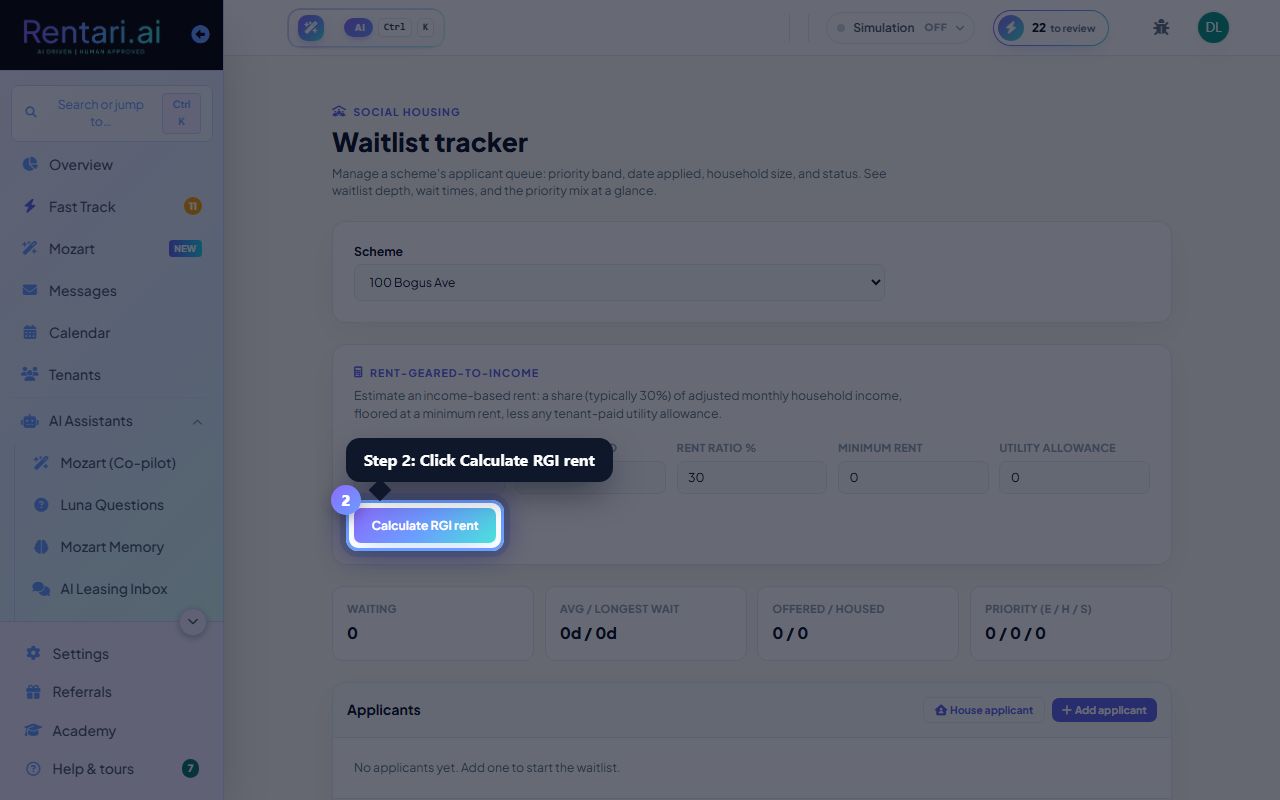
Action: In the Rent-Geared-to-Income section, enter gross monthly household income, deductions, rent ratio (typically 30%), minimum rent floor, and utility allowance. Click Calculate RGI rent. The result shows the income-based rent and the tenant's net rent after utilities.
RGI is an estimate. Confirm the income ratio (usually 30%) and any deductions against your housing authority's published rent scale before using it in a lease.
House an applicant from the waitlist
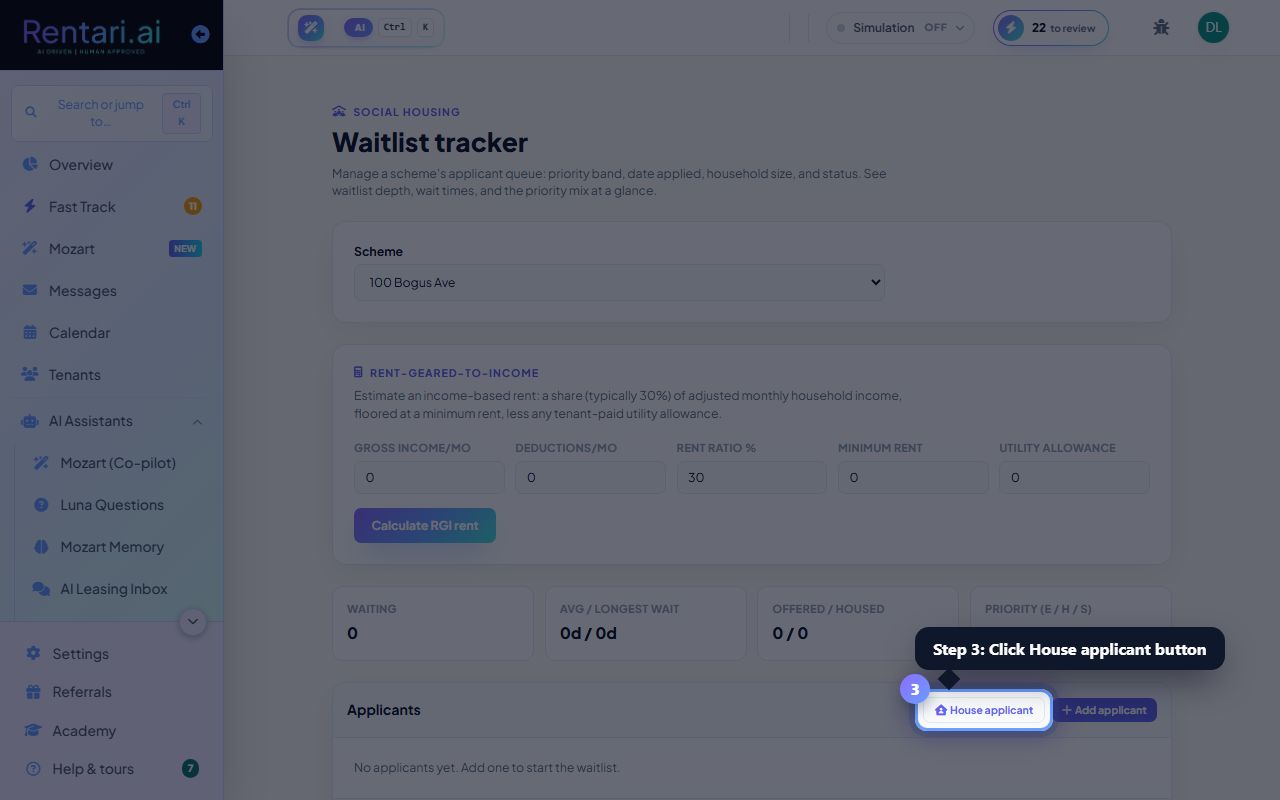
Action: Click House applicant to open a modal. Select an applicant from the dropdown, choose a unit, enter monthly rent (you can paste the RGI result), lease start and end dates, and optionally an email. Click House applicant to create an active lease, mark the applicant housed, and start billing.
Housing an applicant creates a real lease and a billable Tenant record. The monthly-rent run then bills it automatically. The applicant record marks as housed so you do not house the same person twice.