Help Center • Tenants • Documents
Register your vehicles
Register your vehicles and parking spots, and issue guest passes for visitors.
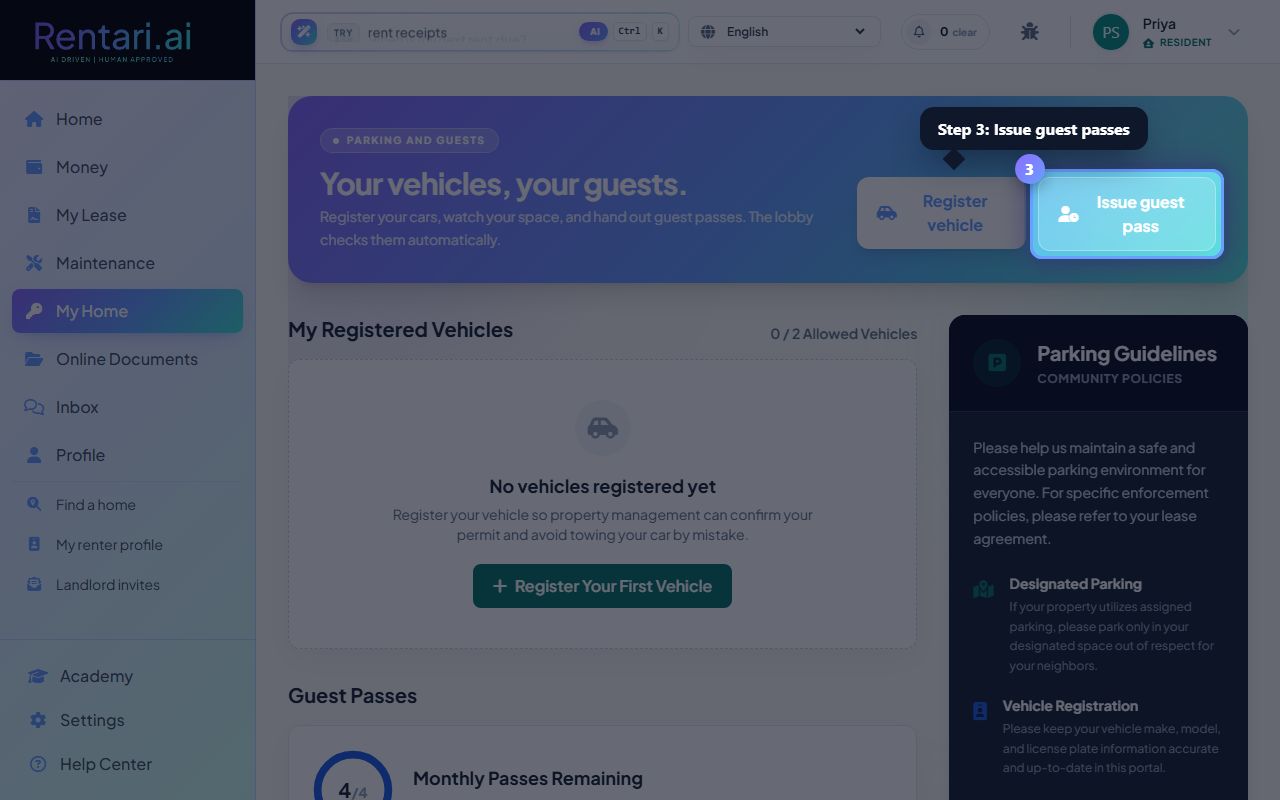
Register a vehicle
Action: Click the 'Register vehicle' button at the top of the page. Fill in the make, model, color, year, and license plate number. Your property management system automatically assigns parking spaces and verifies permits.
A 'Valid Permit' badge appears on your vehicle card once registered. If you reach the vehicle limit (e.g., 2 max), the button becomes disabled and shows the quota.
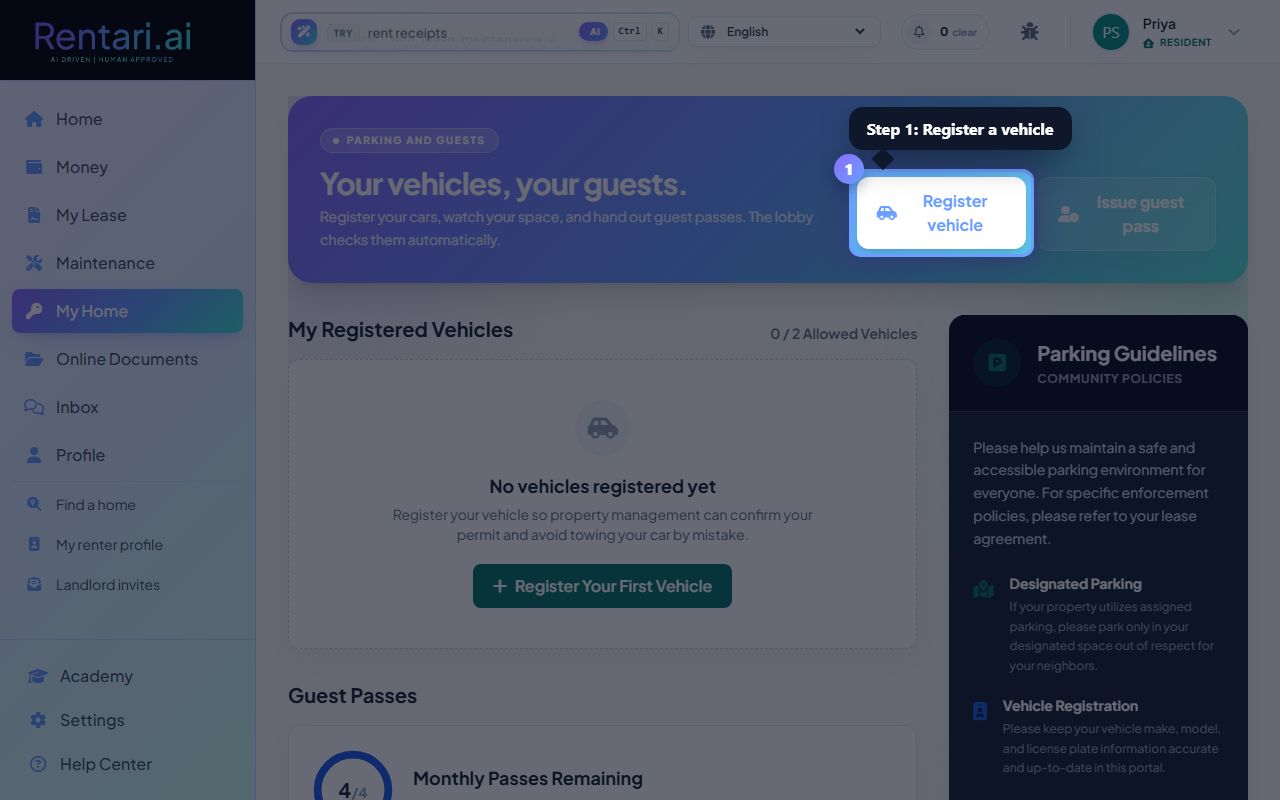
View your registered vehicles
Action: Your vehicles display as cards showing the make and model, color, year, license plate in a license-plate style box, and assigned parking space number. Click 'Remove' to delete a vehicle from your profile.
Each vehicle card shows a green checkmark if the permit is valid. Assigned spaces display in large text; unassigned vehicles show 'Unassigned' in gray.
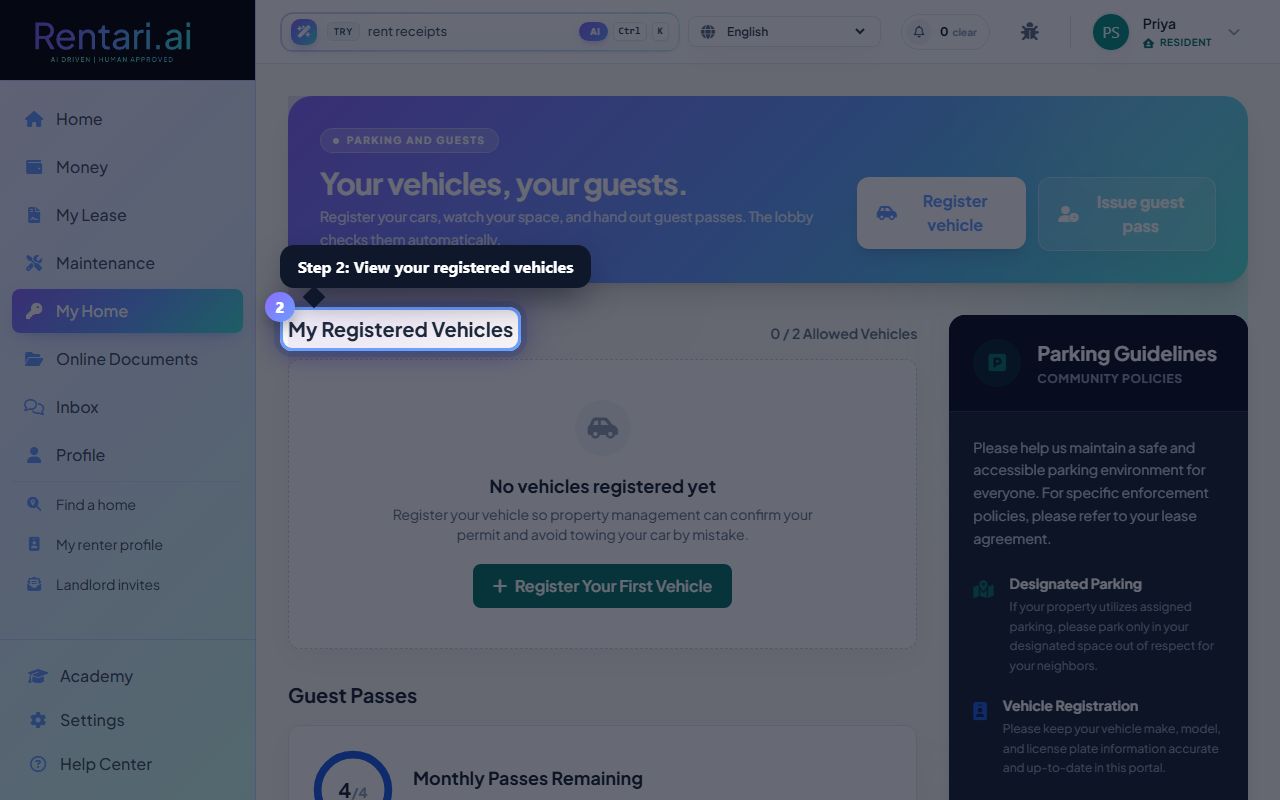
Issue guest passes
Action: Click 'Issue guest pass' to create temporary passes for visitor vehicles. A circular progress indicator shows how many passes you have remaining this month. Active guest passes list below with expiration times and a remove option.
Monthly guest pass quota resets on the 1st of each month. Each active pass shows in an amber card with the pass expiration time and a button to remove it.