Help Center • Landlords • Portfolio
Track lease critical dates
Monitor every leased space and its expiration or renewal-notice deadlines so obligations are never missed.
Review your lease portfolio
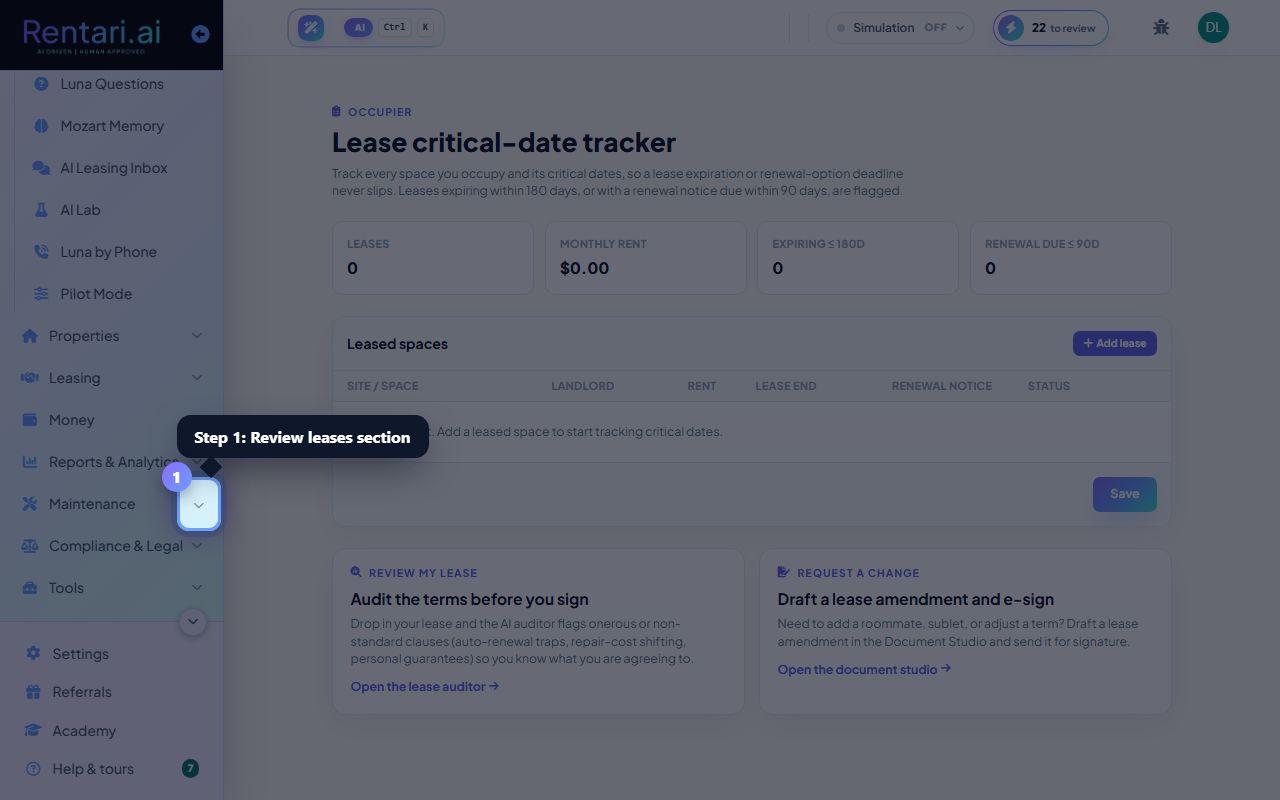
Action: Open the Leased spaces section. You will see summary cards for total leases, monthly rent obligations, and count of leases expiring within 180 days or with renewal notices due within 90 days.
Leases flagged as expiring or renewal-due appear highlighted in amber. Check these first to ensure no deadline surprises.
Add or edit a leased space
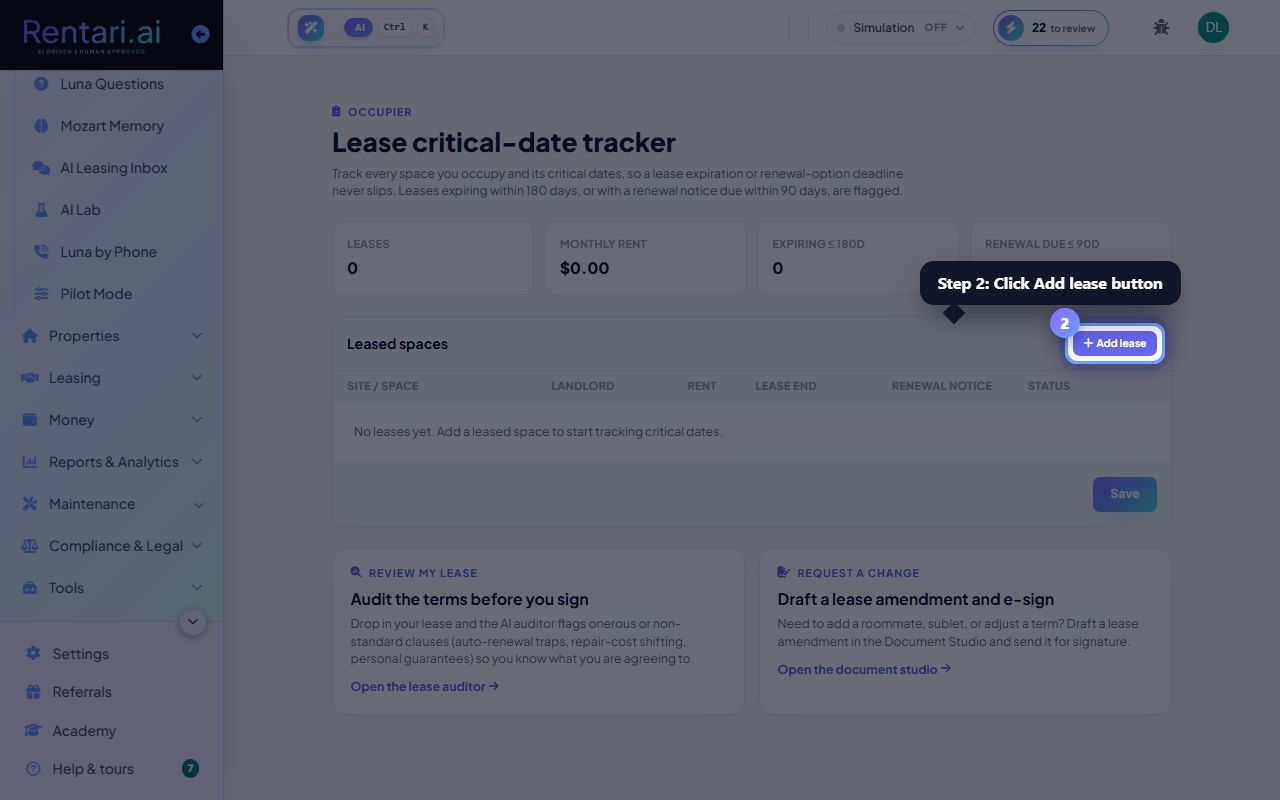
Action: Click Add lease to create a new row. Fill in the site or space name (required), landlord name, monthly rent, lease end date, and renewal notice date. Edit any field by clicking into it. Delete a row by clicking the trash icon.
The renewal notice date is the deadline by which you must notify the landlord of your intent to renew or vacate. Mark it clearly so it is not confused with the lease end date.
Save your changes
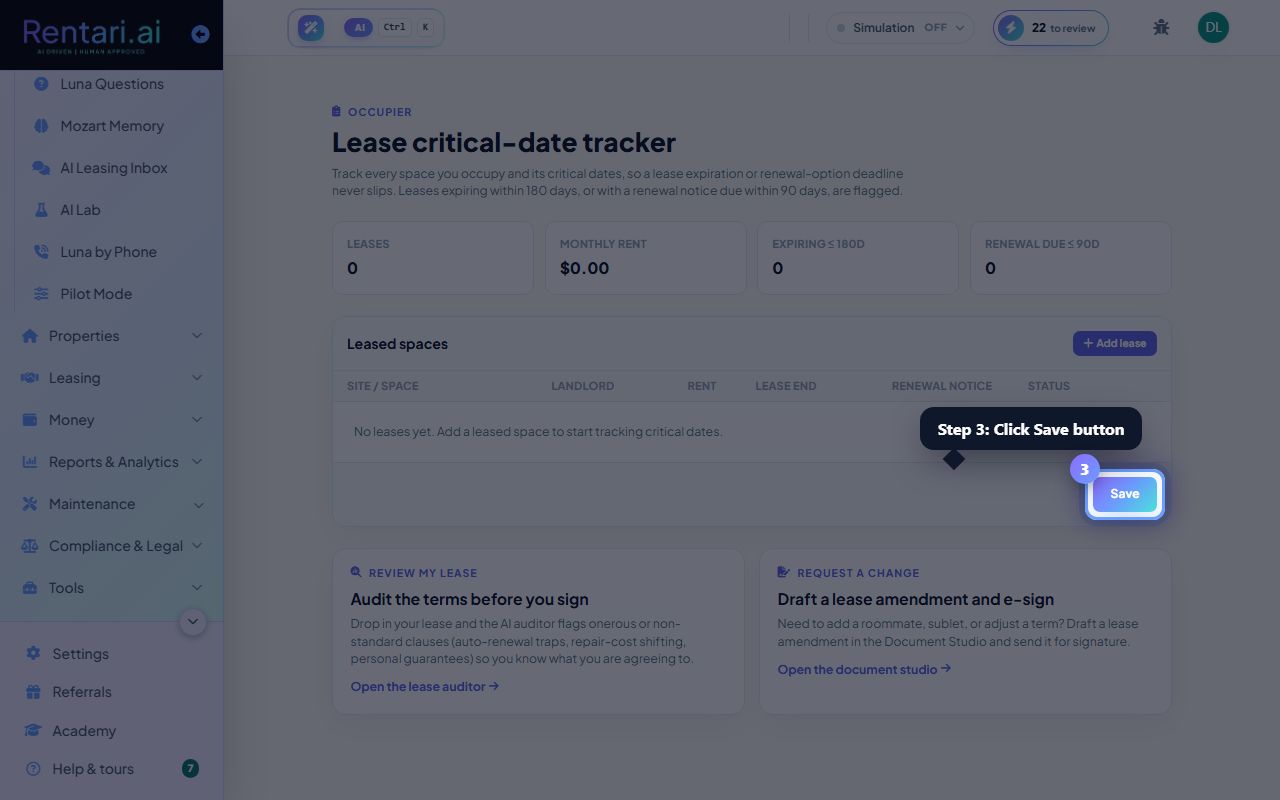
Action: Click the Save button at the bottom of the table. You will see an Unsaved changes indicator until you save. The dashboard then recalculates days until expiration and highlights any leases nearing their critical dates.
Any row without a site name is silently dropped when you save, so double-check that every lease has a site or space name.