Help Center • Landlords • Portfolio
Manage manufactured housing lot rent roll
Track lots, occupancy, home ownership, and lot rent in a manufactured-housing community.
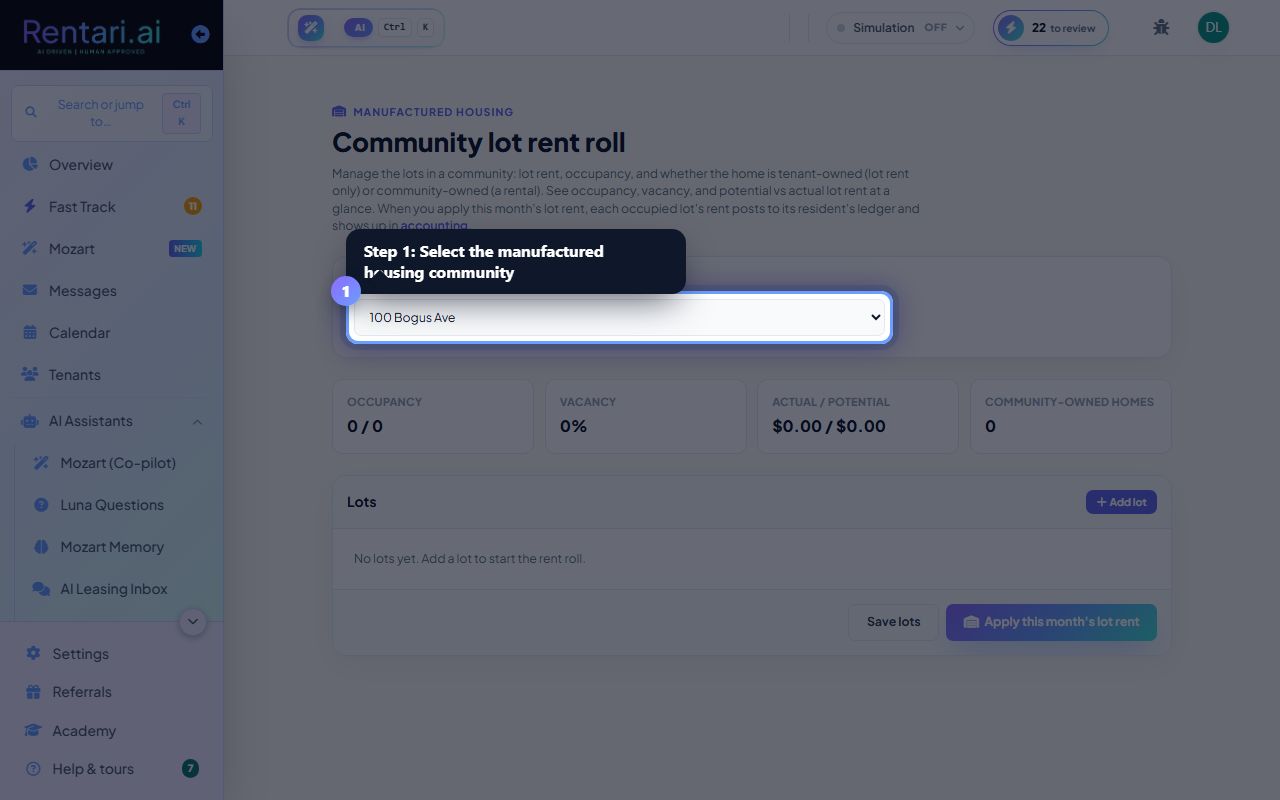
Select community and add lots
Action: Select a Community (property) from the dropdown. Click Add lot to add a row. For each lot, enter Lot #, Lot rent, Occupant name (optional), set Occupancy status (Vacant or Occupied), and Home ownership (Tenant home or Community home).
Only occupied lots with lot rent above $0 can be billed. Leave the occupant name blank if you track only the lot itself. You can edit or delete lots at any time.
Monitor occupancy and revenue metrics
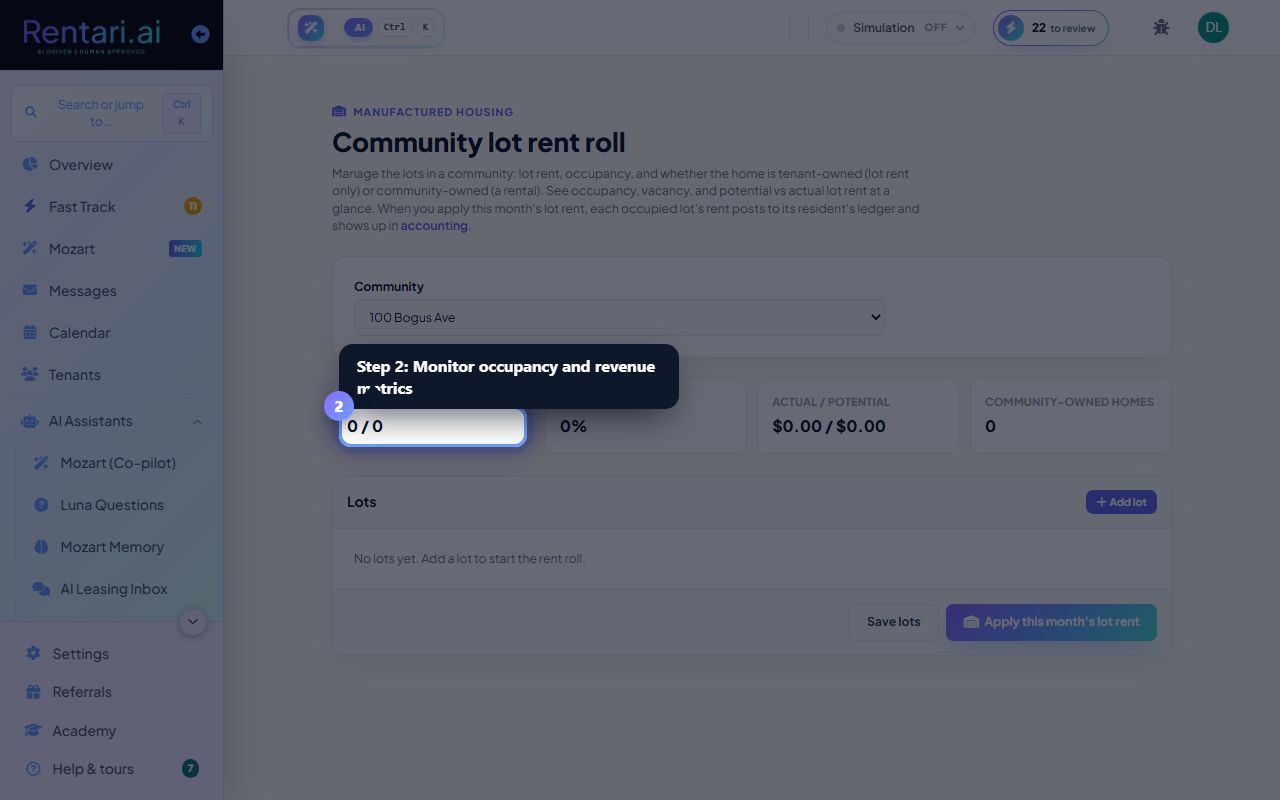
Action: Check the summary cards for Occupancy (occupied/total), Vacancy rate (%), Actual/Potential monthly rent, and Community-owned homes count.
Actual rent is the sum of lot rent from only occupied lots. Potential rent is the sum of all lots, including vacant. This shows your revenue leakage from vacancy.
Apply lot rent and post to ledgers
Action: Click Save lots to store edits. Click Apply this month's lot rent. Confirm the prompt. Each occupied lot's rent posts to its resident's ledger and appears in accounting and rent collection.
Re-applying the same month will skip lots already billed. Your lot rent roll is saved independently; confirm edits are saved before applying to avoid posting stale charges.