Help Center • Landlords • Leasing & Screening
AI leasing inbox
Manage inbound prospect messages from your listings (Zillow, Apartments.com, email, etc.) with optional AI-drafted replies you approve before sending.
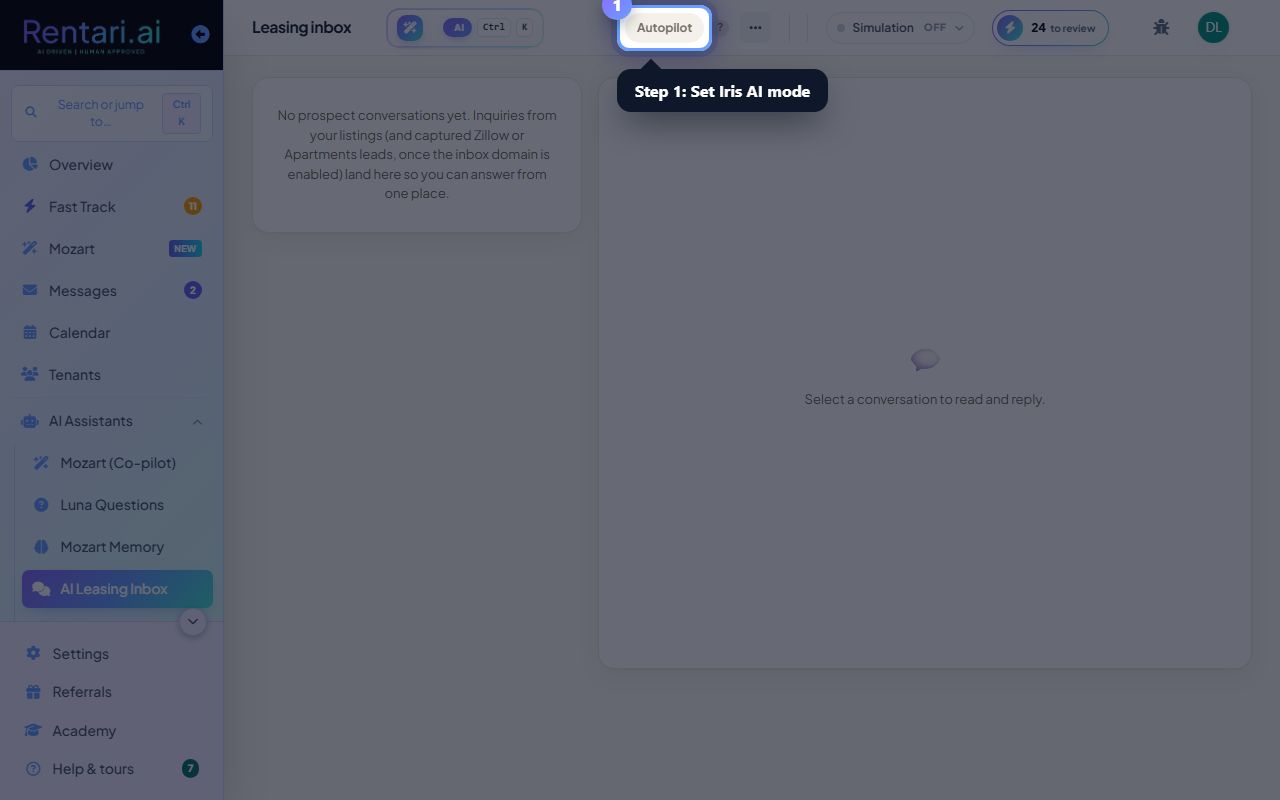
Set Iris AI mode
Action: In the top right header, choose Iris AI mode: 'Off' (no AI drafts), 'Co-pilot' (Iris drafts a reply you approve before it sends), or 'Autopilot' (Iris auto-answers questions it can ground in your listing facts, escalates everything else to you).
Co-pilot is recommended if you want to review every outbound message. Autopilot is fastest but may miss questions that need your judgment. Mode can be changed anytime.
Read and select a message thread
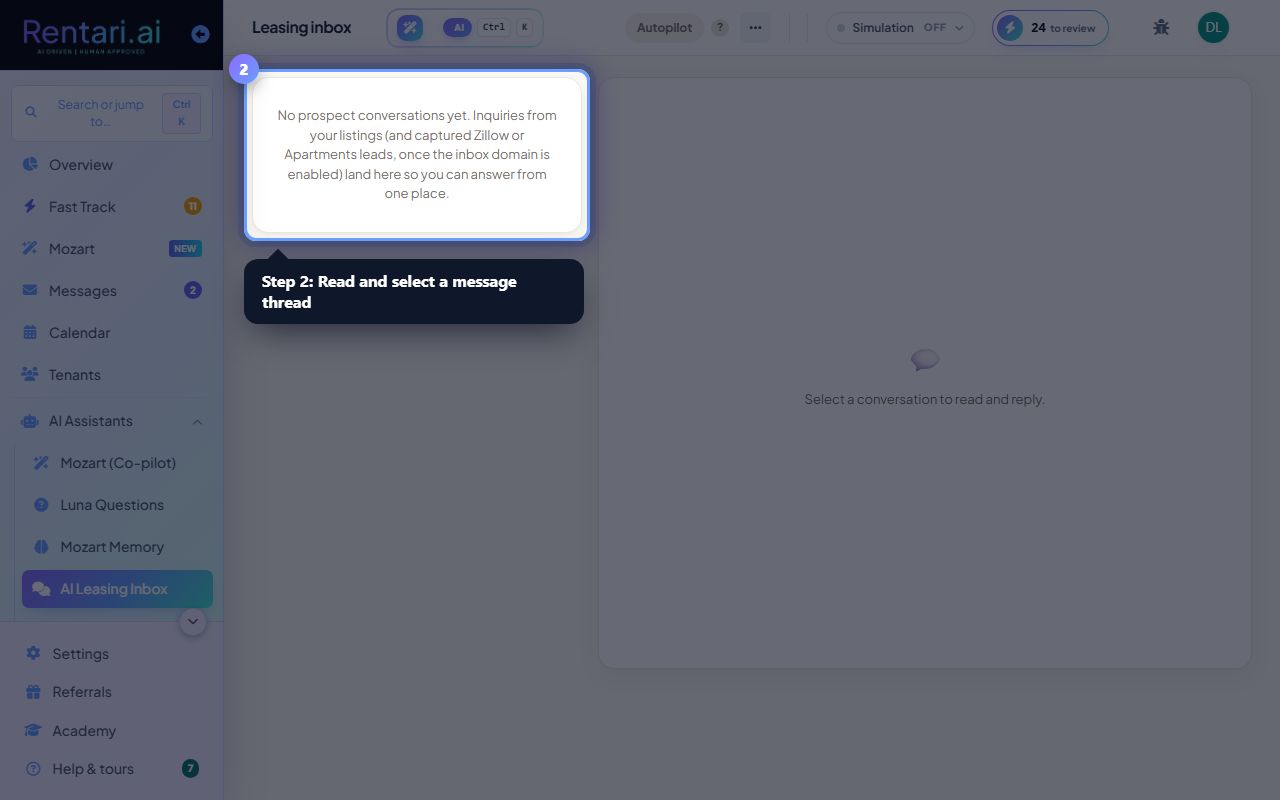
Action: Click a prospect name in the left list to open their conversation on the right. See their full message history, the property they are interested in, and the rent amount.
An unread blue dot appears next to the prospect's name. The list shows the channel (Zillow, Apartments, email, etc.) as a badge so you know where the lead came from.
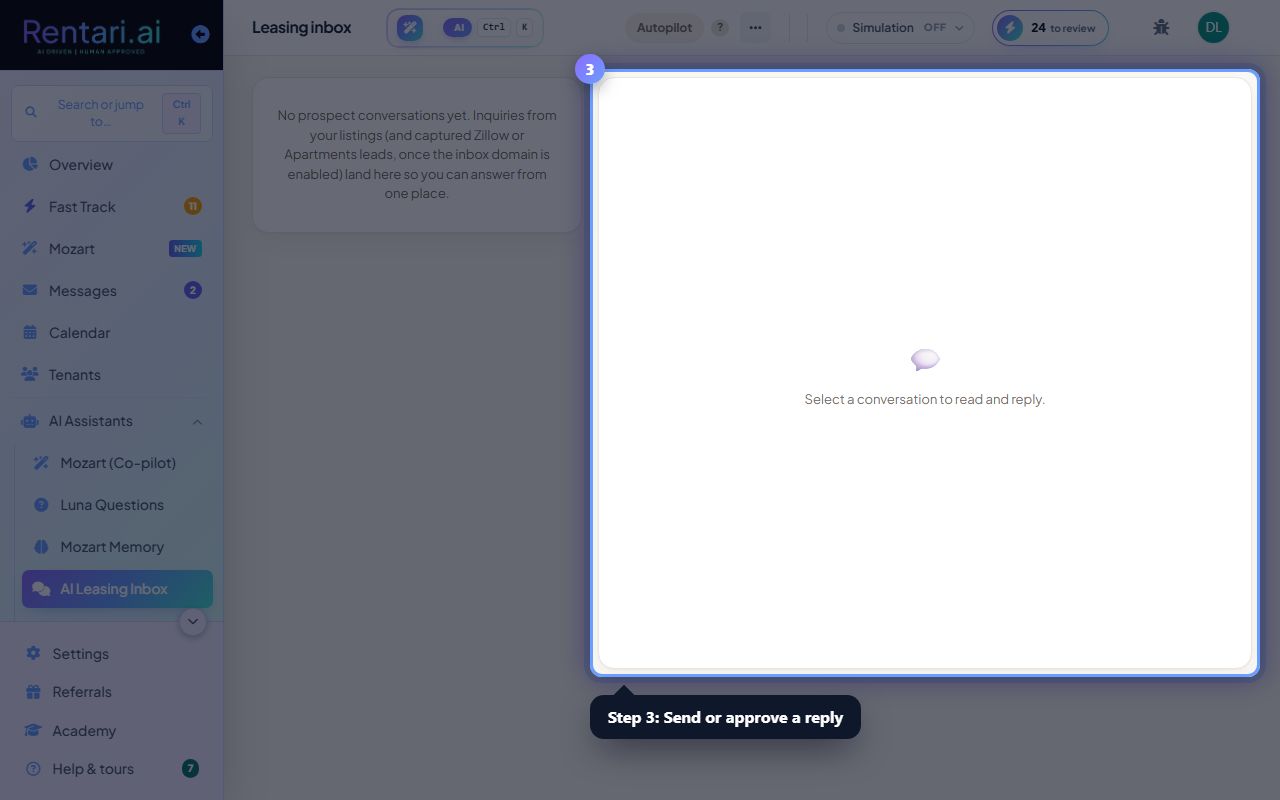
Send or approve a reply
Action: Type or edit your reply in the text box at the bottom. If Iris AI mode is on, click 'Suggest' to let Iris draft a reply first. Review the draft, click 'Approve' to send it, or 'Edit' to change it.
Iris only offers to reply to questions it can answer from your listing facts (rent, lease terms, availability). If it escalates a question to you, your human judgment is needed.