Help Center • Landlords • Portfolio
Calendar
View lease starts, lease ends, rent collection deadlines, maintenance appointments, and inspections across all properties in one calendar.
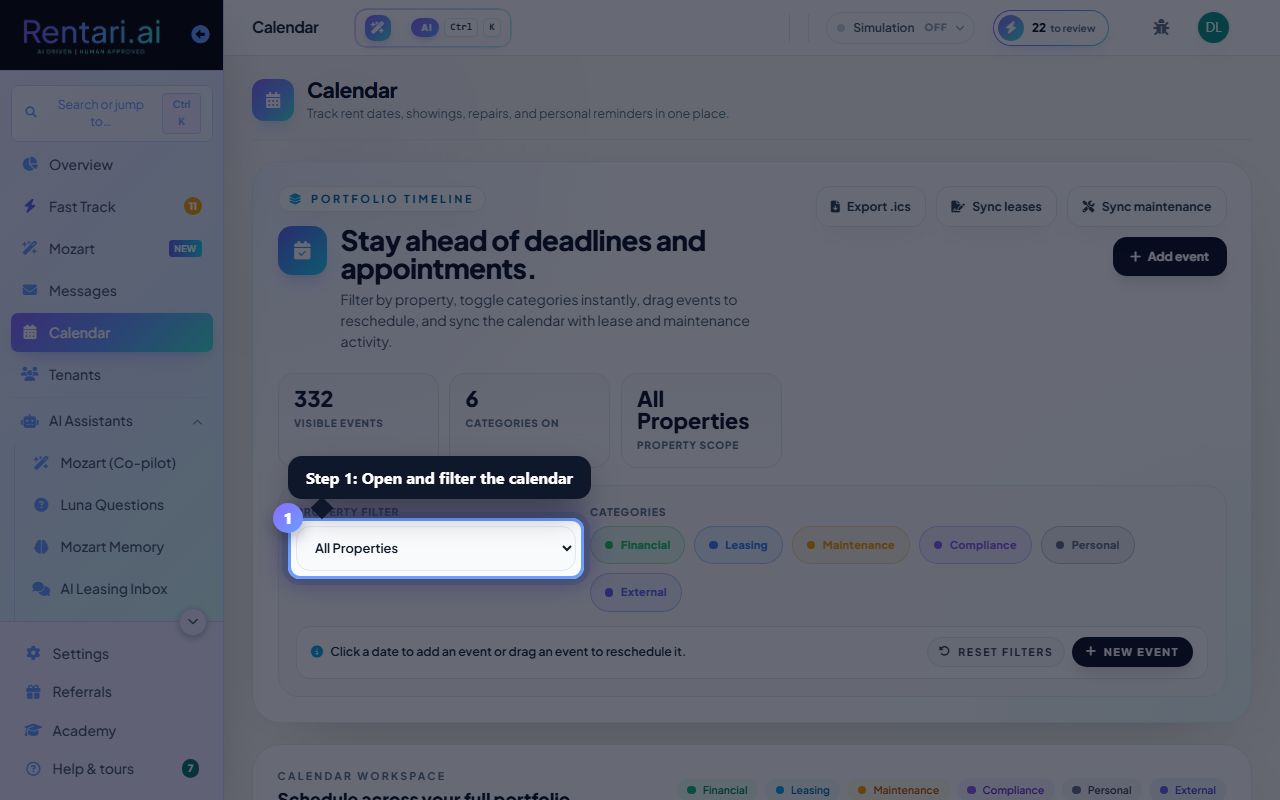
Open and filter the calendar
Action: Click on a date in the calendar to view events for that day. Use the 'Month' or 'Week' view buttons at the top right to change the view. Click 'Properties' dropdown to select which properties to show.
The calendar shows all event types: lease milestones (green), rent cycles (blue), maintenance work orders (purple), and inspections (orange). Hover over any event to see details.
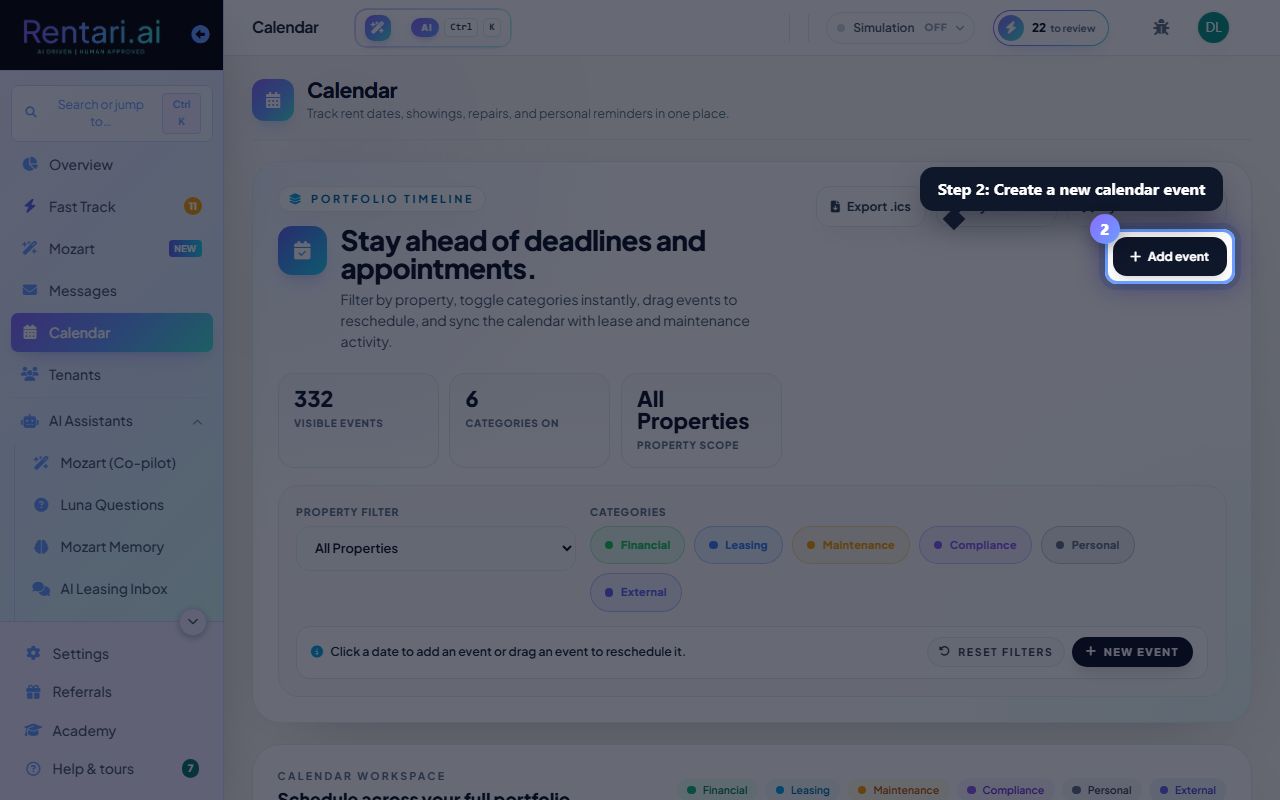
Create a new calendar event
Action: Click any date to open the event creator. Fill in 'Event name', 'Date', 'Property' (if visible), and 'Type' (lease, rent, maintenance, or inspection). Click 'Save' to add it.
Events can recur: select 'Recurring' and choose daily, weekly, monthly, or custom intervals if the event repeats (e.g., monthly rent due on the 1st).
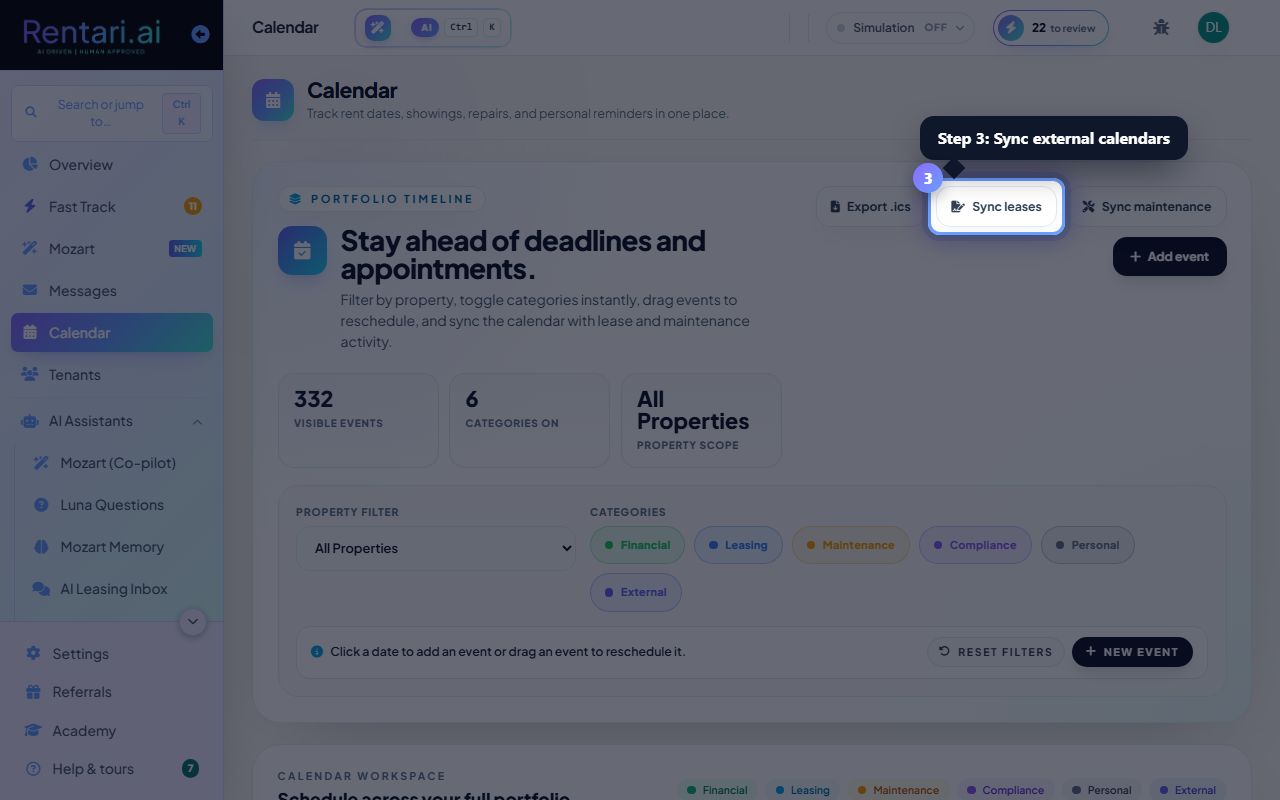
Sync external calendars
Action: If the 'Connected calendars' panel appears, click the OAuth button for your calendar provider (Google, Outlook, etc.) to sync events from Google Calendar or other sources into this view.
Calendar syncing is optional and requires provider OAuth credentials. External calendar events appear in gray and are read-only in Rentari.ai.