Help Center • Landlords • Account & Settings
Manage your AI inbox
Review AI-triaged messages with tenants, vendors, and AI drafts waiting on your approval.
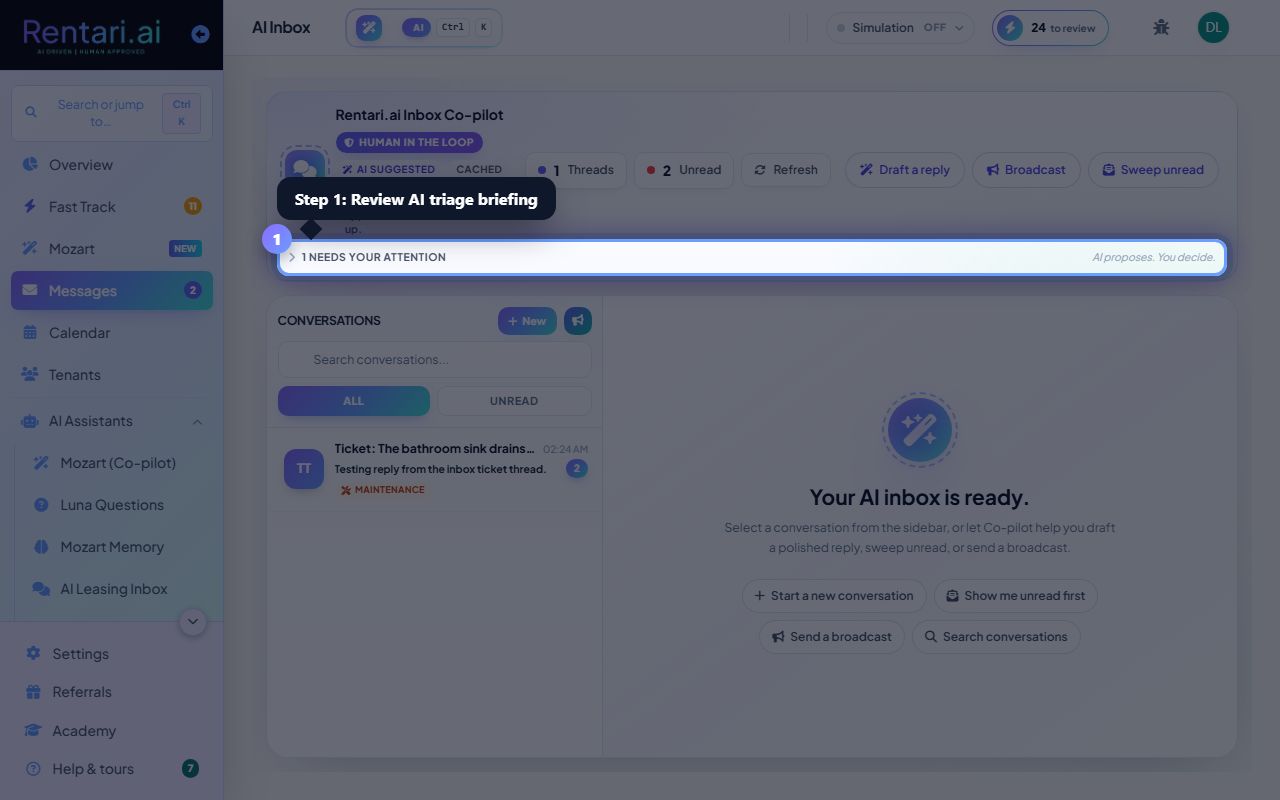
Review AI triage briefing
Action: At the top of your inbox, look at the AI triage panel under 'Needs your attention'. Click any card to jump to that conversation. Cards show urgency level, category (lease, maintenance, billing), and a one-line summary from the AI.
Click the chevron next to 'Needs your attention' to collapse the panel if it takes up too much screen space. Use the 'Refresh' button to re-triage your unread messages.
Select and reply to a conversation
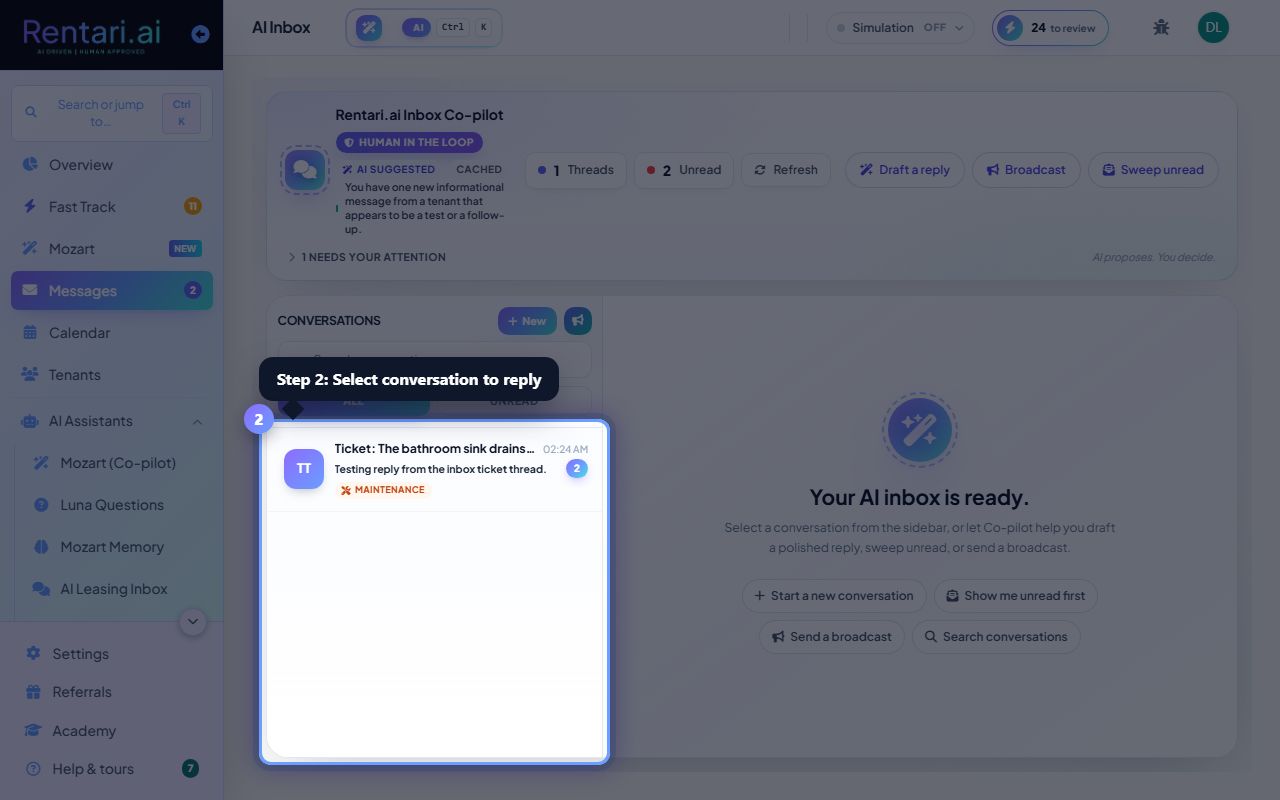
Action: Click a conversation row in the sidebar list on the left. The chat opens on the right side. Scroll to read the full thread. At the bottom, type your reply in the message box and click the send button (paper plane icon), or use the 'Draft a reply' button to let AI suggest a response first.
Use keyboard shortcuts: press J to go to the next conversation, K for previous, Enter to open the selected thread, and R to refresh the triage.
Broadcast or manage quick replies
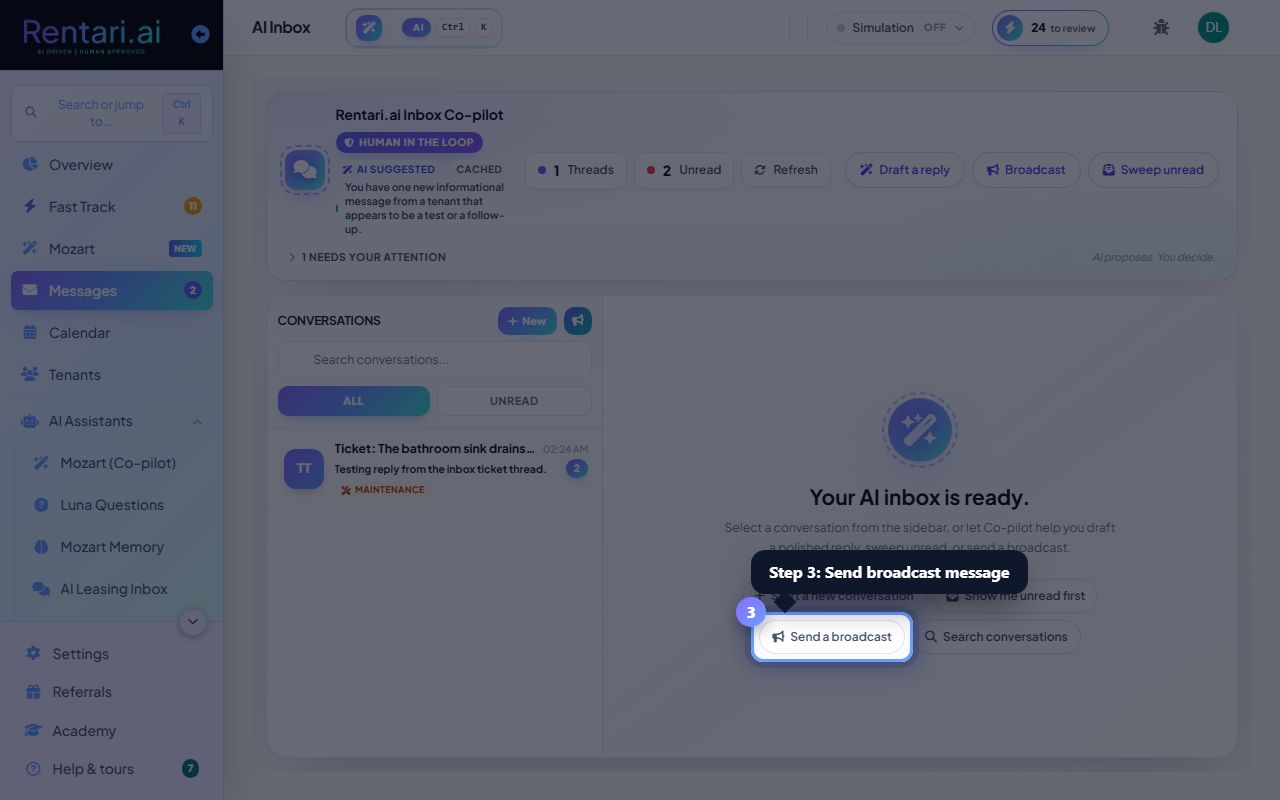
Action: To send a message to all tenants at once, click 'Broadcast' in the top right. To use templated responses, click the bolt icon in the message composer to open Quick Replies. Click 'Manage' to add your own templates, or click an existing one to insert it into the message box.
Quick replies save time for rent reminders and maintenance updates. Broadcasts can go via in-app chat, email, or SMS. Set up your replies in the Manage modal so you never type the same thing twice.