Help Center • Landlords • Leasing & Screening
Find a tenant
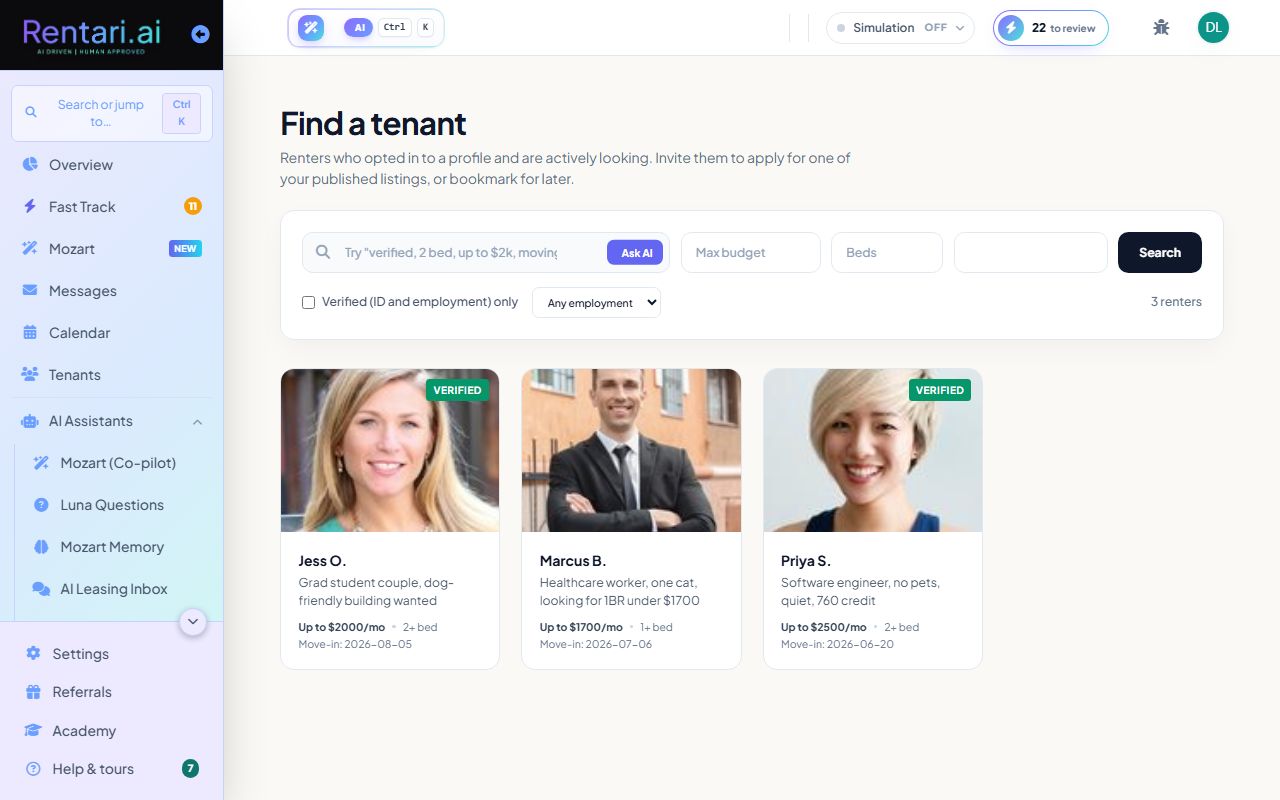
Browse and invite prospective renters who opted into profiles and match your unit requirements for budget, bedrooms, and move-in date.
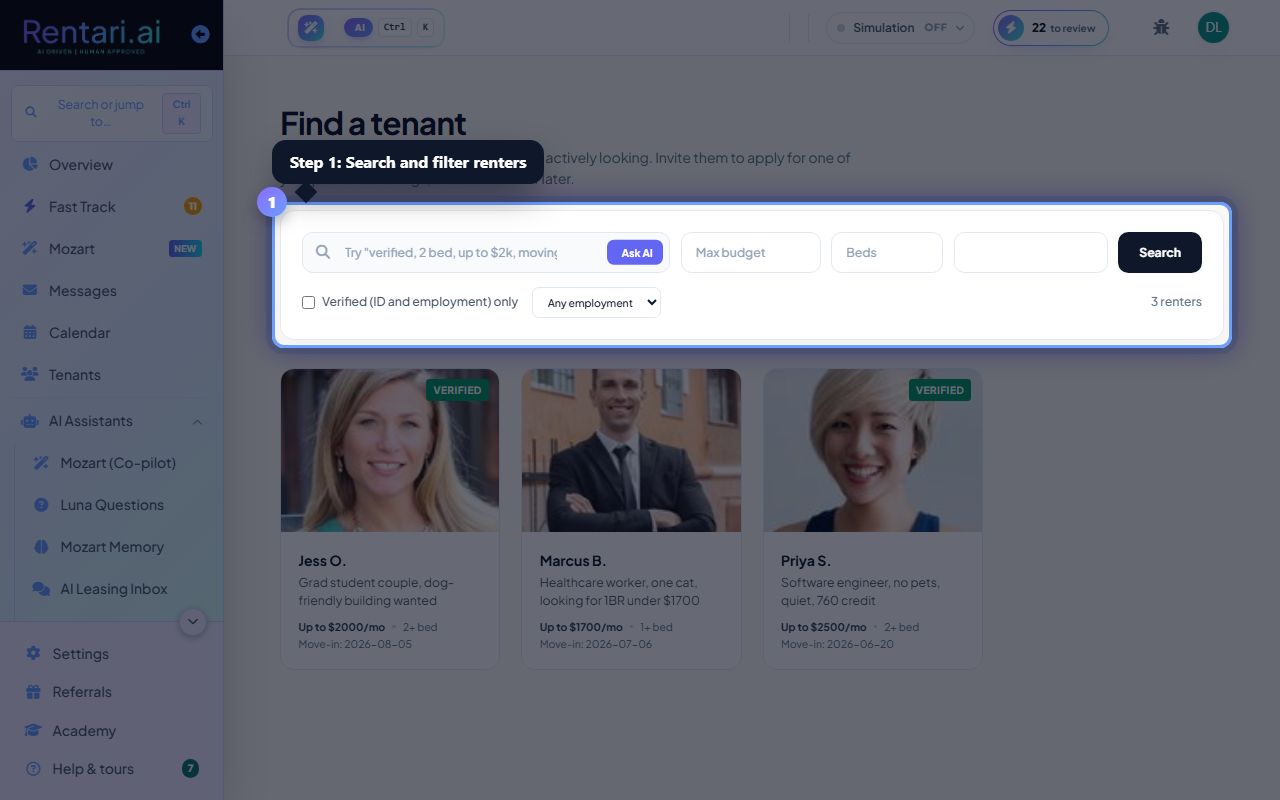
Search and filter renters
Action: Enter a search phrase in the main search box (e.g. 'verified, 2 bed, up to $2k, moving in by March'). Optionally set Max budget, Beds, and Move-in by fields. Check 'Verified (ID and employment) only' if you want screened renters. Click 'Search' to apply filters.
Click the 'Ask AI' button next to the search box to describe your ideal renter in plain language, and the AI interprets your criteria and runs the search for you.
Browse renter profiles
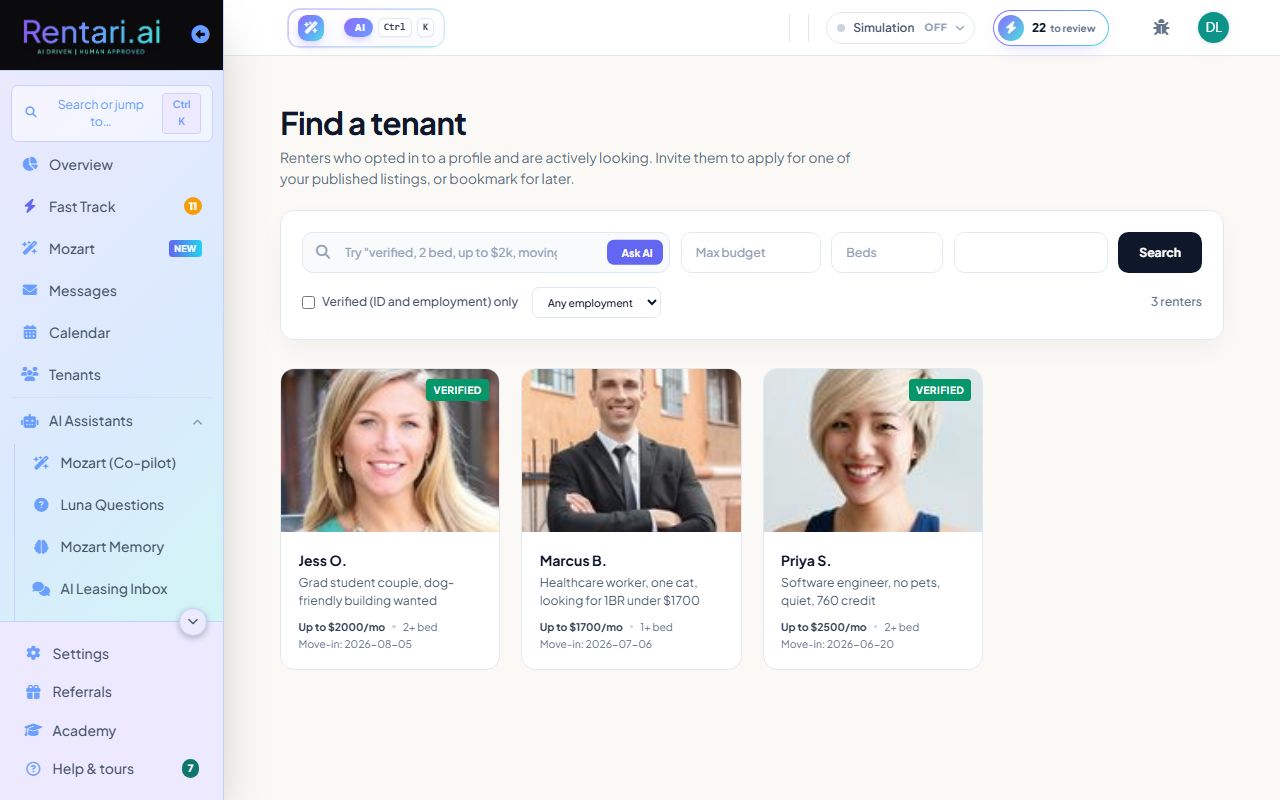
Action: Scroll through the renter cards showing their photo, name, headline, budget, beds wanted, and move-in date. Cards with a green 'Verified' badge have passed ID and employment checks.
Click a renter card to see their full profile, including employment status, references, and contact info. From there you can send them an invite to apply for one of your listings.
Invite and bookmark renters
Action: On a renter's profile, click 'Invite to apply' to send them a listing link, or click the bookmark icon to save them for later review.
Verified renters are pre-screened, so you skip background check delays if they match your unit. Use pagination at the bottom to browse more renters if your search returns many results.