Help Center • Landlords • Accounting & Reports
Cash flow report
See money in versus money out versus net cash flow by month and property, plus a rent payment pipeline showing expected, processing, settled, and late amounts.
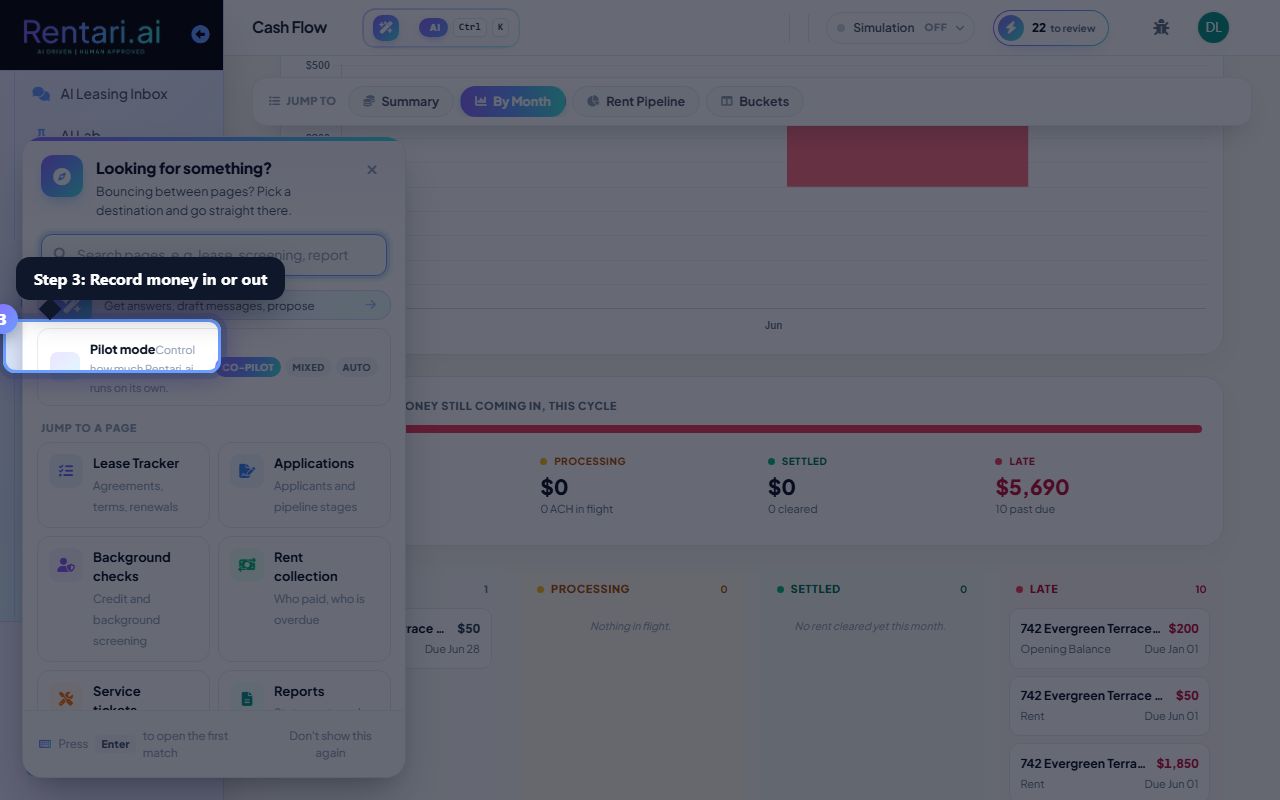
Choose your view and time period
Action: Click 'Pipeline' or 'Timeline' tabs at the top right. Then select your period: 'This cycle', '30 days', '90 days', or '12 months'. The cash flow summary updates to show the date range you select.
Pipeline view shows rent bucketed as Expected, Processing, Settled, or Late. Timeline view shows a day-by-day list of actual and upcoming cash movements. Pipeline is best for a quick snapshot, timeline for detailed history.
Review operating cash flow
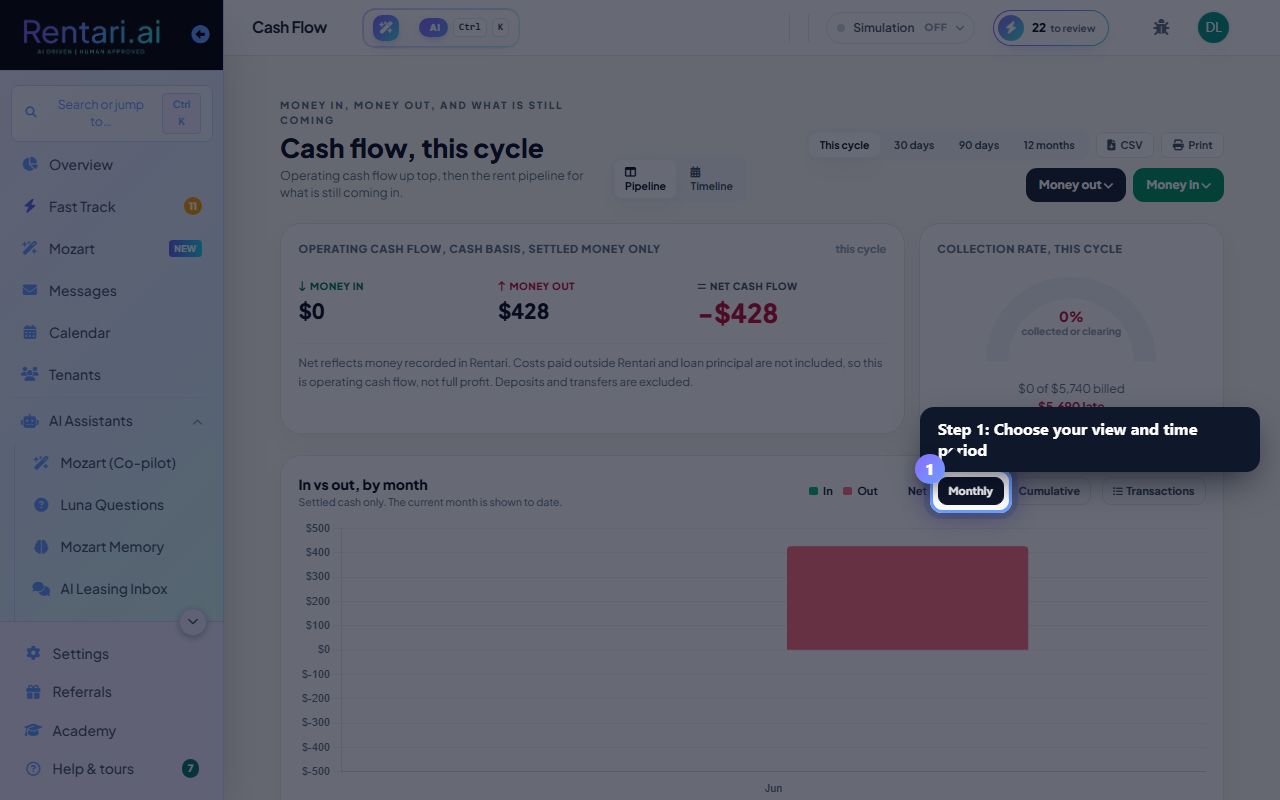
Action: Look at the 'Operating cash flow' card showing Money in (green arrow), Money out (red arrow), and Net cash flow (blue). Compare the net to 'vs prior period' to see if you are improving.
Cash basis means only settled transactions count (payment cleared, expense recorded). Outstanding invoices and pending charges do not appear in this summary yet.
Record money in or out
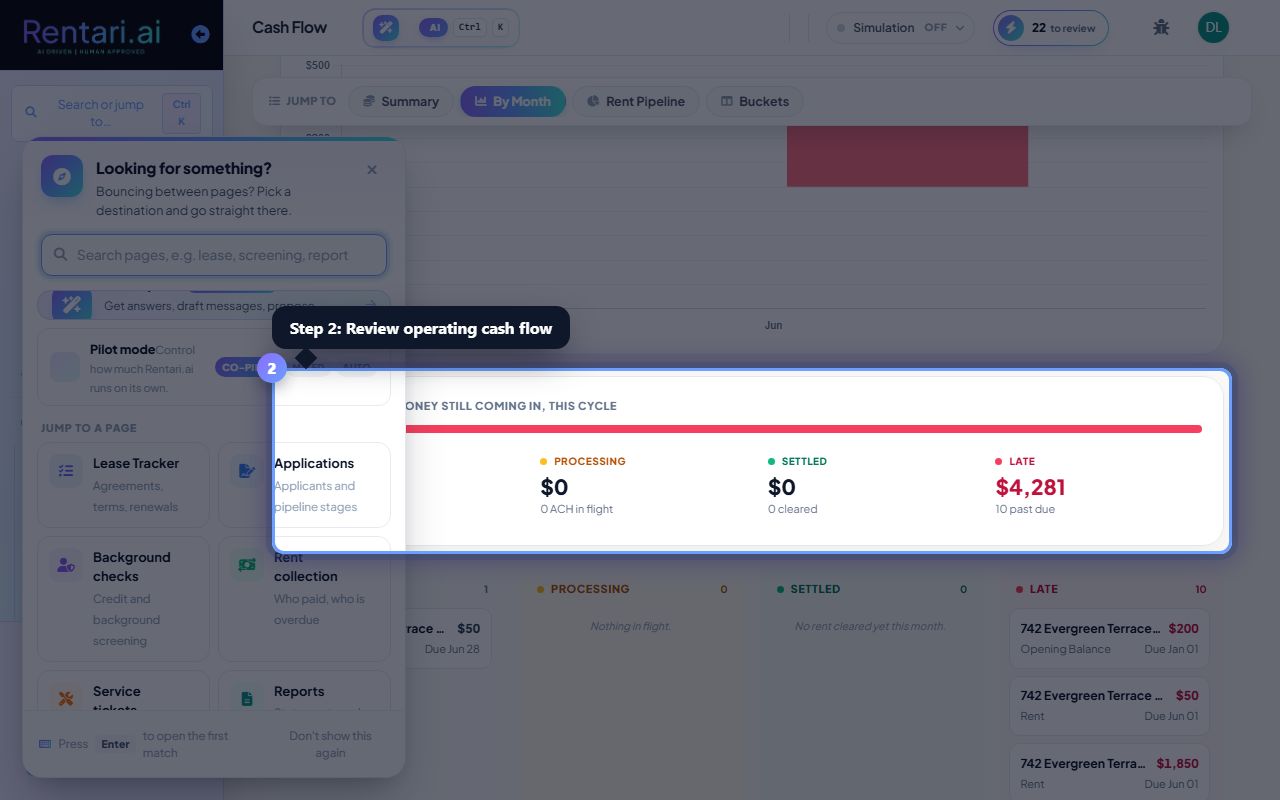
Action: Click 'Money in' or 'Money out' buttons at the top right. 'Money in' links to add charges, recurring charges, or credits. 'Money out' links to record expenses or owner distributions.
You can download this report as CSV or print it using the buttons in the header. Export is useful for tax prep or sharing with your accountant.