Rental work does not wait until you are back at your desk. A lease needs signing while you are in a parking lot, rent runs late on a Sunday, a tenant sends a photo of water coming through a ceiling at 9pm. So the question is not which device Rentari supports. It is which one you happen to be holding. Here is how to get in from each of them, whether you are the landlord, the tenant, or the vendor doing the work.
Start with the browser, because it is the whole product
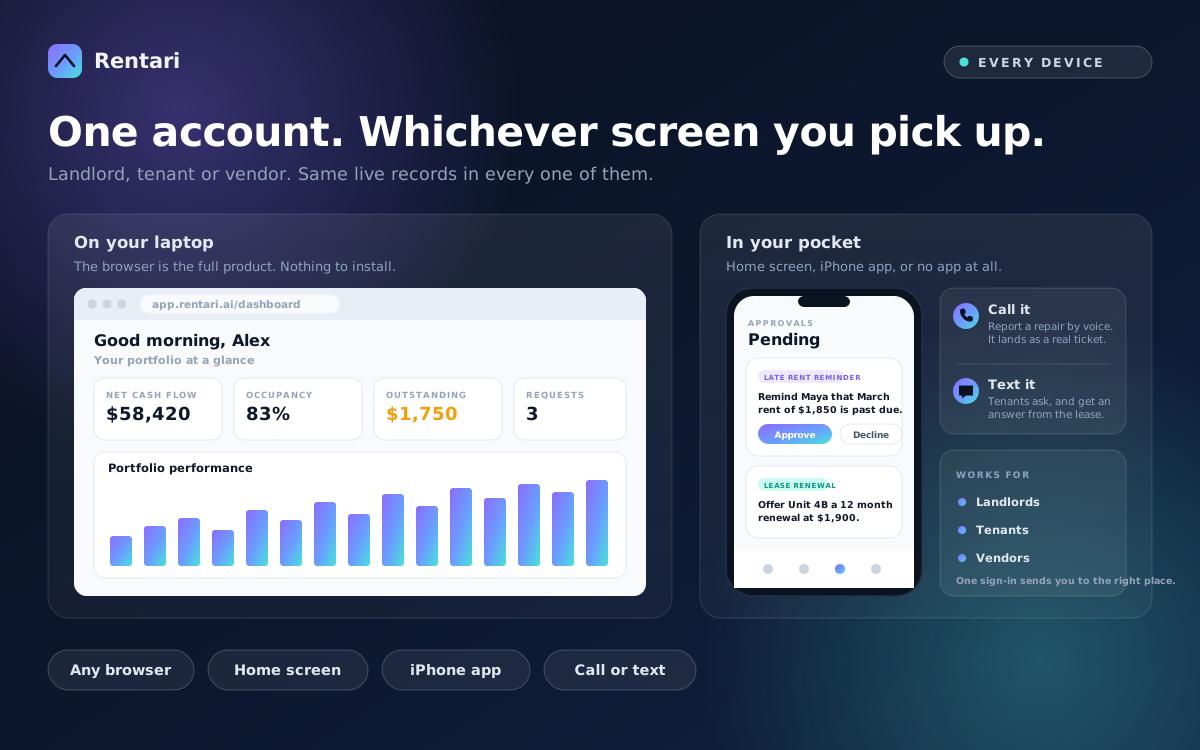
There is nothing to install and nothing to download. Open any modern browser on a laptop, a tablet or a phone, sign in, and you have the complete product. The layout adapts to the screen you are on, so a phone gets a version built for a phone rather than a desktop page you have to pinch and drag around. This matters more than it sounds: the browser is not a stripped-back companion to a "real" app somewhere else. It is the real thing, and every feature lives there first.
Where you land depends on who you are:
- Landlords, managers and co-owners go to your dashboard, where the portfolio, rent, leases, maintenance and accounting live.
- Tenants get a renter portal for paying rent, setting up autopay, sending a maintenance request with photos, reading the lease, and messaging the landlord.
- Vendors get a portal for the jobs assigned to you: work orders, schedule, bids, documents and credentials.
Same sign-in for all three. Rentari sends you to the right place based on your account, so nobody has to remember a different address.
Put it on your home screen in about fifteen seconds
If you use Rentari more than once a week, stop typing the address. Rentari can install to your home screen and open like an app: full screen, its own icon, no address bar across the top. Sign in first, then add it from the dashboard you actually land on.
- On an iPhone or iPad, in Safari: tap the Share button at the bottom, scroll down, tap "Add to Home Screen", then tap Add.
- On an Android phone, in Chrome: tap the three-dot menu at the top right, then "Add to Home screen" or "Install app", then confirm.
- On a desktop, in Chrome or Edge: look for the install icon at the right edge of the address bar, then click Install.
You end up with a Rentari icon sitting next to your other apps. It opens straight into your own dashboard, it remembers you are signed in, and because it is still the web version underneath, it is never a version behind.
The phone app, and who it is for
There is a native Rentari app on the App Store and on Google Play, free to download, and it runs on whatever plan you already have. It covers all three roles: sign in and it takes you to the landlord, tenant or vendor experience depending on your account.
The app is built for the things you do while standing up. Landlords get approvals, so the AI can draft a late-rent reminder or a renewal offer and you tap approve from wherever you are. Tenants get rent payment, maintenance requests with photos, and messaging. Vendors get their assigned work orders. If you mostly do longer sessions at a desk, the browser is still the better place for accounting, reports and lease drafting.
What about Android?
The Rentari app is on Google Play as well, free to download and running on the same plan as the iPhone app. If you would rather not install anything, the browser route above still works: add Rentari to your home screen and you get the full product with its own icon and a full-screen view, not a cut-down mobile page. Nothing in Rentari is locked behind having a native app.
When you cannot open anything at all, call it or text it
Some of the time the honest answer is that nobody is opening an app. A tenant with a burst pipe at midnight is not going to hunt for a login, and a landlord driving between properties should not be reading a screen. So there are two ways into Rentari that need no device beyond a phone that makes calls.
- Call it. Rentari answers the phone. A tenant can report a repair by describing it out loud, and the request lands in the system as a real ticket with the details captured, not as a voicemail somebody has to transcribe later.
- Text it. Tenants can handle a lot by SMS: ask a question about the lease and get an answer drawn from the actual document, report a problem, or get a reminder that rent is due. It works on any phone that can send a text, including one that has never seen an app store.
Both routes feed the same records as the dashboard. A repair reported by voice at midnight is in the landlord's maintenance list in the morning, with the tenant's own words attached.
What each role actually reaches for on a phone
After watching how the three roles use small screens, the pattern is fairly consistent:
- Landlords approve things. Send the late-rent reminder the AI drafted, approve a renewal offer, dispatch a maintenance ticket to a vendor, glance at what is unpaid. Short, decisive taps between other tasks.
- Tenants pay and report. Pay rent or turn on autopay, send a maintenance request with a photo attached, ask a question and get an answer without waiting for business hours.
- Vendors check and update. See the job, find the address and the unit, look at the photos before driving out, and mark the work done.
None of that needs a desk. The desk is for the monthly work: reconciling books, running a Schedule E, drafting a lease, reviewing applicants side by side.
One account, one set of records, whichever one you open
The thing that makes this useful rather than just a list of options is that none of it forks. There is no phone copy of your data that drifts from the desktop copy, no export to keep in sync, no "refresh on the other device" step. A payment recorded on a phone is in the ledger the moment you look at the browser. A maintenance request a tenant phoned in at midnight is in the same queue as one they filed on a laptop.
So pick whichever is closest. That is the entire point: the work happens where you are, and the system should not care which piece of glass you happened to pick up.