You have probably started asking an AI assistant to help you think. The one thing it has never been able to see is the portfolio you are thinking about. Rentari now hands you a key you can paste into the assistant you already use, so it can read your real records and, if you let it, act on them.
The copy-paste problem
Here is how most landlords use AI today. You open your assistant, you want to ask something real, and you realize it knows nothing about your properties. So you export a spreadsheet and paste it into the chat. Or you screenshot your rent roll. Or you just describe the situation from memory and hope you remembered the numbers right.
It works, sort of. But the export was stale the moment you made it, the screenshot only covered one screen, and your memory of who paid last month is exactly the thing you wanted help checking. The assistant was never the weak link. It simply had no way to see your records.
What changed
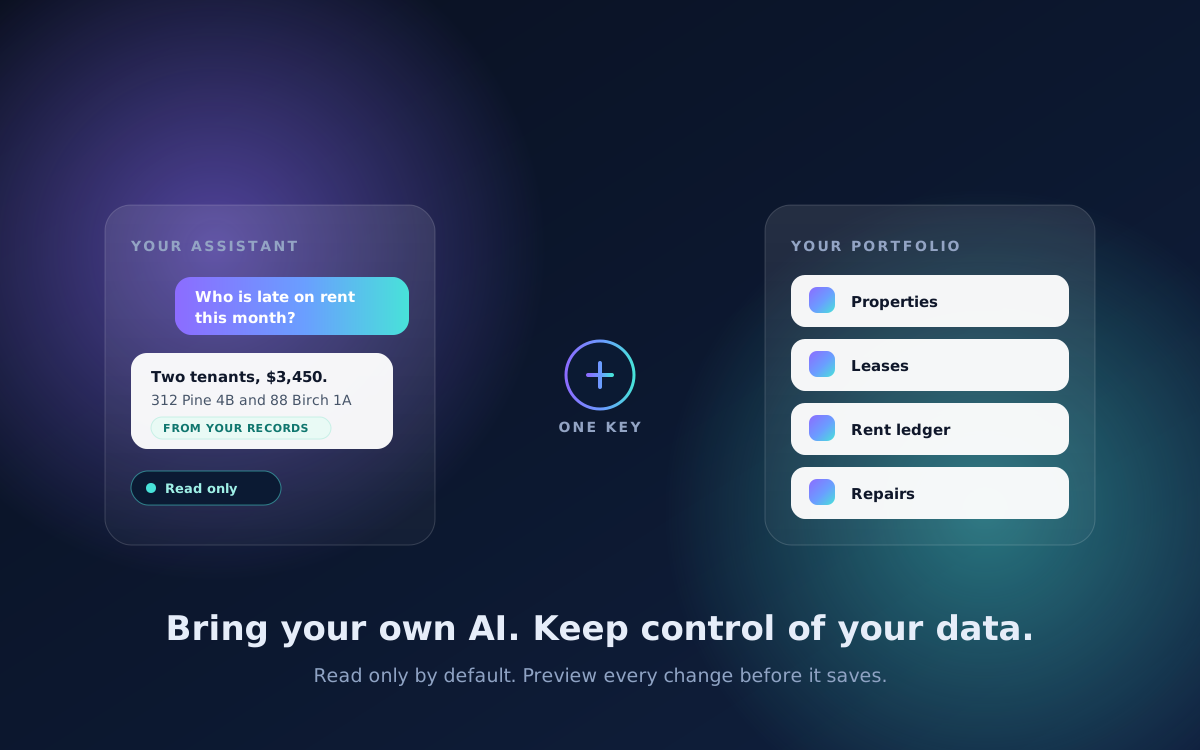
Rentari now runs a Model Context Protocol server. MCP is an open standard for letting an AI assistant connect to a system and use it. Instead of you being the courier between your records and your assistant, the assistant reads the records directly, live, every time you ask.
Practically, that means you can ask your own assistant things like:
- "What is still unpaid this month, and how much is it?" It reads your ledger and totals it.
- "Which leases end in the next ninety days?" It reads your leases and lists them.
- "What repairs are still open, and which look urgent?" It reads your maintenance tickets.
- "Draft a reminder for whoever is late." It pulls the real names and amounts, then writes it.
No export. No screenshot. No pasting. And because it is reading live, the answer reflects a payment that landed this morning.
Reading is the easy part. Changing things is where care matters.
An assistant that can only read is genuinely useful and fairly low risk. An assistant that can change your records is much more useful and deserves real guardrails. We built three.
1. You choose what the key can touch
Every key you create carries permissions, and the assistant can never exceed them. There are three levels, and the default is the narrowest one:
- Read only. It can look at everything and change nothing. This is the default, and for most people it is the right answer.
- Change records. It can update a property, a tenant's contact details, a lease date, or a maintenance ticket.
- Change rent or deposits. A separate permission on top, for anything that changes what a tenant is actually billed.
That last split is deliberate. An assistant tidying up your maintenance tickets should not be one sentence away from changing somebody's rent. If you never grant the money permission, no amount of clever prompting gets there, because the refusal happens on our side, not in the model's judgment.
2. It shows you the change before it makes it
Every change an assistant can make has a preview mode. The assistant asks Rentari to run the change as a preview, we validate it and report exactly what the record would look like afterward, and nothing is saved. Your assistant can then tell you, in plain language, what it is about to do.
So the exchange looks less like "I updated your lease" and more like "this would change the end date on Unit 4B from December 31 to June 30, and leave the rent unchanged. Should I save it?" You answer in your own words, in your own chat, and only then does anything move.
A preview that is wrong costs you nothing, because a preview saves nothing. That is the entire point.
3. The key is yours, and only yours
A key is bound to your account. An assistant holding it can read and change your portfolio and cannot reach anyone else's, no matter what it is asked. We store keys scrambled rather than in plain text, show you the key exactly once when you create it, and stop honoring it the second you revoke it. Sandbox keys can never change anything at all, whatever permissions they carry.
You can also create more than one. A read-only key for the assistant you experiment with, and a narrower or wider one for a tool you trust more. Revoking one does not disturb the others.
Setting it up
The whole thing takes about a minute once your access is approved:
- Open your developer settings in Rentari and create a key.
- Choose what it is allowed to do. Start with read only. You can make a wider key later.
- Copy the key. It is shown once, so put it somewhere safe.
- Paste it into your assistant using the configuration snippet we show you on the same screen.
API access is reviewed before your first key is issued, so this is not instant. We look at each request so we can match the use case to the right limits. After that, creating and revoking keys is entirely in your hands.
Why an open standard instead of our own thing
We could have built a Rentari-only integration for one assistant. MCP is an open protocol, which means the same key works with any assistant that supports it, including ones that do not exist yet. You are not betting on us picking the winning AI, and you are not locked into whichever one we happened to integrate first.
It also means this sits alongside, rather than replaces, the AI already inside Rentari. Mozart still drafts and runs the work inside the product, and Ask Rentari still answers questions with the source cited. Connecting your own assistant is for the moments when you are already thinking somewhere else and want your portfolio to be there with you.
Start narrow
If you take one thing from this: create a read-only key first. Spend a week asking your assistant real questions about your portfolio and see whether the answers are useful. Widening a key later takes seconds. Handing an unfamiliar tool the ability to change your records on day one is a decision you cannot un-make quite as quickly.
Read only, then decide.